
iPad Screen Time Setup Guide for PYP Parents
At our school, iPads are an essential learning tool used daily in class.
However, we’ve noticed that some iPads are blocked during school hours due to Screen Time settings.
This guide will help parents:
✅ Keep healthy screen time limits
✅ Allow full access during school Hours (Mon - Fri, 8:30 - 16:00)
✅ Avoid learning disruptions in class.
👨👩👧👦 Why This Matters for PYP Students
PYP learning involves:
Research
Creating presentations
Using learning apps
Documenting learning with photos & videos
If Screen Time blocks apps during school hours, children may:
Be unable to complete classwork
Miss learning activities
Feel confused or frustrated
💡 Screen Time should support learning — not stop it.
👨👩👧👦 Overview: What Parents Will Set Up
We recommend this balanced approach:
Time | iPad Access |
|---|---|
School Days (Mon - Fri) | Unlimited access 8:30 - 16:00 |
After school / Weekends | Screen Time limits apply |
Night time | Downtime enabled. |
🧩 Part 1: Turn ON Screen Time (If Not Yet Set)
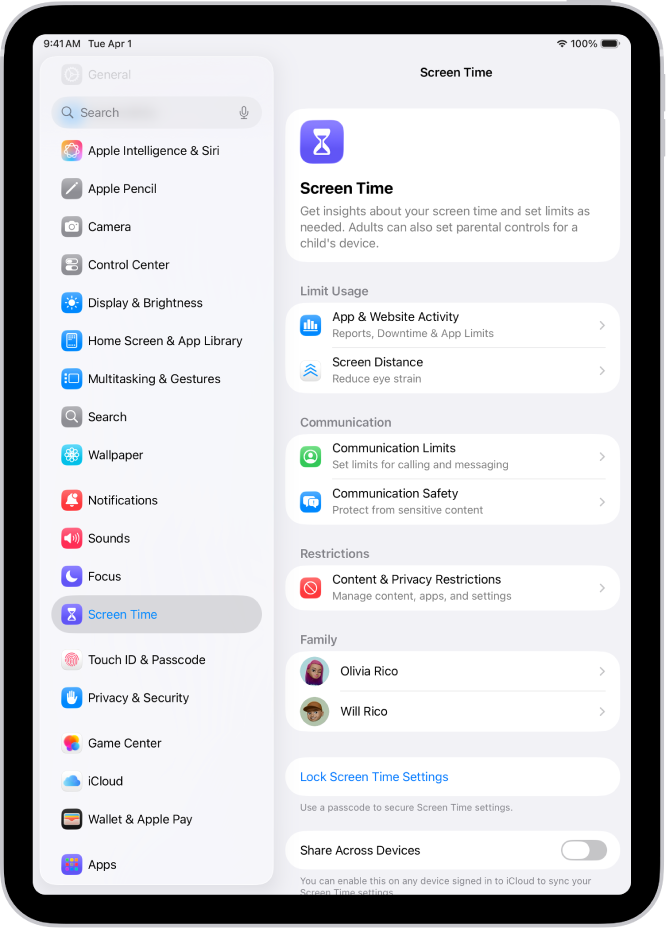
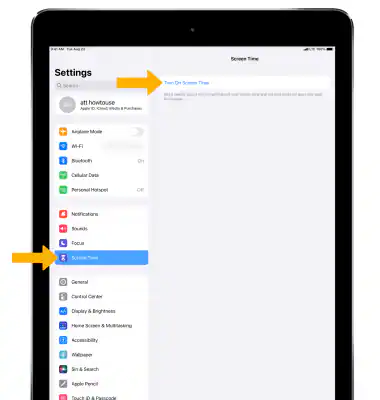
Open Settings
Tap Screen Time
Tap Turn On Screen Time
Choose This is My Child’s iPad
Set a Parent Screen Time Passcode
⚠️ Please do not share this passcode with your child
⏰ Part 2: Set School hours as “Always Allowed"
This is the MOST IMPORTANT STEP to avoid blocking learning.
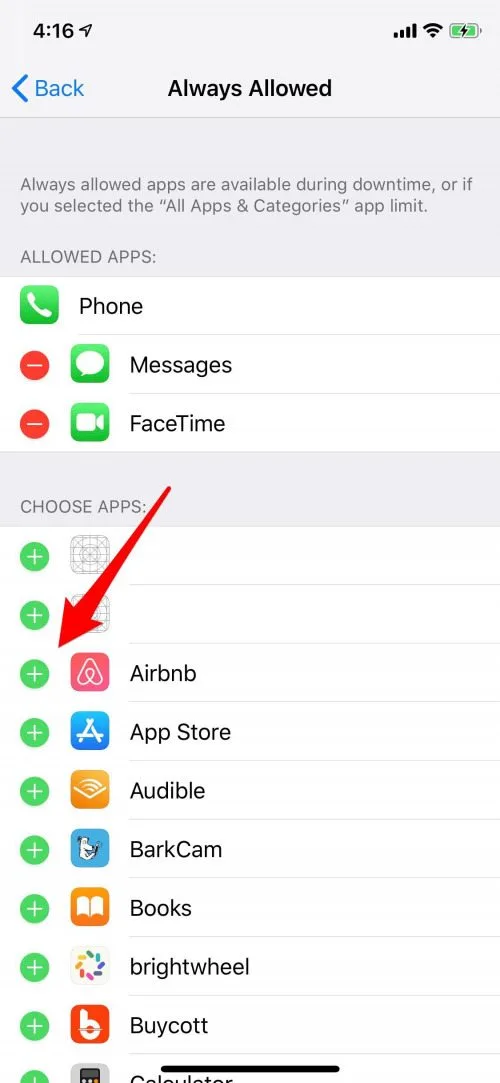
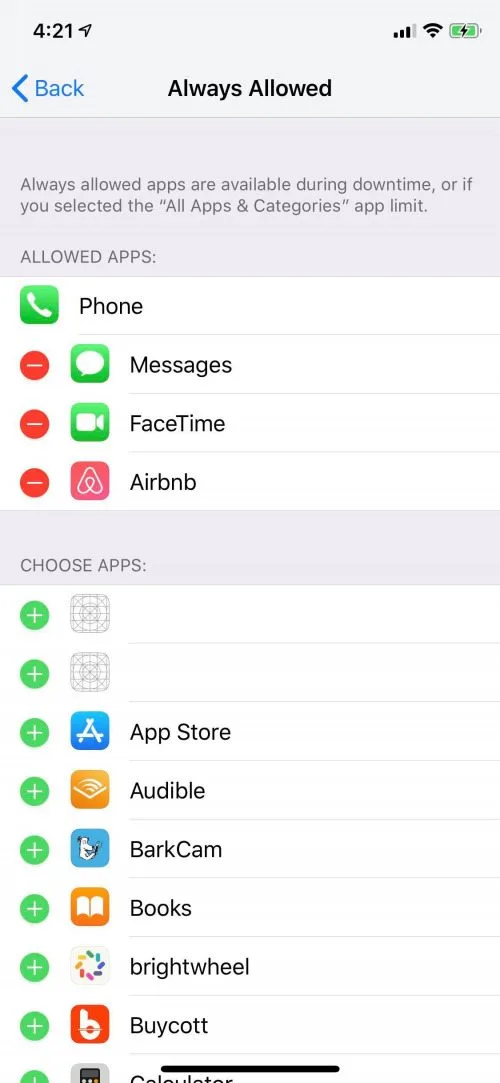
Step-by-step:
Go to Settings → Screen Time
Tap Always Allowed
Ensure these are allowed:
Chrome
Toddle (Student)
Camera
Photos
RazKids
Reading Eggs
Matific
IXL
and other educational apps that are used in school (please confirm with respective homeroom teachers)
📌 Apps in Always Allowed with work even during Downtime.

Important reassurance for parents:
Please note that all student iPads connected to the school network are protected by the school’s firewall and content filtering system.
This means that even if apps such as Chrome or Camera are set as Always Allowed, students will only be able to access age-appropriate and school-approved content during the school day.
🕗 Part 3: Set Downtime Correctly (Do NOT Block School Time)
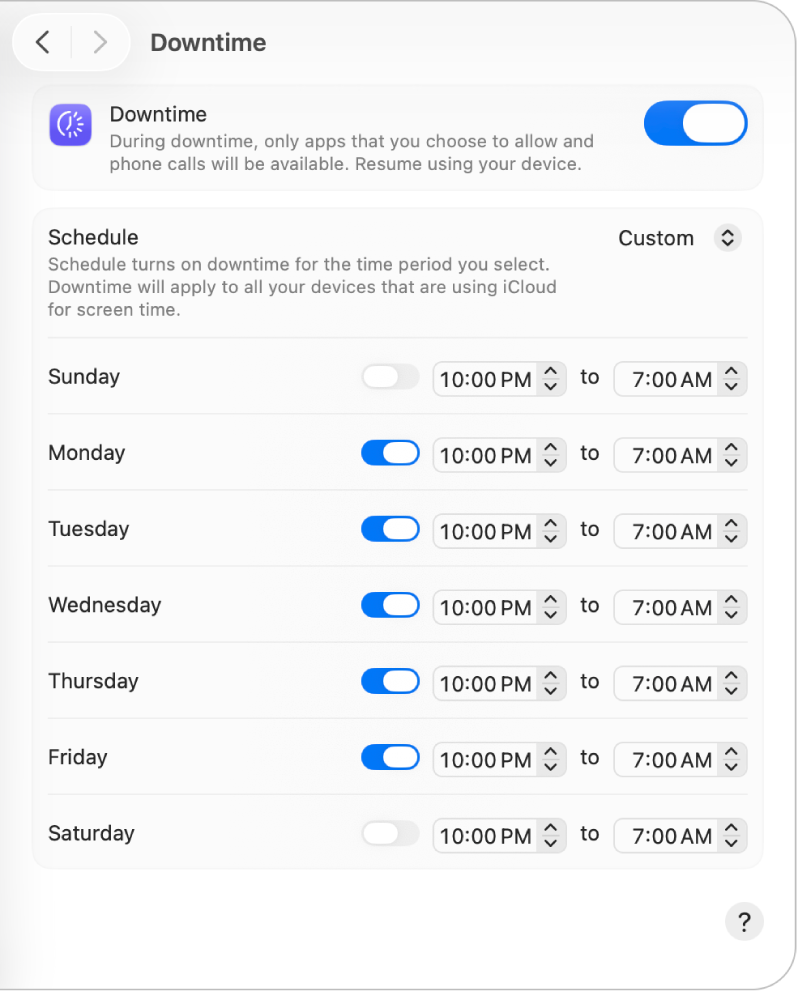
Recommended Downtime Schedule
Go to Settings → Screen Time → Downtime
Turn Downtime ON
Set:
Start: 16:30
End: 7:30
✅ This ensures:
iPad works fully during school
Downtime applies after school and overnight
❌ DO NOT set Downtime from 8:00 - 16:00
📆 Part 4: App Limits (Optional but Recommended)
Use App Limits outside school hours only.
Suggested limits:
Games: 1 hour/day
Entertainment (YouTube, Netflix): 1 hour/day
📌 Do NOT add learning apps to App Limits
🧠 Common Mistakes to Avoid
🚫 Setting Downtime during school hours
🚫 Blocking Chrome
🚫 Limiting "Education" apps
🚫 Forgetting to add school apps to Always Allowed
🛠️ If Your Child Says: "My iPad Doesn’t Work at School"
Please check:
Is Downtime active during 8:00 - 16:00?
Are learning apps in Always Allowed?
Are App Limits blocking educational apps?
If unsure, temporarily turn off Screen Test to test.
🤝 Our School Recommendation
We fully support Screen Time use at home, but we kindly ask parents to:
✅ Allow unrestricted access during school hours
✅ Review settings together with your child
✅ Contact the school if unsure
This helps us ensure:
Smooth lessons
Less stress for students
Better learning outcomes
📩 Need Help?
If you need support:
📧 Contact the school ICT team parents.ict@aobajapan.jp
🏫 We’re happy to guide you step by step
💬 Thank you for supporting your child’s learning journey!
Balanced digital habits + uninterrupted learning = confident PYP learners 🌱