How to type in Japanese using an English keyboard
Your child can type in Japanese using an English keyboard on their MacBook. It's very simple to set up, and many students do this when using a Mac with an English keyboard.
Here’s how to add the Japanese typing option:
Click the Apple menu () at the top left corner of the screen.
Choose System Settings (or System Preferences, depending on your macOS version).
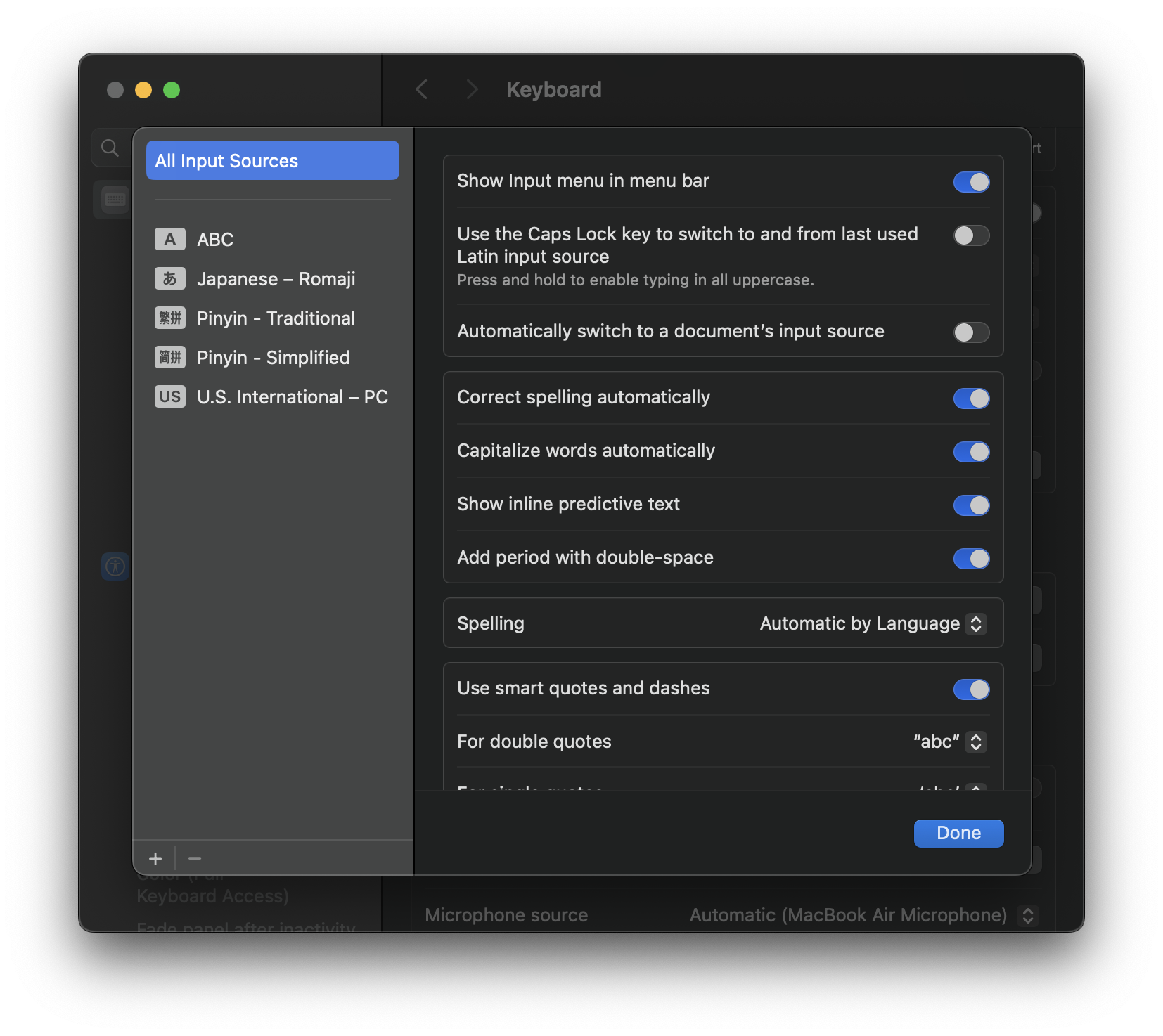
Select Keyboard, then go to Input Sources.
Click “+” (plus) to add a new input source.
Choose Japanese from the list.
You can select:
Hiragana (for typing in Japanese characters), or
Romaji input (type Japanese using English letters, and it converts automatically).
Once it's added, your child can easily switch between English and Japanese by:
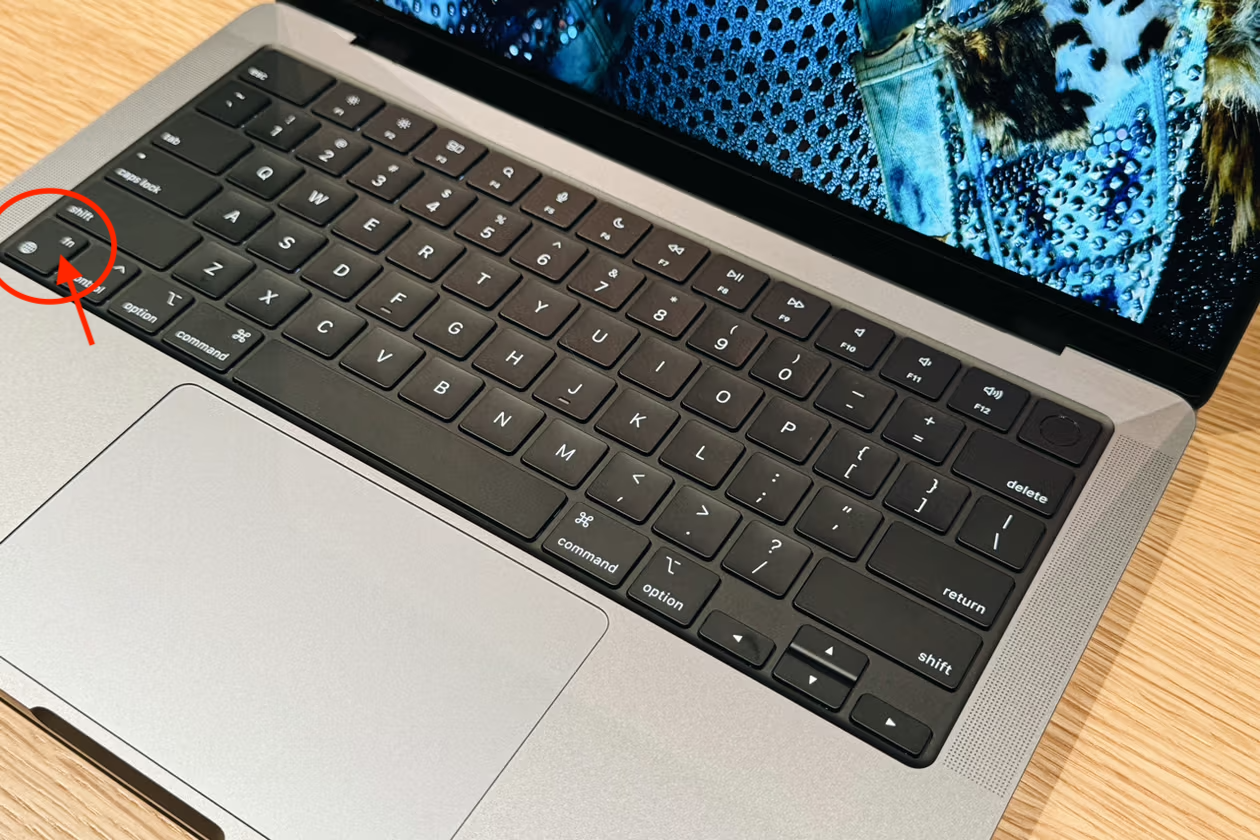
Pressing the Globe (🌐) key or fn key on the bottom left of the keyboard.
Or clicking the language icon (A or あ) on the top menu bar.