.png)
Your child can type in Japanese using an English keyboard on their MacBook. It's very simple to set up, and many students do this when using a Mac with an English keyboard.
Here’s how to add the Japanese typing option:
-
Click the Apple menu () at the top left corner of the screen.
-
Choose System Settings (or System Preferences, depending on your macOS version).
-
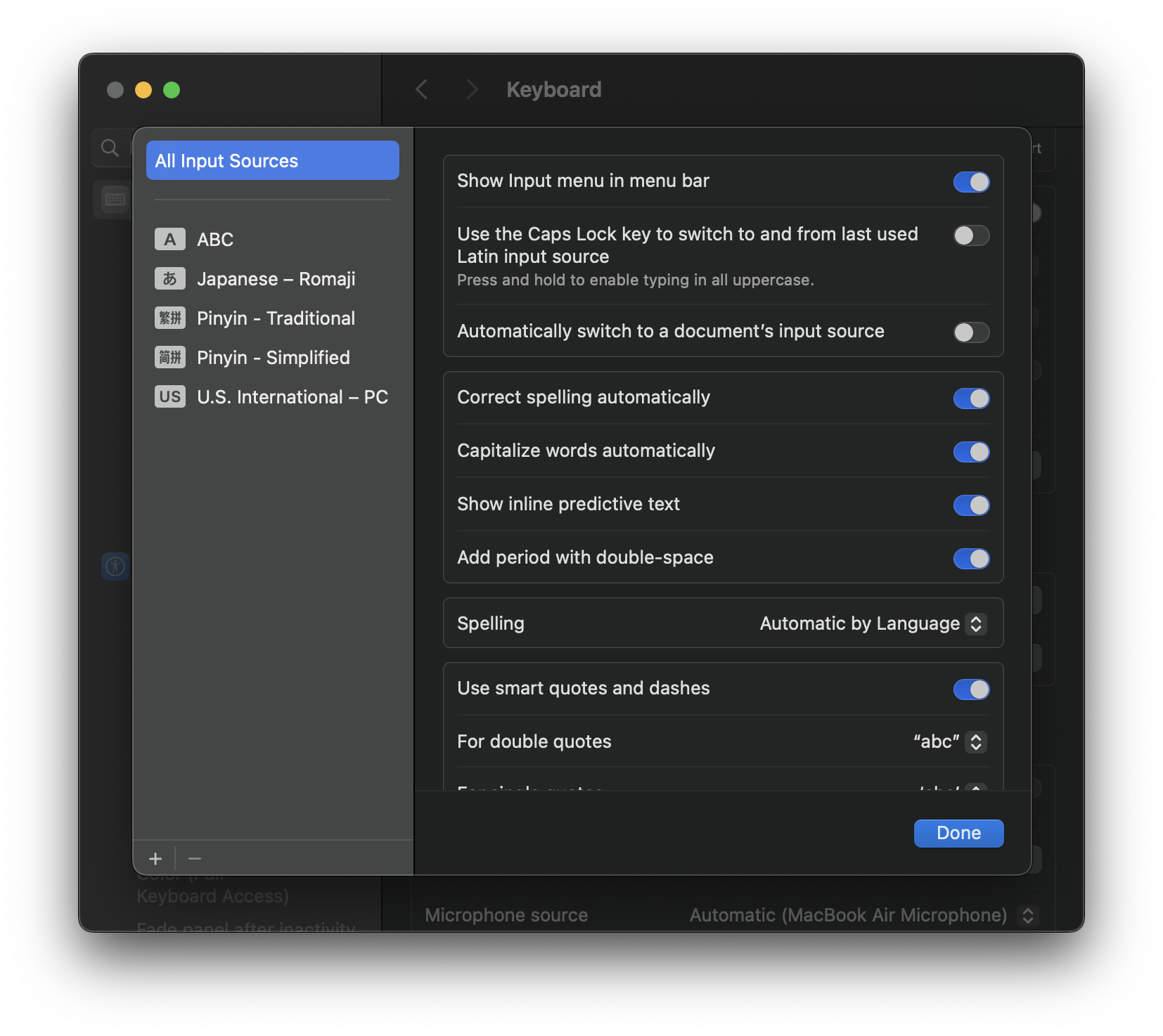
Select Keyboard, then go to Input Sources.
-
Click “+” (plus) to add a new input source.
-
Choose Japanese from the list.
-
You can select:
-
Hiragana (for typing in Japanese characters), or
-
Romaji input (type Japanese using English letters, and it converts automatically).
-
Once it's added, your child can easily switch between English and Japanese by:
-
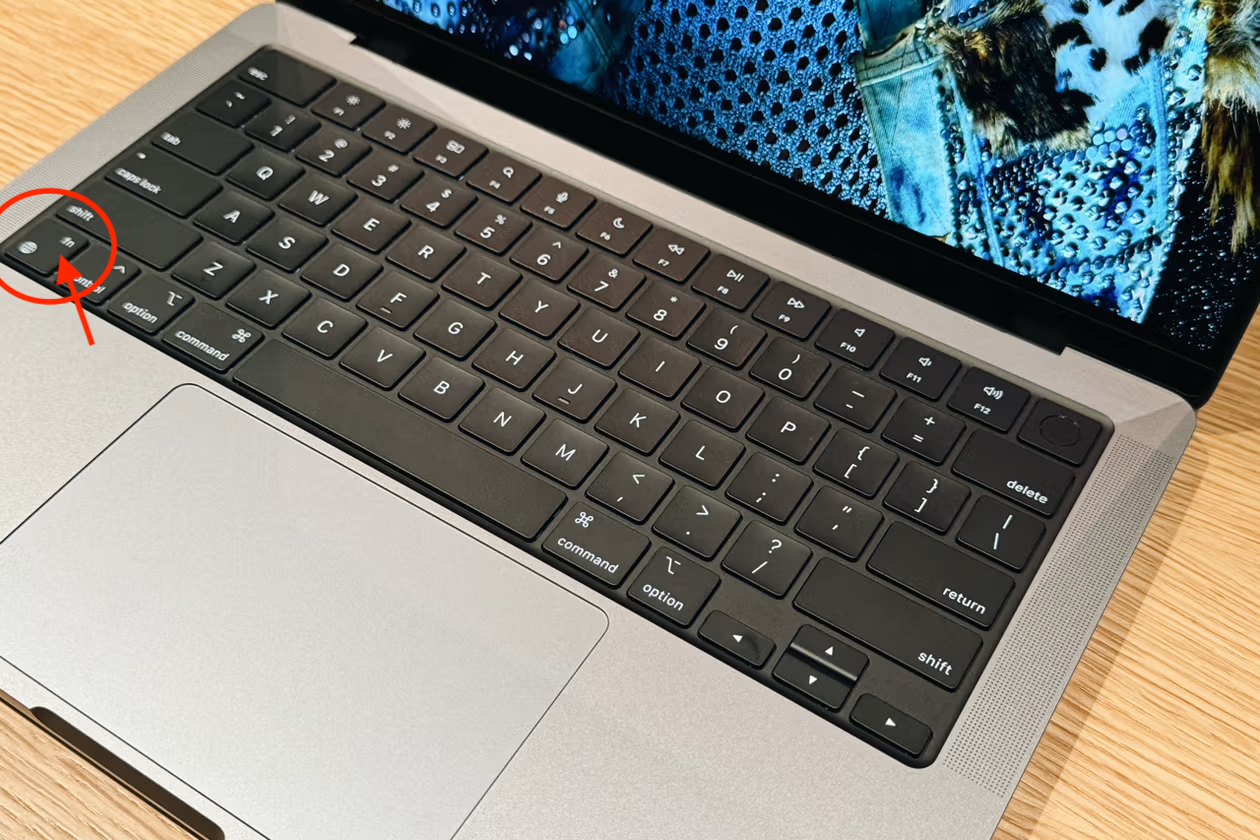
Pressing the Globe (🌐) key or fn key on the bottom left of the keyboard.
-
Or clicking the language icon (A or あ) on the top menu bar.