.png)
If you would like to customise or add a keyboard shortcut.
You may wish to have a custom keyboard shortcut to allow you to quickly switch between different language inputs on your computer.
Step-by-step guide
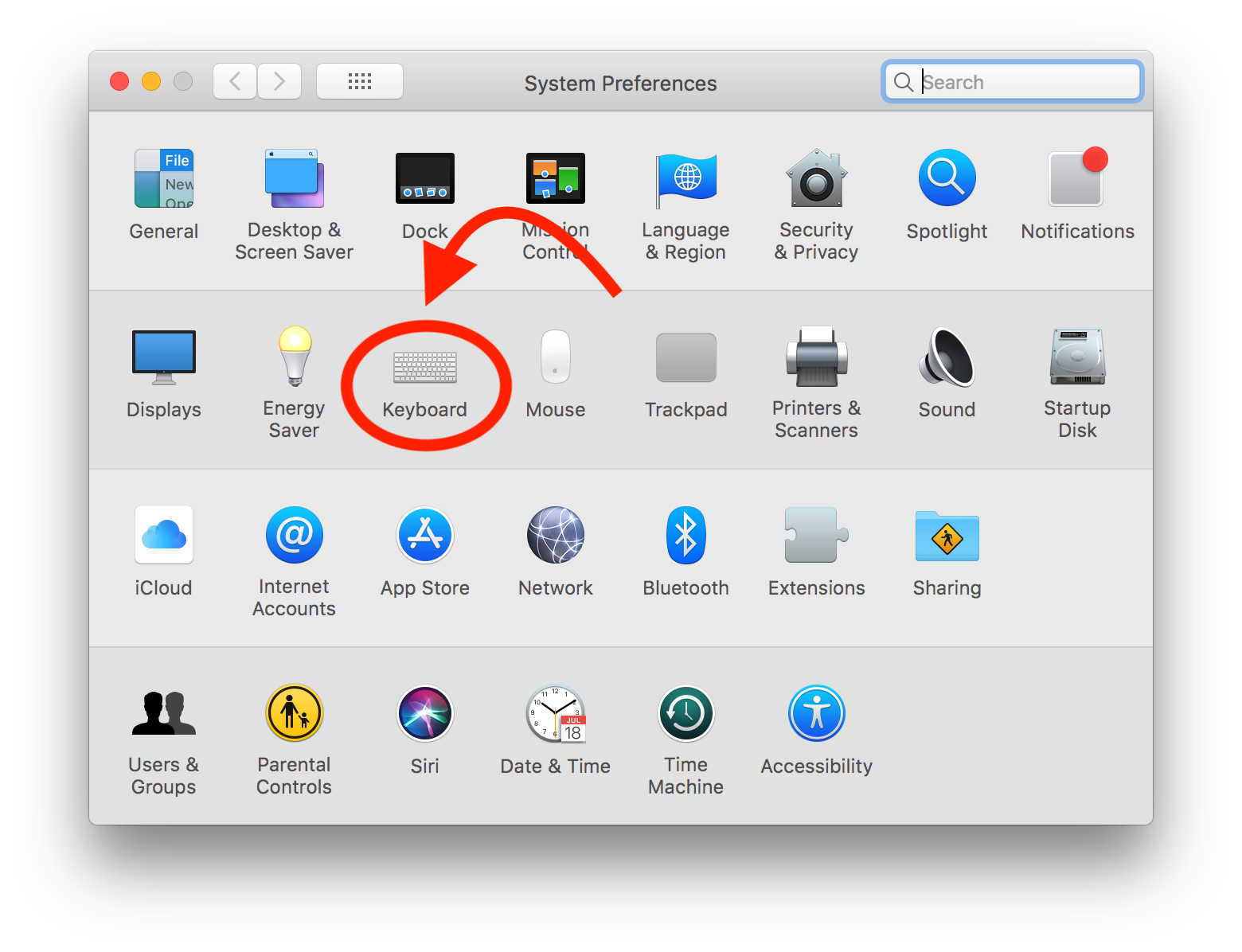
Open 'System Preferences' on your computer.

Select 'Keyboard'
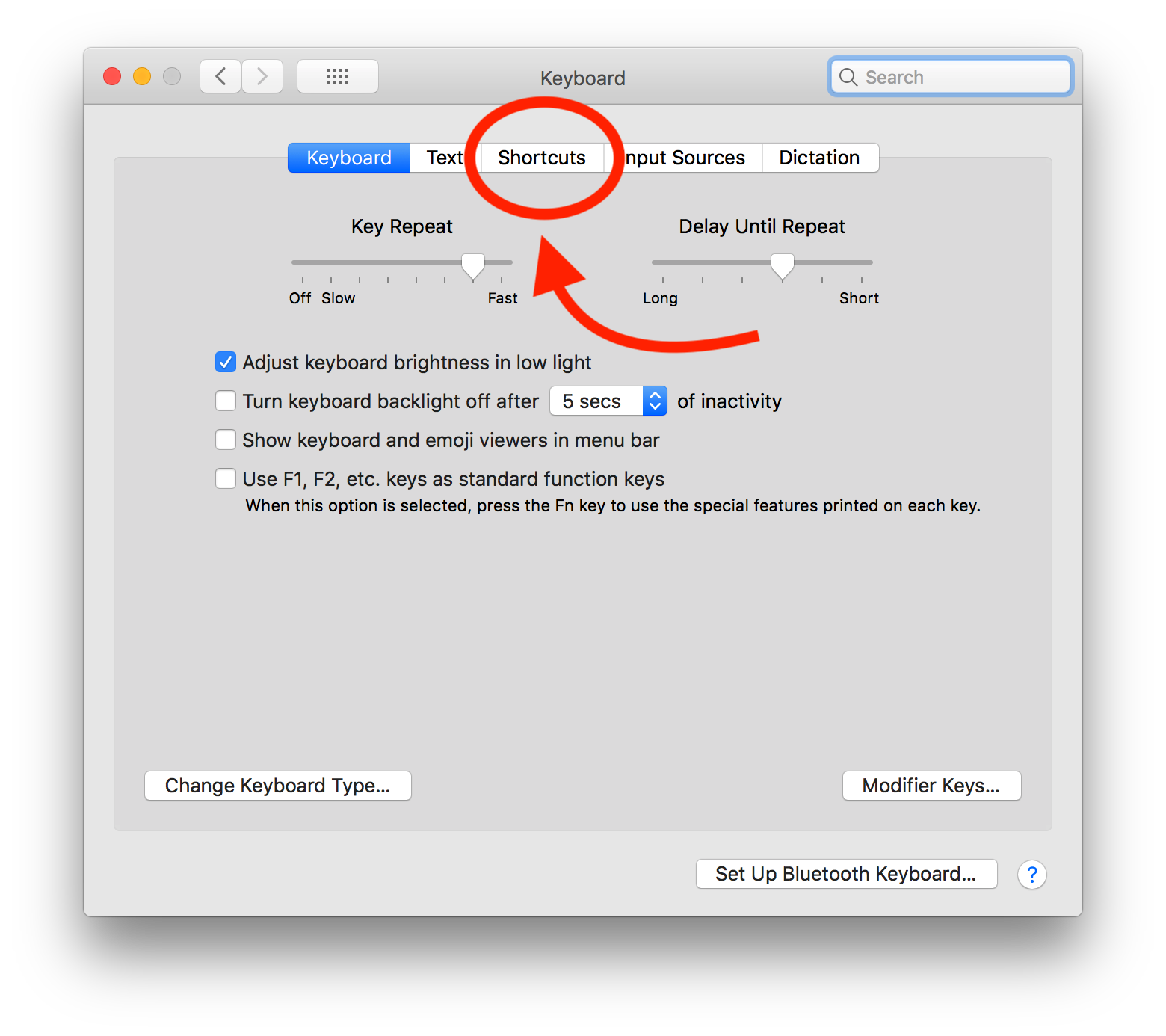
Select 'Shortcuts'
Select either 'Keyboard' or 'Input Sources' for a list of various keyboard shortcuts/commands which you can customise.
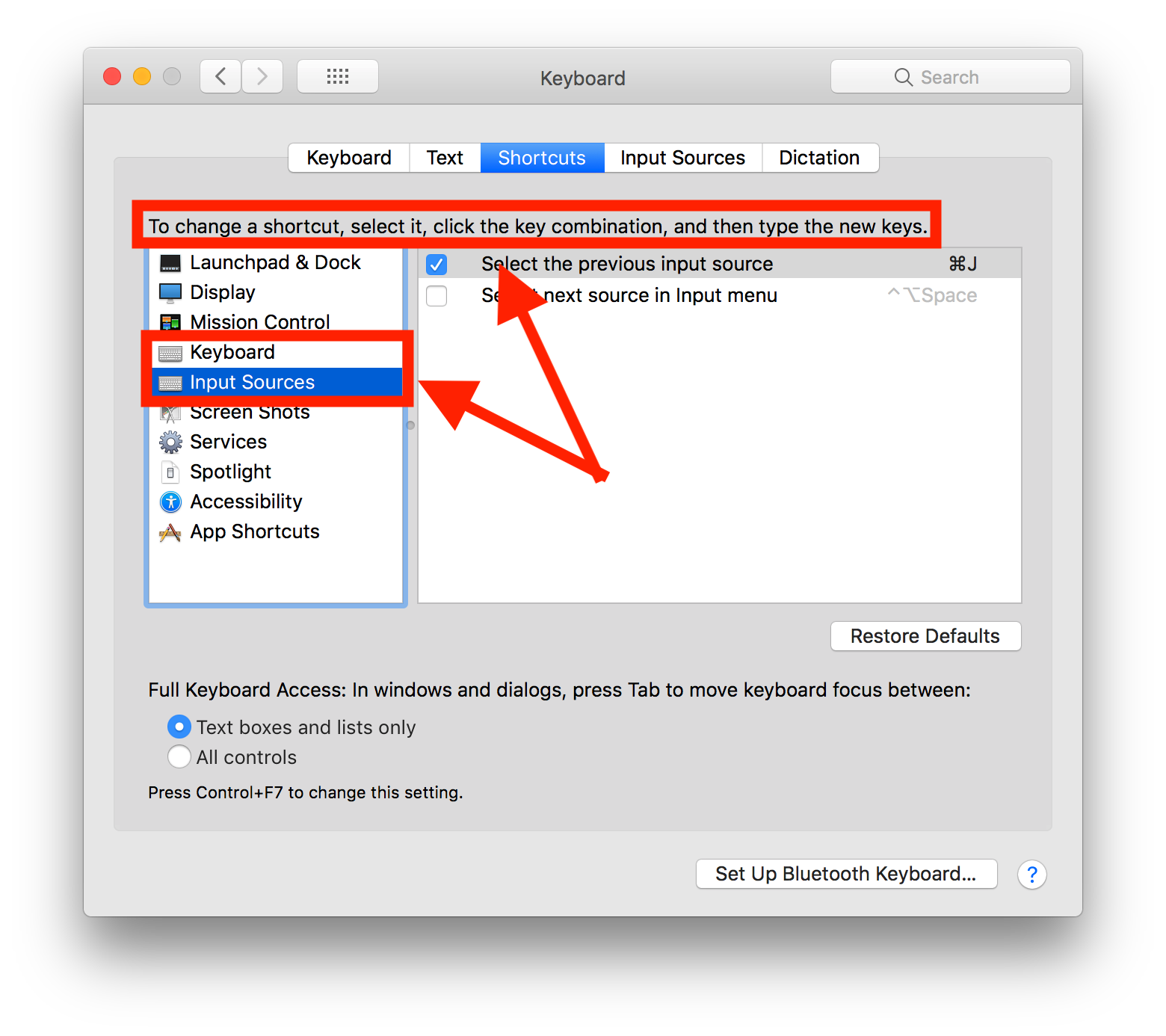
To change a shortcut, select it, click the key combination, and then type the new keys.
Done!
The new key combination you entered should now perform the associated action.
Note, you can not use the same keyboard shortcut for two or more different actions; they will conflict with one another.
Related articles