.png)
Turning on the system
The cafeteria in Hikarigaoka has the ability to use a sound system which has wireless microphones which can be used for hosting a Google Meet. The display that has the sound system uses a Chromebox that has the system connected to it. The steps for using the sound system with a Google Meet are as follows.
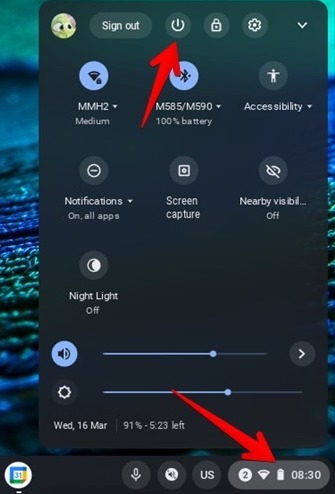
Turn on the Chromebox and log in with your credentials.
The display should automatically switch to the HDMI input.
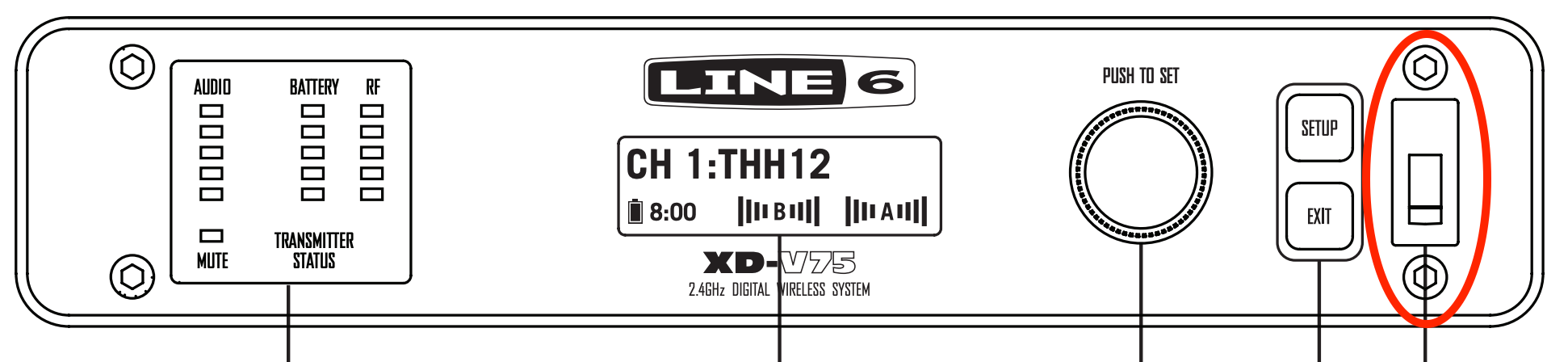
Turn on the wireless microphones from the switch.
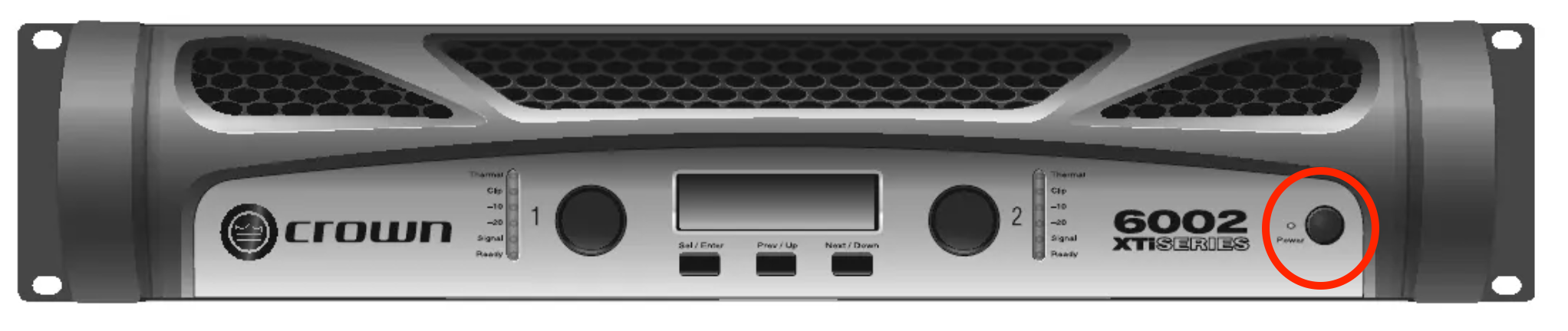
Turn on the amplifier.
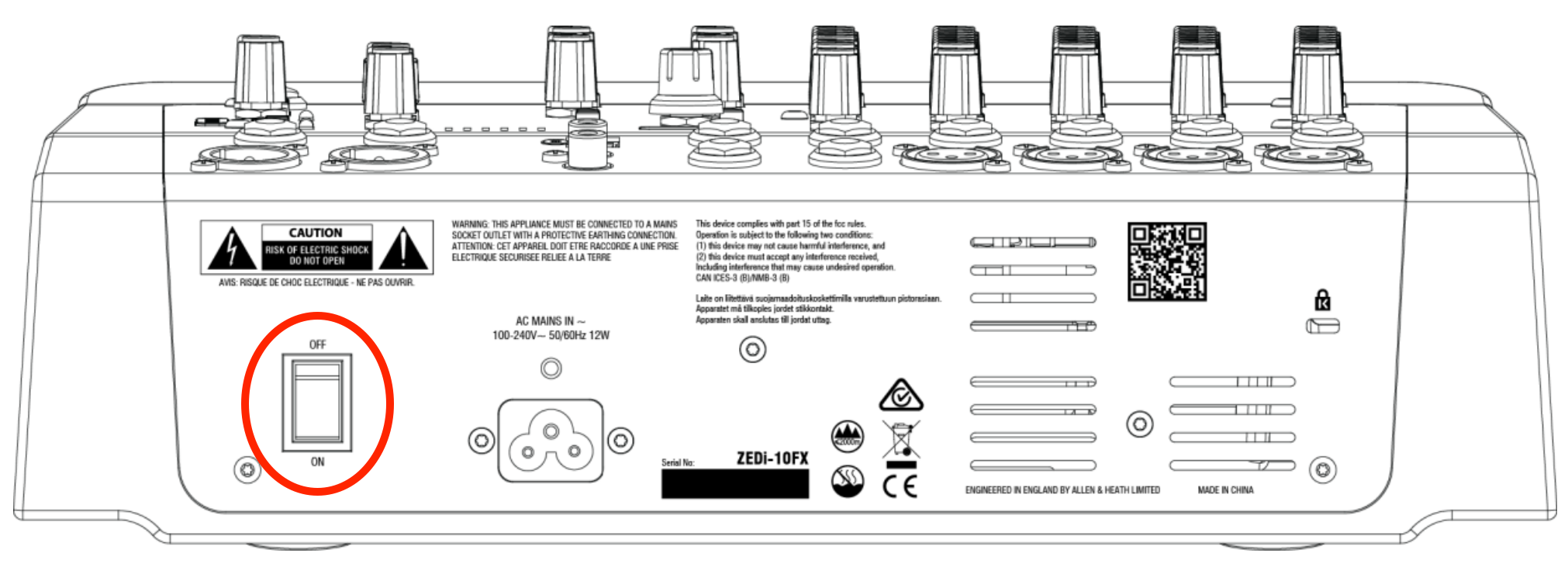
Turn on the mixer.
After entering a Google Meet do the following.
Click the three dots and go to Settings.
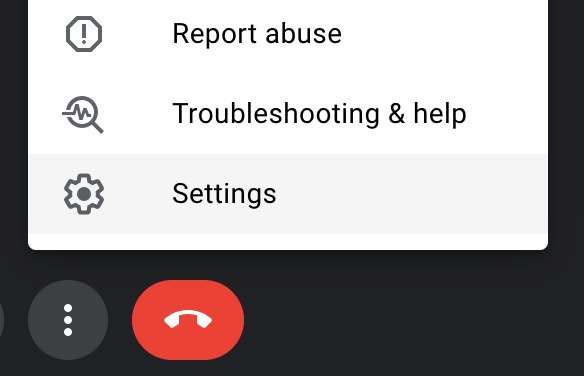
From the Audio tab:
Make sure that the Microphone section dropdown is selected to ZEDi10: USB Audio 2,0: Mic.
Make sure that the Speakers section dropdown is selected to ZEDi10: USB Audio 2,0.
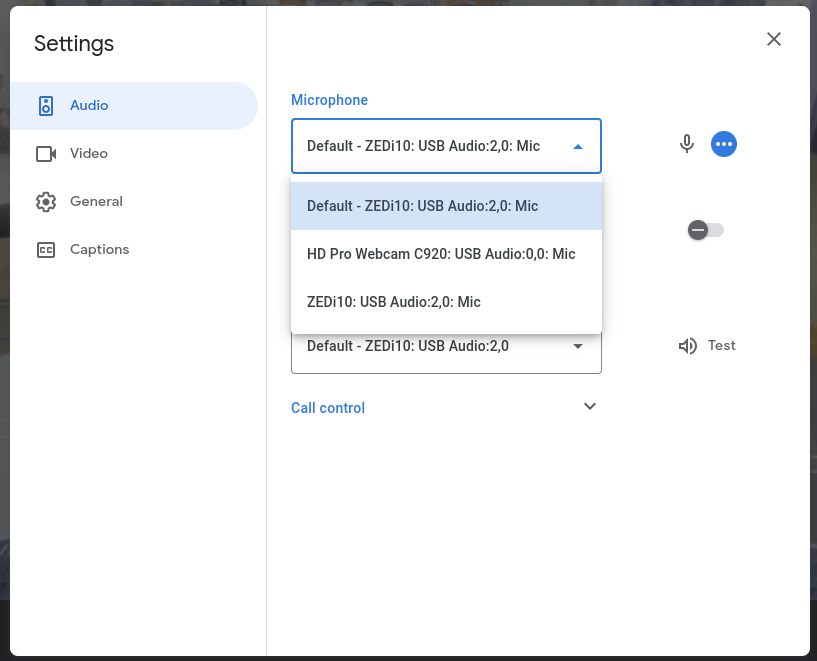
|
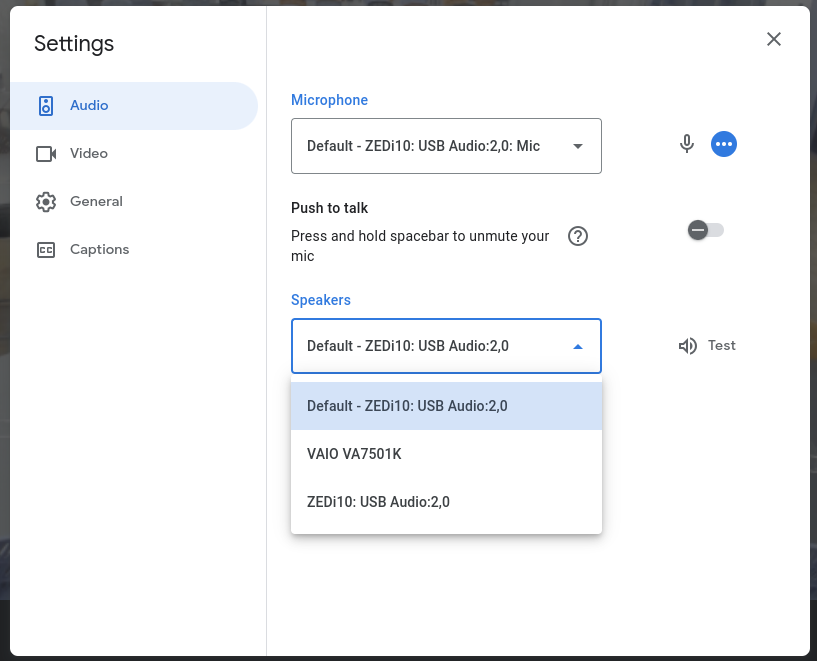
|
Turning off the system.
To turn off the system, simply turn off the mixer, amplifier, wireless microphones, and shut down the Chromebox.
To turn off the Chrome box click the icons in the lower right side of the screen and then click the power button icon.