.png)
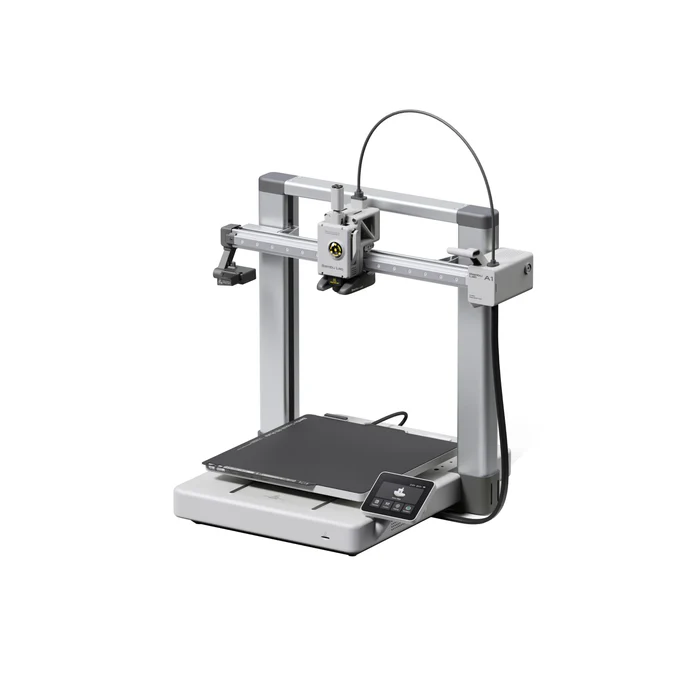
We currently have two Bambu Lab A1 3D printers available for student, faculty, and staff use. These machines are fast, reliable, and support a wide range of filament types. Here's what you need to know to get started.
🖥 Software: Bambu Studio
To prepare your 3D model for printing, we use Bambu Studio:
Download Bambu Studio
Compatible with Windows, macOS, and Linux, it supports model formats like .stl, .3mf, .obj, and more.
🎨 Filament Types
We currently support three kinds of filament:
-
PLA – Easy to use and ideal for most prints (in stock)
-
PETG – Stronger and more durable (not in stock)
-
TPU – Flexible and elastic for bendy prints (not in stock)
If you're unsure which filament to use, ask an ICT staff member.
🧼 Tips for Successful Printing
Keep the Build Plate Clean
-
Avoid touching the build plate surface with your fingers (oils!!)
-
If needed, gently wash it with dish soap and warm water.
-
Dry with a clean paper towel before printing.
♻️ Changing Filament
You can change filament directly from the printer touchscreen:
-
Tap Filament
-
Choose Unload → remove old filament
-
Choose Load → insert new filament when prompted
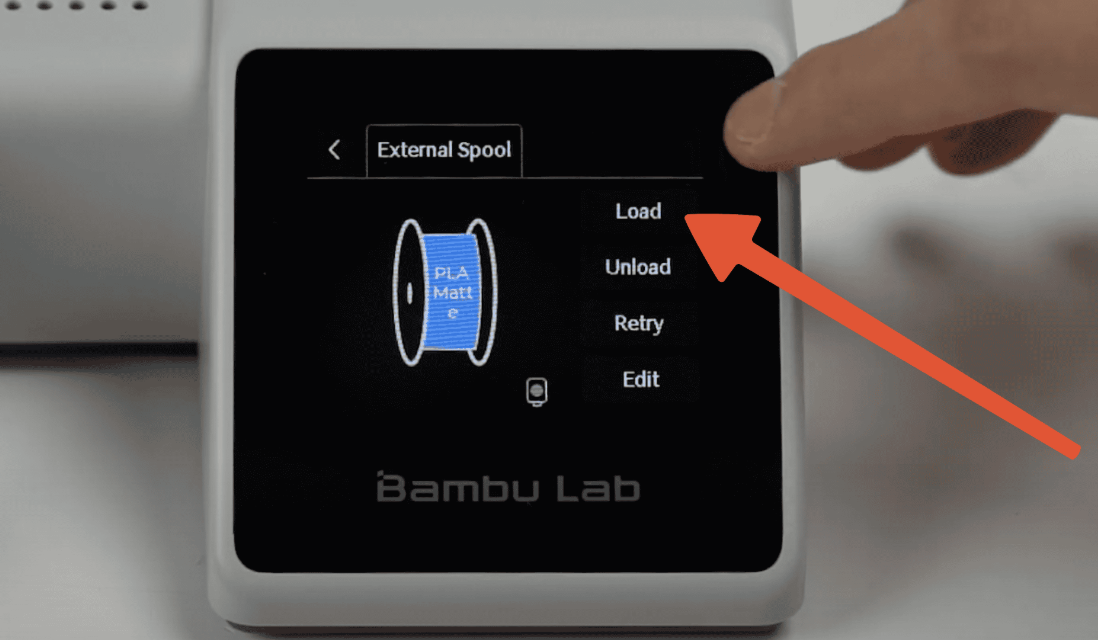
Follow the on-screen steps. You may need to gently push or pull the filament.
⚙️ Auto-Calibration
If your print quality seems off or after moving the printer:
-
Go to Settings → Maintenance → Calibration
-
This will auto-adjust things like bed leveling and nozzle height for best results
No tools or expertise needed—just follow the menu.
📚 Want to Learn More?
We recommend checking out: