How are online IB assessments proctored?
This article provides a bird’s eye view of the entire process from exam creation to record keeping. For detailed instructions on each step, please refer to the linked pages within.
Aoba Global Campus takes assessment integrity seriously and uses online proctoring tools to administer low- to high-stakes assessments required throughout the Diploma Programme. At this time, AGC is leveraging a solution called Auto Proctor. Learn more about it HERE.
Below are the steps outlining the full workflow. If you have any questions, please reach out to the AGC Director or the Technology Learning Specialist.
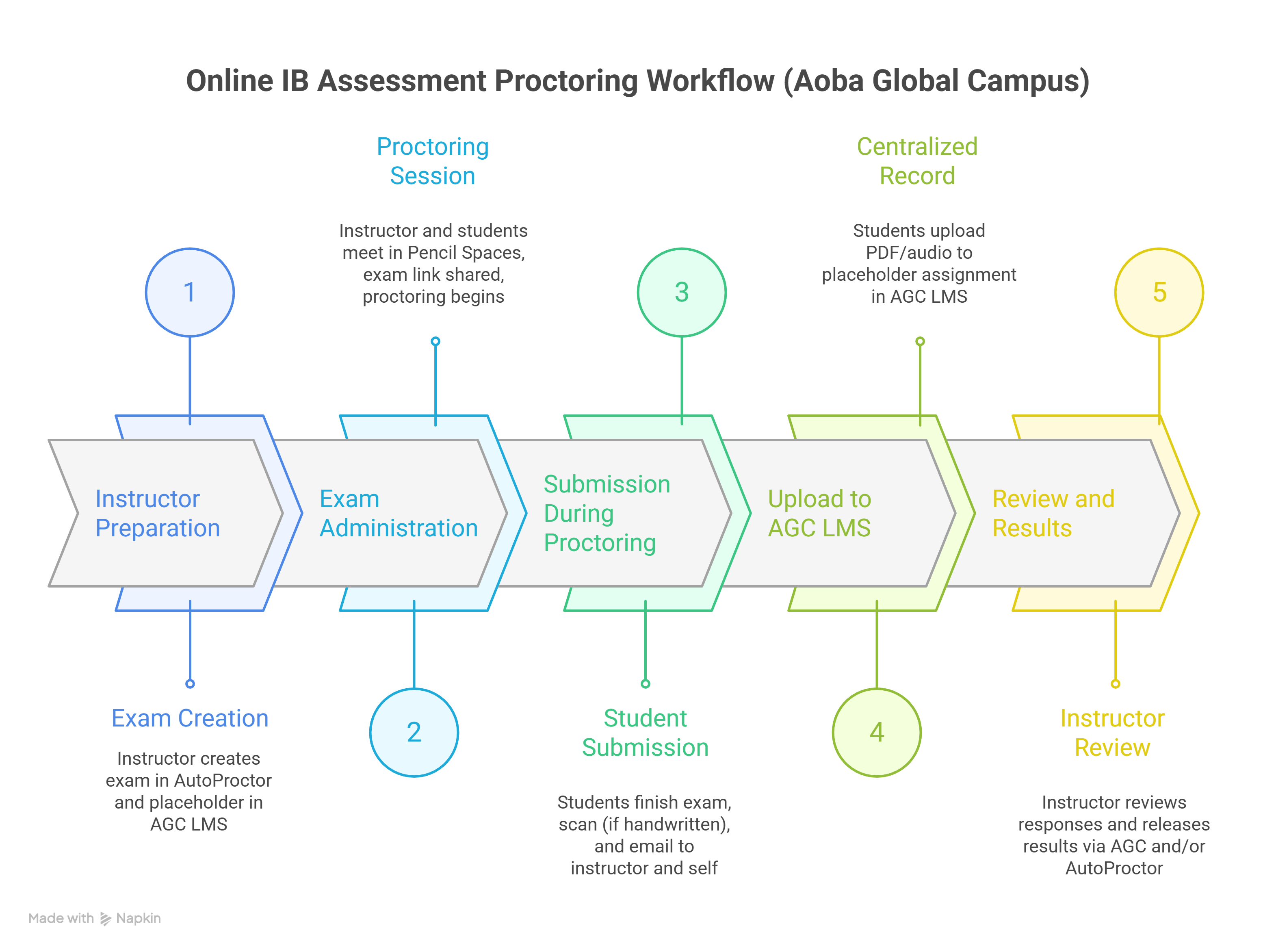
Step 1: Instructor Preparation
Instructors prepare assessments based on IBDP subject requirements. These may include class summatives, IB mock exams, internal orals, or end-of-year assessments. In most cases, delivery will leverage an online exam proctoring service such as Auto Proctor, often used alongside web-meeting platforms when needed.
On the examination service (Auto Proctor), instructors create an assessment using the native quiz builder Socratease. Here, teachers can upload PDFs, audio files, and create a wide range of question types. More information on instructor setup can be found HERE.
In addition to configuring the proctored assessment, instructors must also create a placeholder assignment in the AGC LMS. This is where students will eventually upload their responses, typically in PDF format. The location of this submission should be located in the current module.

Step 2: Beginning the Assessment
On the day of the assessment, instructors and students meet in their Pencil Space. Once students are present and ready, the instructor administers the test by sharing the unique assessment link generated by Auto Proctor.
Each exam will have its own proctoring rules, availability window, and timing settings. Once the exam begins, students work through the assessment as instructed. To learn more about what the student exam flow looks like, see HERE.
Step 3: Submitting Responses During Proctoring
After answering all questions, students submit the test within the Auto Proctor interface before closing the proctoring window on their exam device.
For certain assessments, students may be required to handwrite their responses on paper. Depending on the subject, this may require lined paper, grid paper, or Japanese genkouyoushi.

The test should replicate actual test conditions. Using a notebook or paper with pre-written information by the examine is strictly not allowed.
Before ending the proctoring session, students must scan and send a copy of their handwritten responses to their instructor and themselves. This ensures that a timestamped original submission is recorded. Students will use Adobe Scan for this process. Details can be found HERE.
Once they have emailed their scanned responses, students may close Auto Proctor and end the proctoring session.
Step 4: Uploading to the AGC LMS
If the assessment required handwritten responses and/or local audio recordings, there is one additional step.
Students must upload the same PDF (or audio file) to the placeholder assignment on Aoba Global Campus. This assignment will have been created and shared in advance by the instructor.
This second submission ensures proper record keeping inside the LMS, even though the timestamped email remains the primary proof of timely submission.
Step 5: Instructor Review and Result Release
After submissions are received, instructors review student responses. Results may be released directly to students through AGC and/or through the Auto Proctor platform, depending on the assessment type. Teachers can learn more about releasing results HERE.
Once notified, students can view their results in Auto Proctor by following the guide located HERE.