.png)
This is quick tutorial to show how you can subscribe/add other calendars to your Google Calendar.
In this example, we will try to add the Bunkyo Senior School Day Rotation calendar.
You will need something called a Calendar ID - see below
Step 1: Navigate to the Google Calendar app
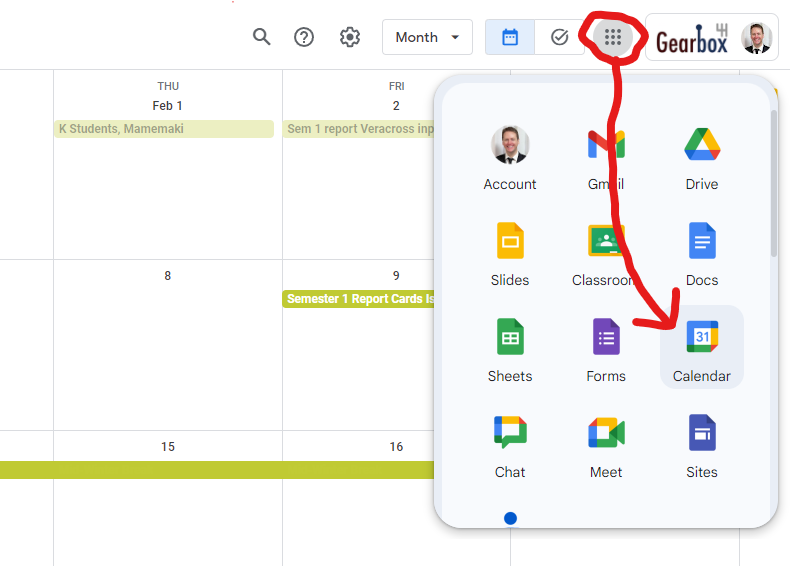
Make sure you are signed into the correct account
Step 2: Navigate to ‘Other Calendar’ and click the +
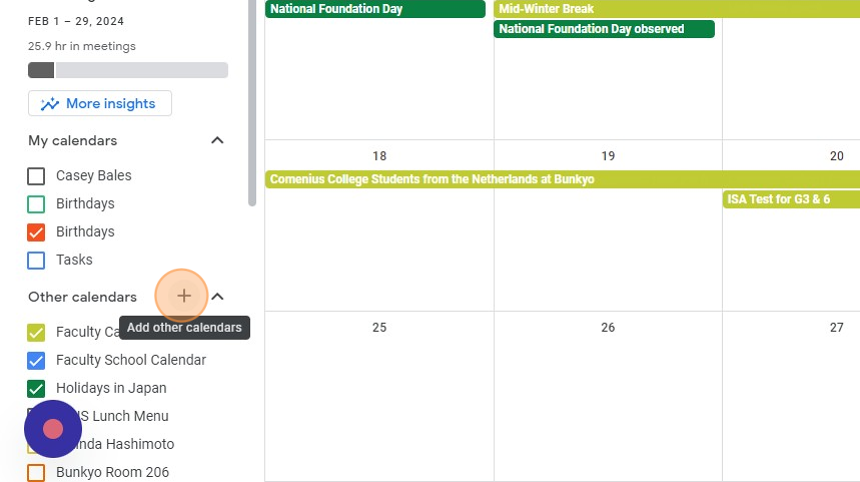
Step 3: Then click ‘Subscribe to calendar’
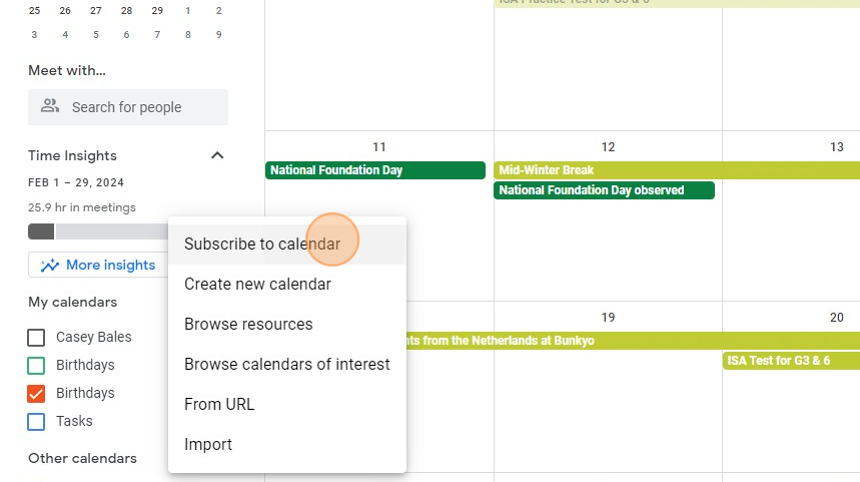
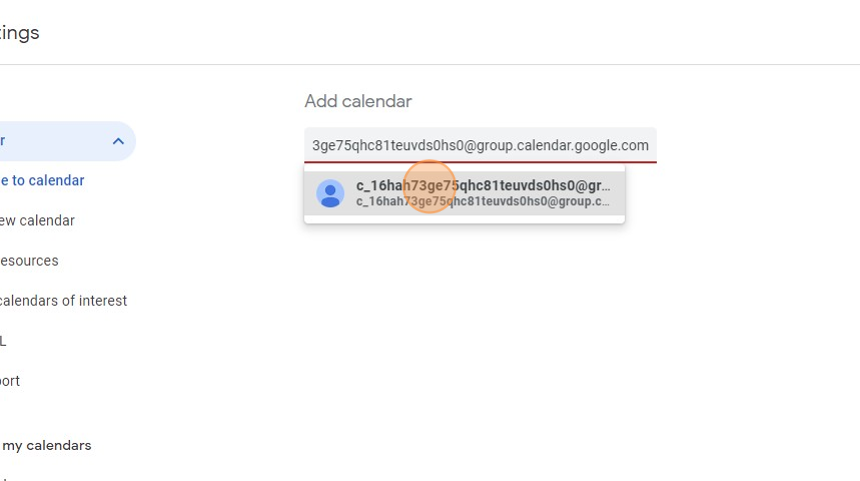
Step 4: Enter the Calendar ID and press enter.
If you just enter the name, there is a good chance it won’t be recognized as shown below.
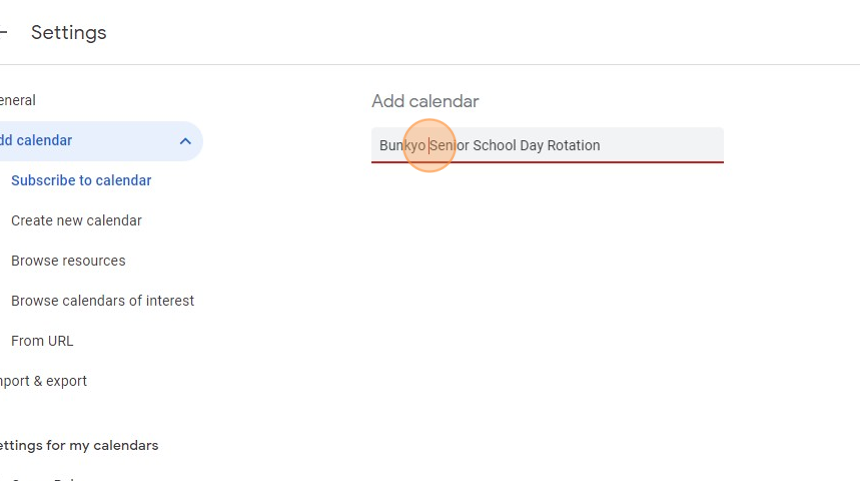
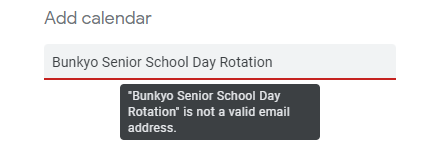
Instead, paste in the calendar ID which may look something like this.
‘c_16hah73ge75qhc81teuvds0hs0@group.calendar.google.com’
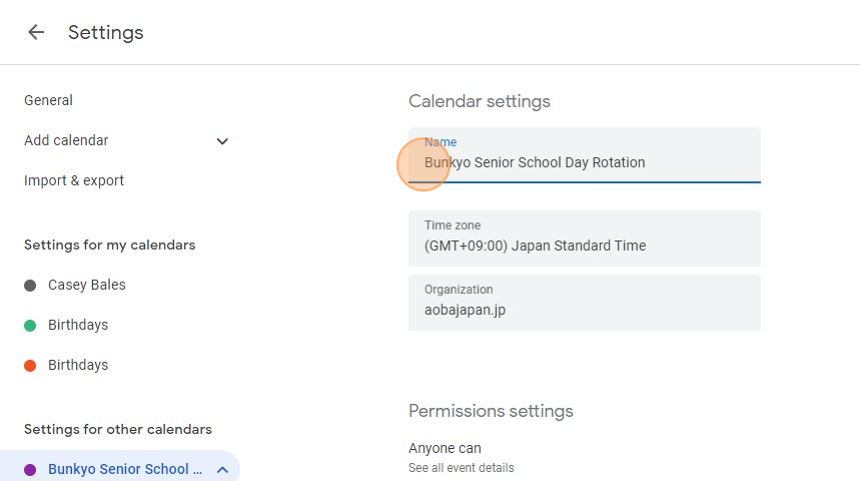
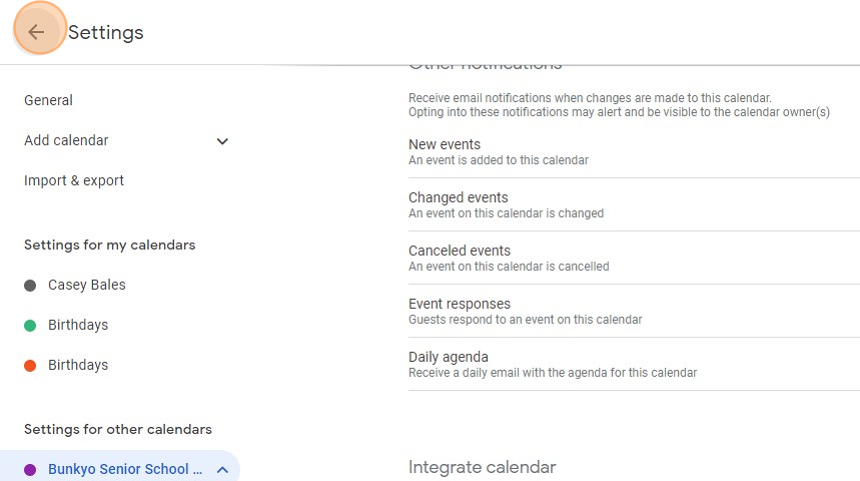
Step 5: After a couple seconds, it will confirm by showing a page labeled ‘Calendar Settings’ for that particular calendar.
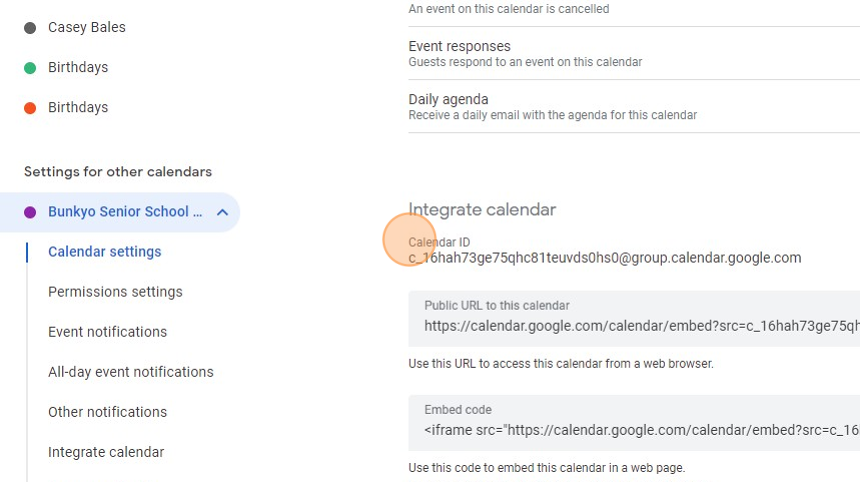
You can scroll down to a section called ‘Integrate Calendar’ to find the Calendar ID. Please share this others if they need to add the same calendar.
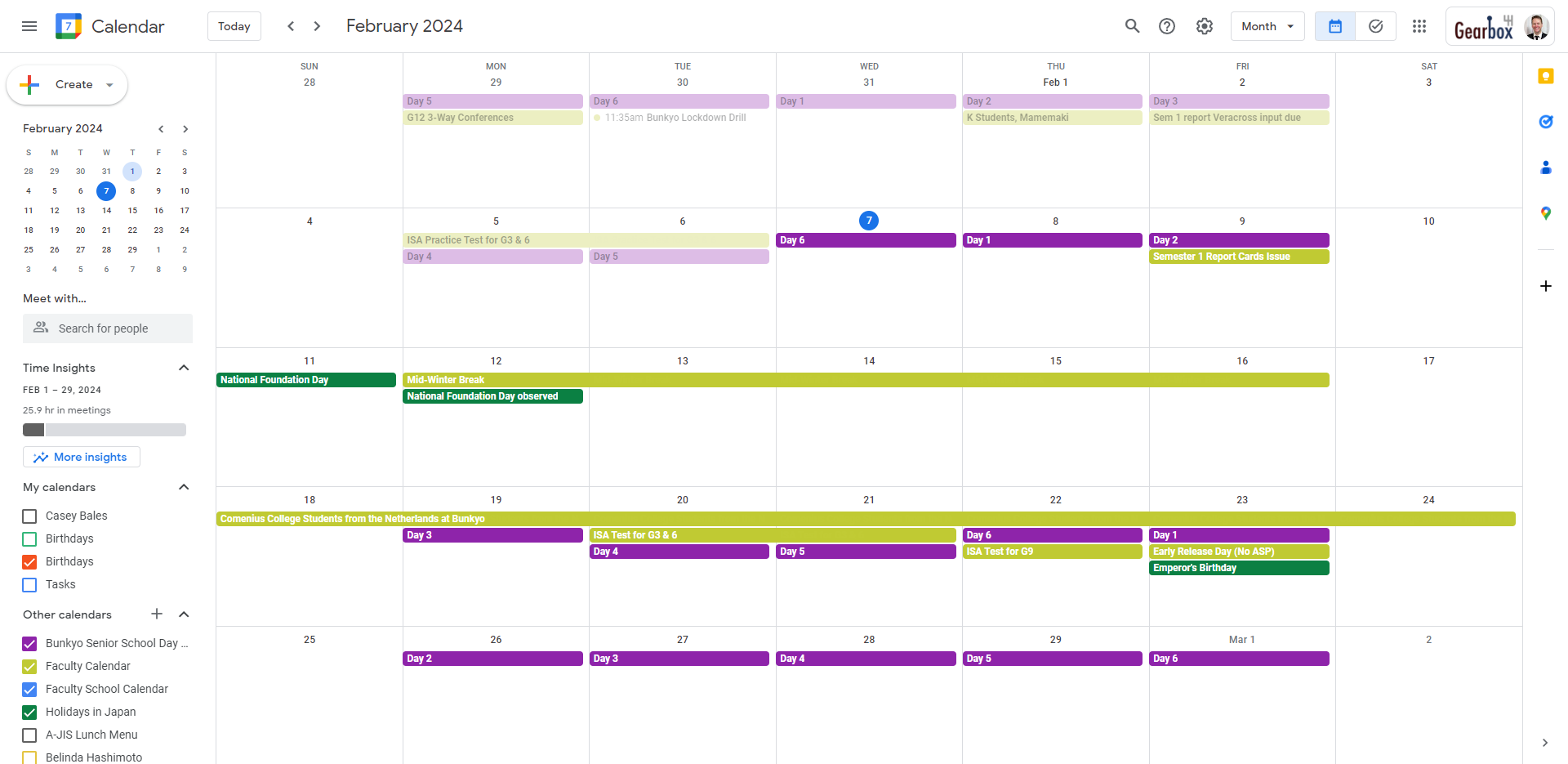
Step 6: Press the ← arrow to return to your Google Calendar main page. You should now see the added calendar and have the ability to toggle it on/off with the checkbox on the left hand side.
Bonus! Hotkeys to view you calendar in Month Week or Day
-
Month = M
-
Week = W
-
Day = D