.png)
The instructions listed on this page explain the procedure on how to utilize the electronics in the Theater Room at Bunkyo consisting of the display, audio, and lighting
🖥️ Display / TV
|
|
|
|---|
-
Turn on/off the display by pushing the ON/OFF buttons on the Extron control panel as in figure 1.
-
Connect your MacBook to the display.
- PC 1 uses the Apple TV/mirroring your screen (AJIS-ATV-0027_Theater).
- PC 2 uses the HDMI cable.
*Only one source can be displayed at a time.*
*Please note using the HDMI cable and adapter may require switching your sound output settings to “Extron HDMI”. Afterwards you will need to use the Volume knob to change the volume.
-
Adjust the volume by turning the dial. The volume level is indicated by the lights.
🔈 Sound and Microphones
The theater room has two Handheld microphones and two Body Packs each with a lavalier microphone attached.
-
Remove the microphone you would like to use. The LED light will turn green.
-
Press the button to mute the microphone (Red LED light).
-
To turn the microphones off, hold the button for a few seconds until the LED light goes off.
-
All four theater microphones can be used at the same time.
-
Place the microphones into the charging dock to recharge.
-
💡 Stage Lights
You can control the 6 stage lights by using the buttons on the black control panel.
The +/- buttons increase or decrease the respective light density in 10% increments from 0-100%
-
Press the “All ON” button if you wish to turn all lights on after you have pressed the “Side ON” button.
Common problems:
Theater Room
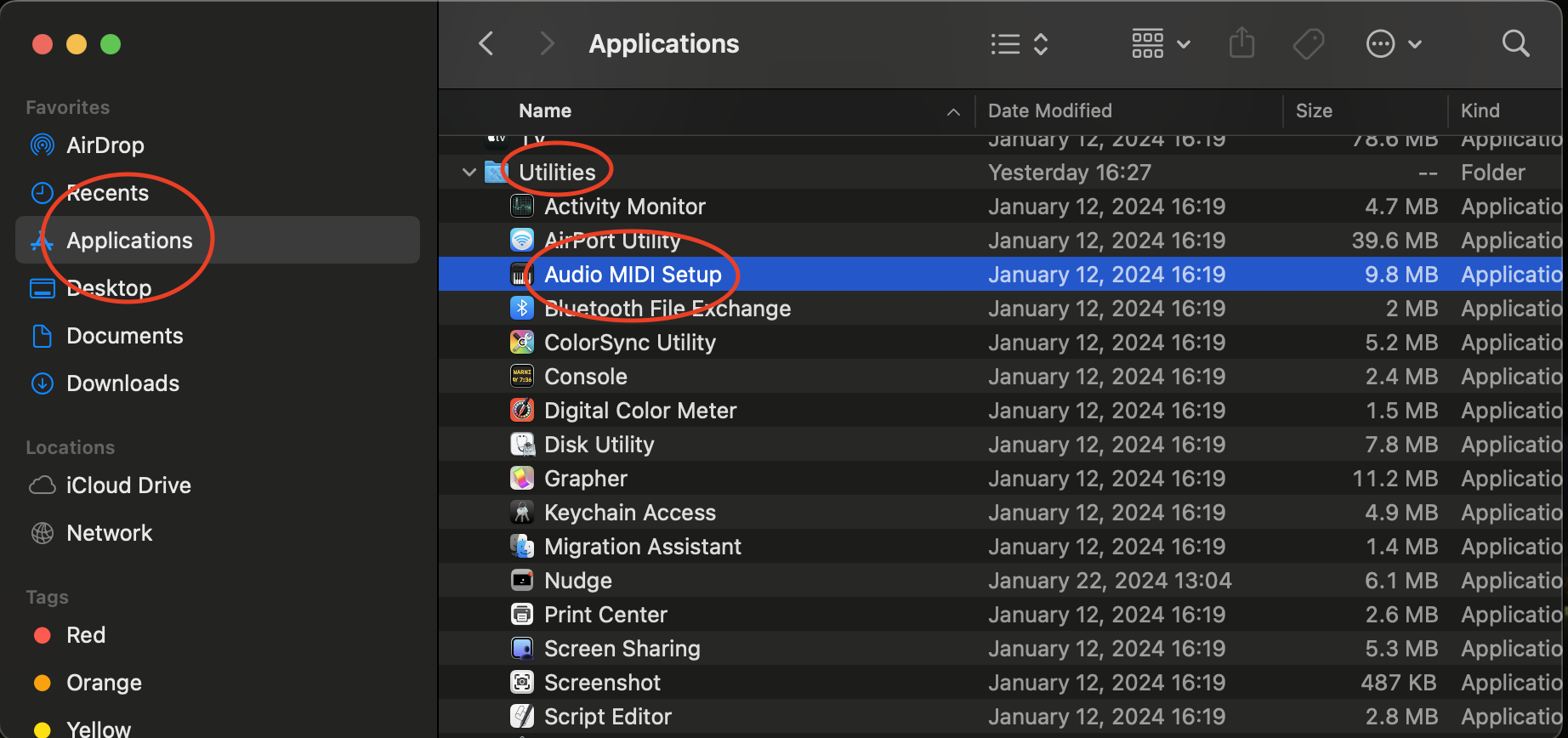
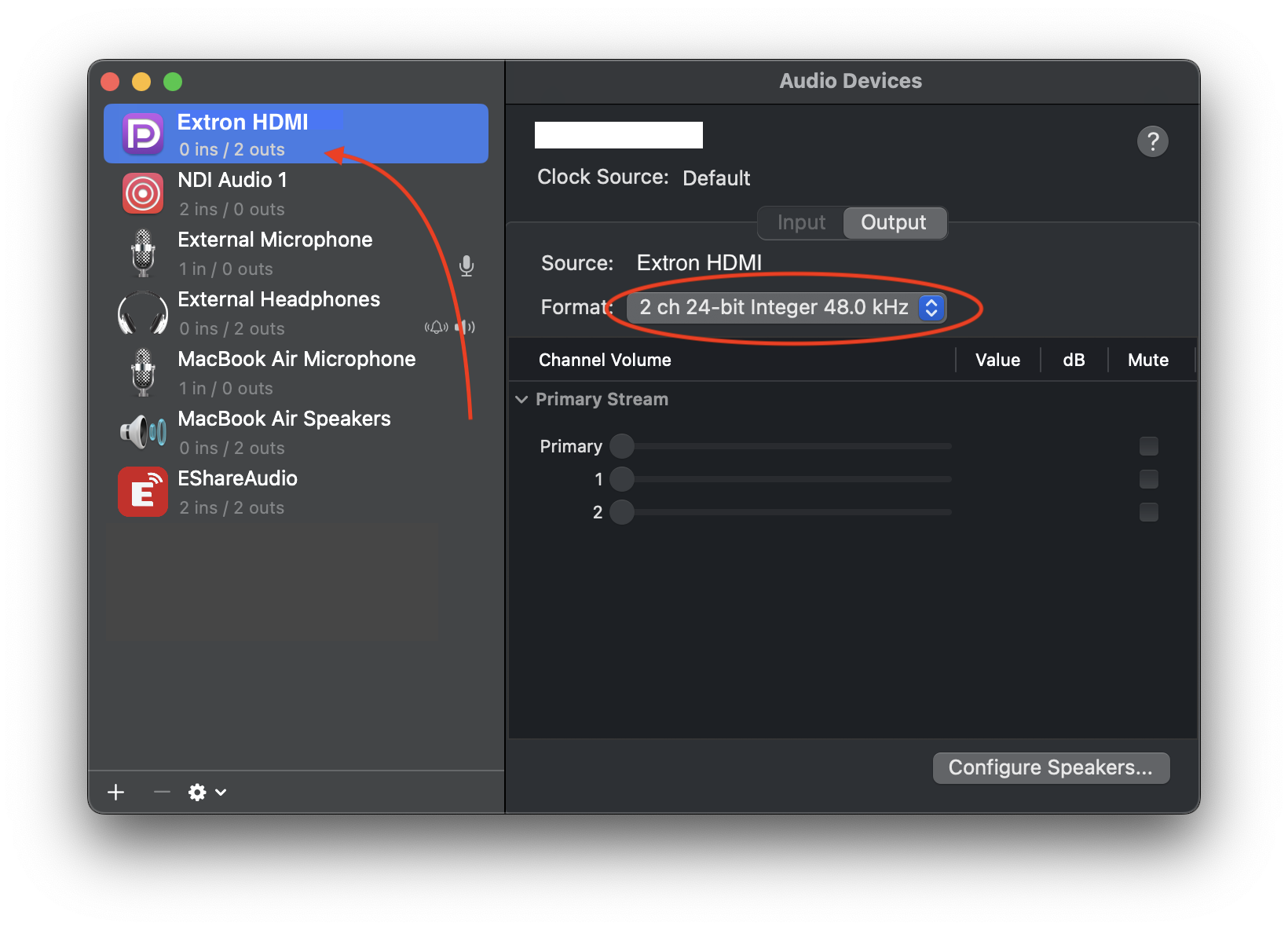
Some adapters (HDMI to USB-C) don't play sound on the speakers. If you are facing this kind of situation please follow the instructions below to setup the Audio Midi:
-
Open Audio Midi Setup.
-
Select the Extron HDMI out source, and verify that it’s set to use 2 channels. The bit rate doesn’t matter.
Still having problems? Contact the ICT Team!