.png)
Students that use MacBooks will be able to connect to the “A-JIS Student MacBooks” WiFi when at school using the provided password in the classroom. This network will only work for MacBooks. Other devices will not be able to connect to this network.
G4-G12 (MacBook)
-
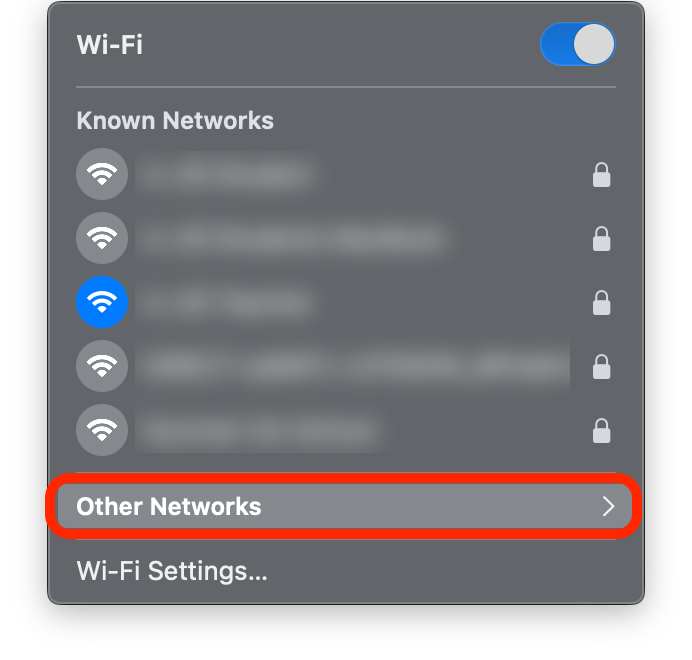
From the top right of the menubar, click the WiFi icon

-
Click Other Networks
-
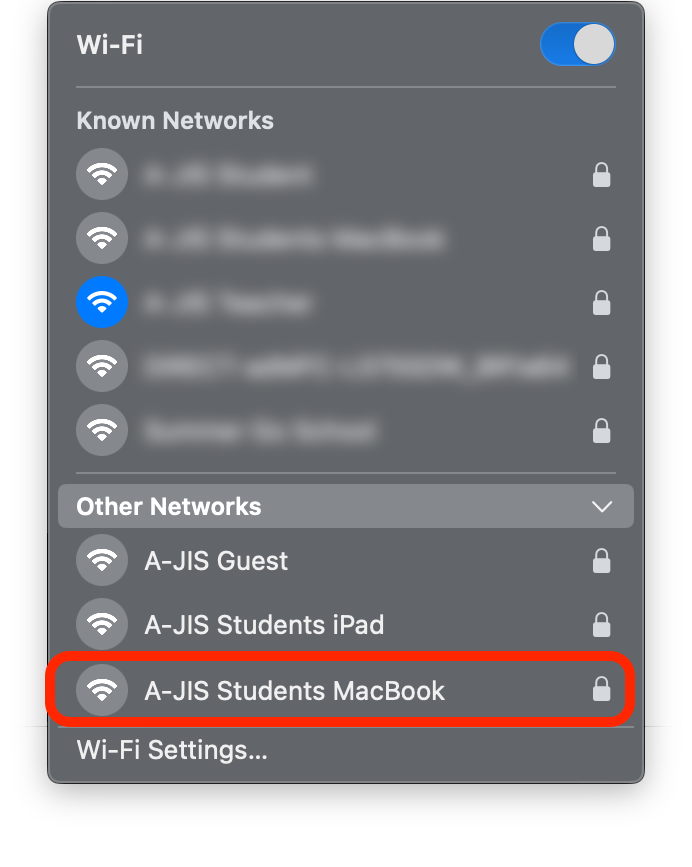
Click on the the A-JIS Students MacBooks WiFi from the list
-
Enter the WiFi network password from the BenQ in the classroom in the dialog box.
* If it fails, try steps 1 through 4 again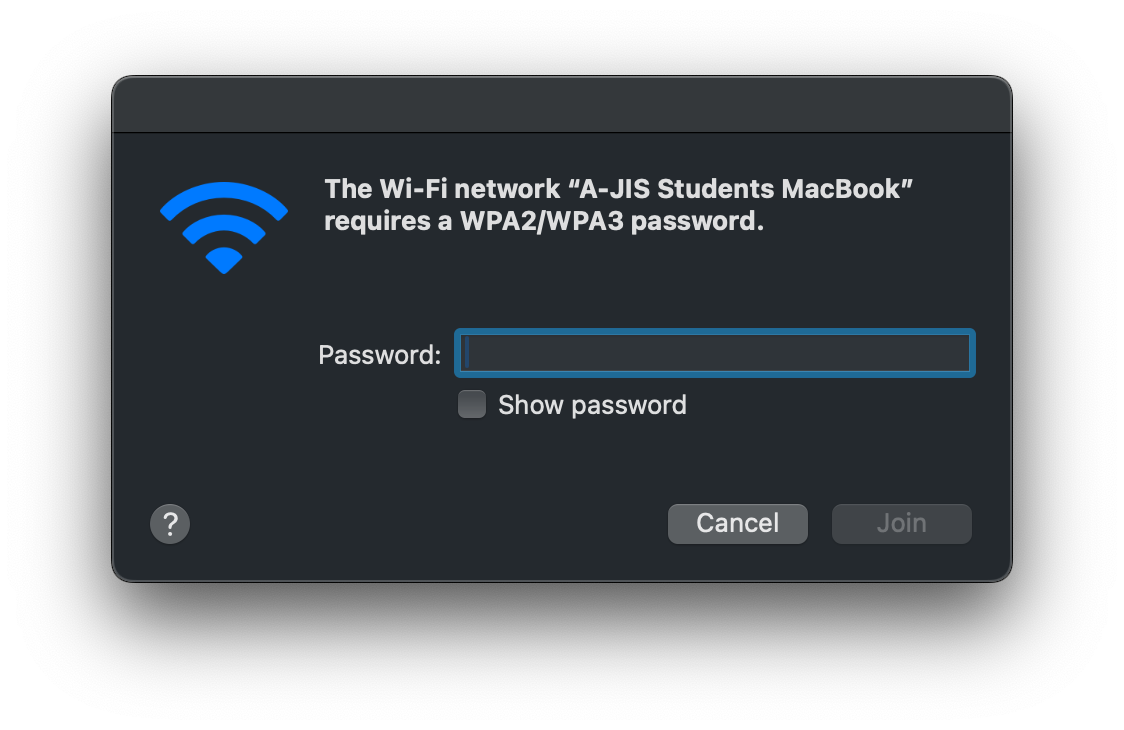
-
A dialog will then open asking to Sign in with Google using an Aoba Student email account.
* If the popup dialog does not show as pictured below, go to http://bit.ly/awifi in a web browser and continue with the instructions below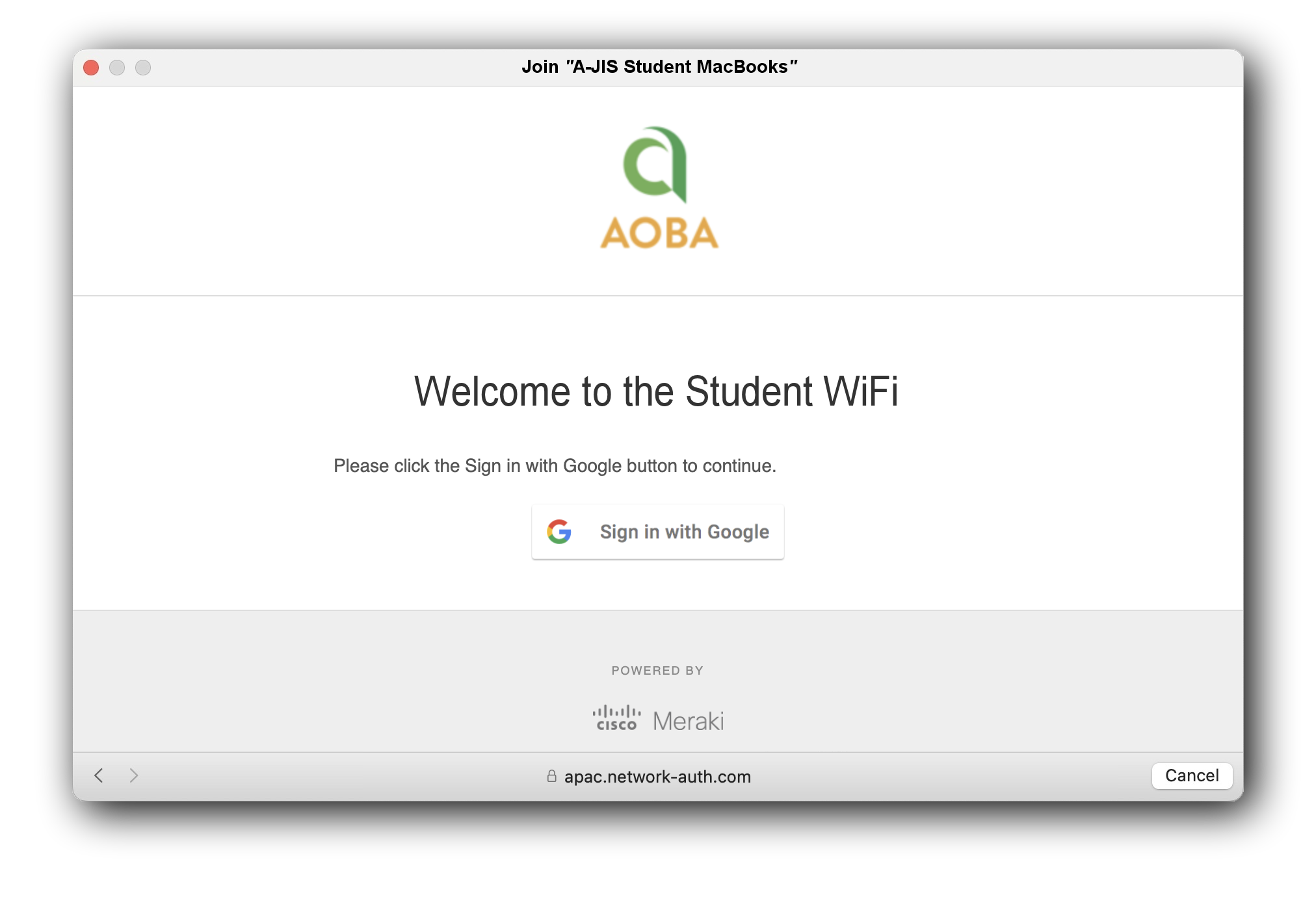
-
Click on the Sign in with Google button and proceed to enter the student email address and password
-
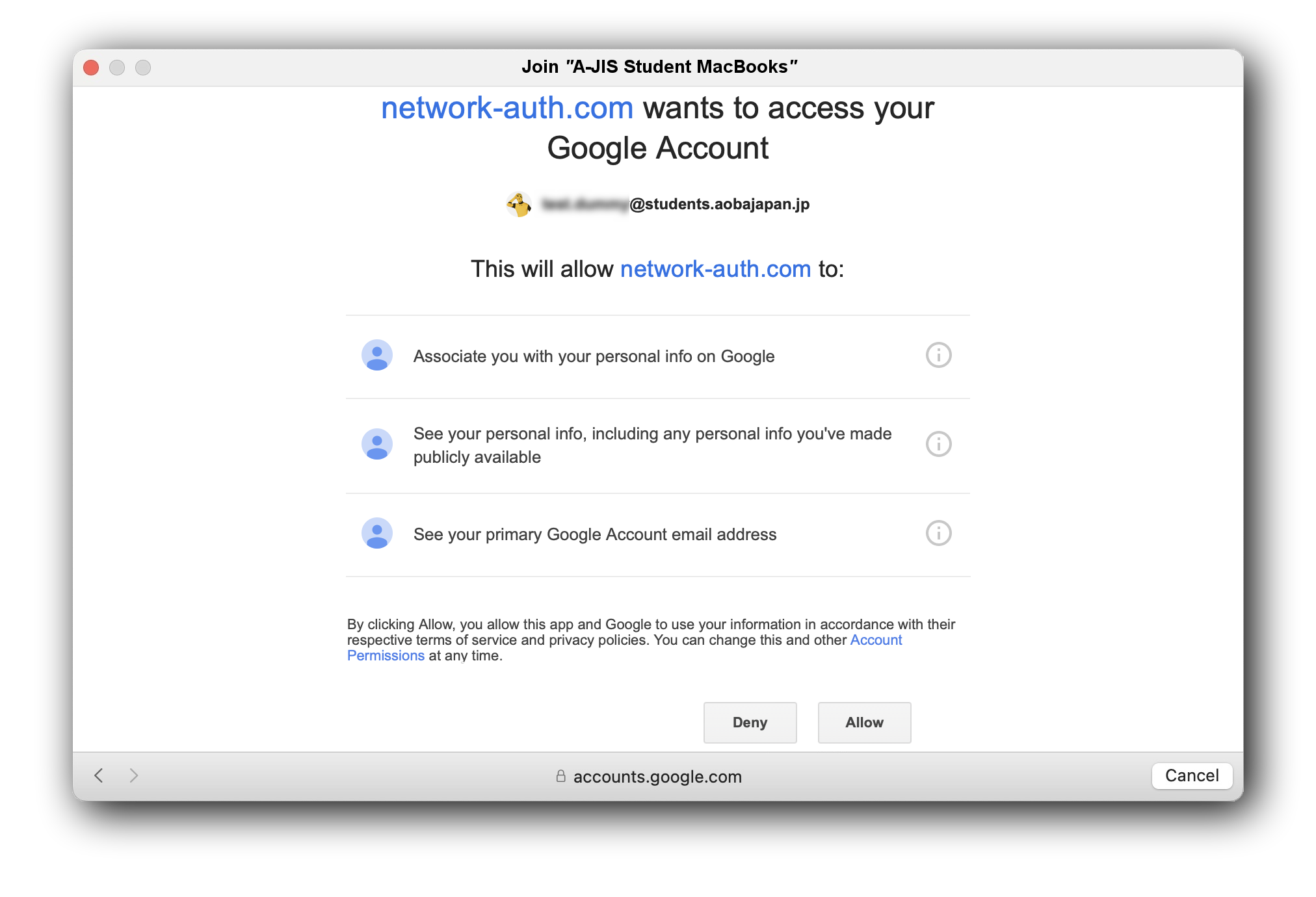
First time connecting, a dialog will ask permission to be able to connect to the network
Scroll down and select the Allow button.
-
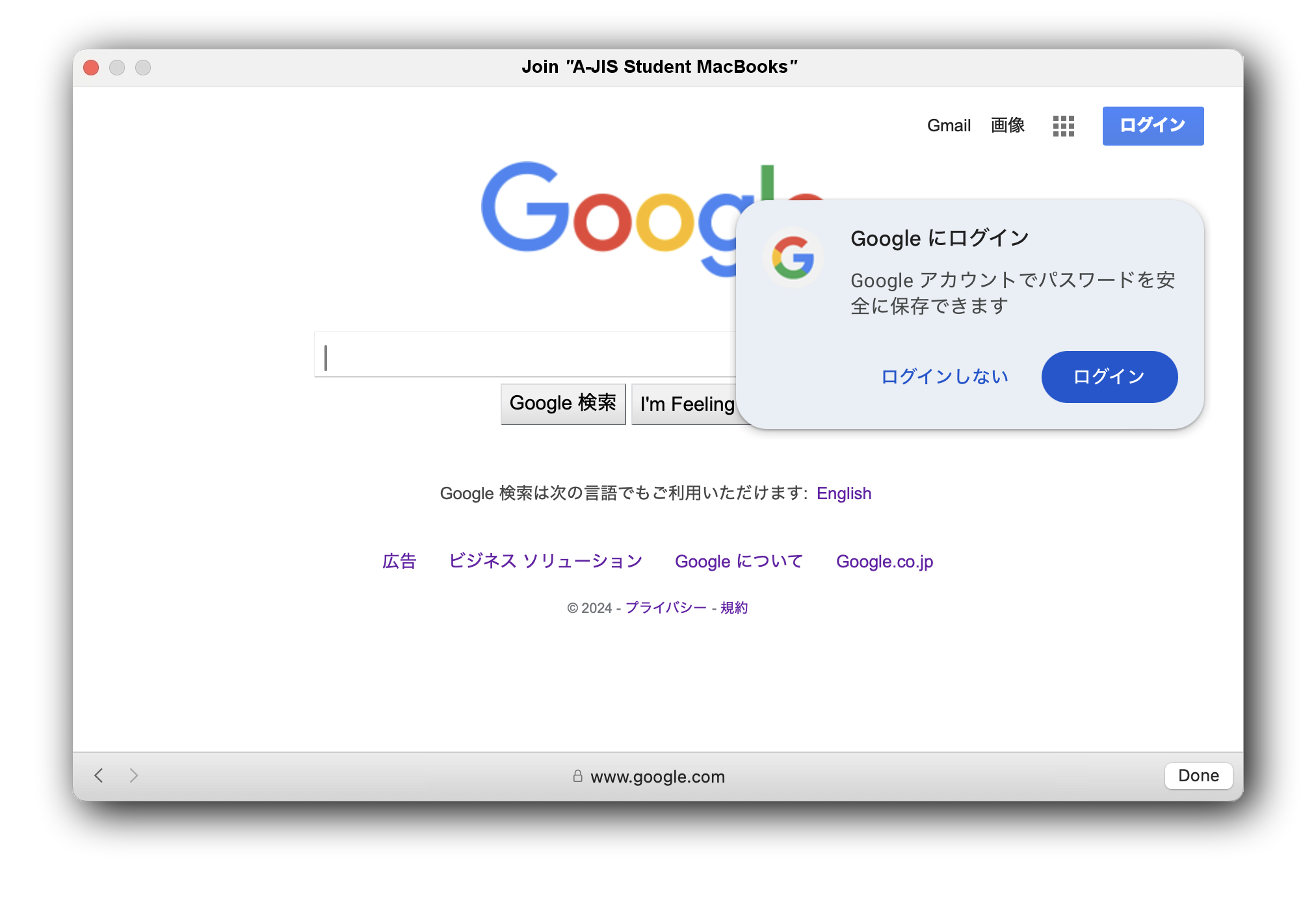
The device is now connected. Click the Done button to continue using the WiFI
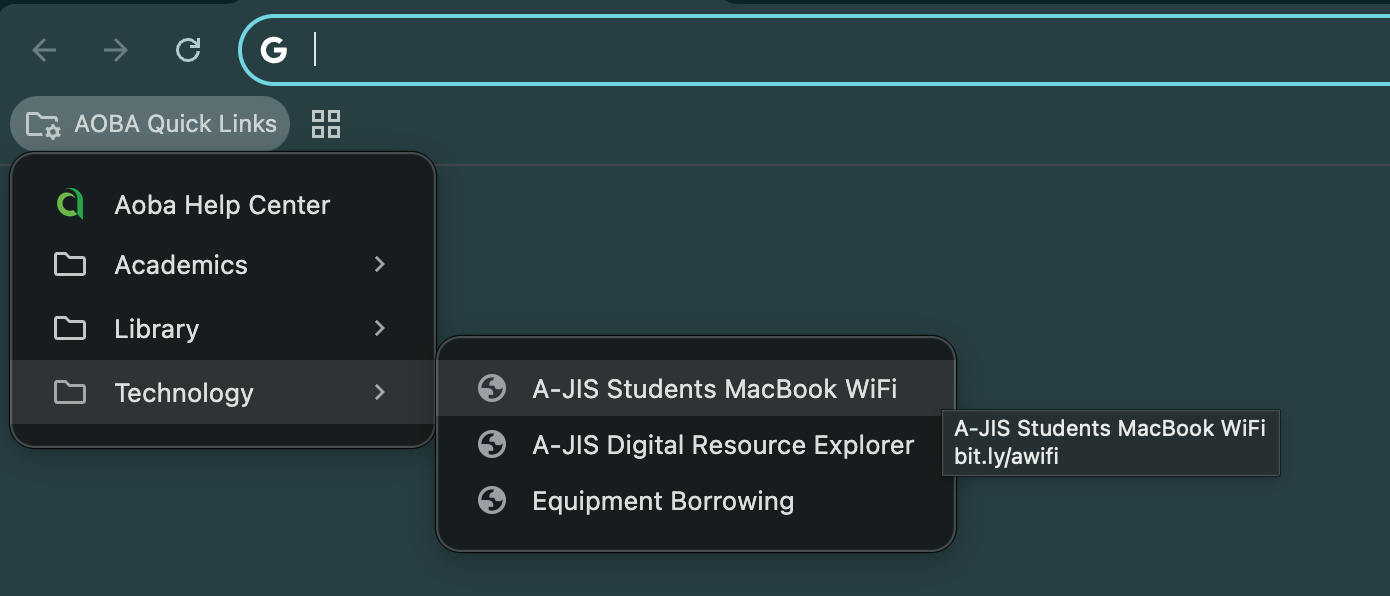
If the dialog box to sign in doesn’t appear to sign in, then either from the Bookmarks Bar in Google Chrome or from the menubar select AOBA Quick Links followed by the Technology folder and then A-JIS Students MacBook WiFi. And then sign in with Google as normal. WiFi should then be available again.
If you are unable to sign in with Google. Please check that you have disabled extensions in Google Chrome. Games and other extensions break the ability to sign in to the WiFi using Google.
Still no Internet?
If there is still no Internet access after removing unnecessary extensions, please try the following:
Open the System Settings and then go to Wi-Fi and click on the Details button when connected to the A-JIS Students MacBook WiFi.
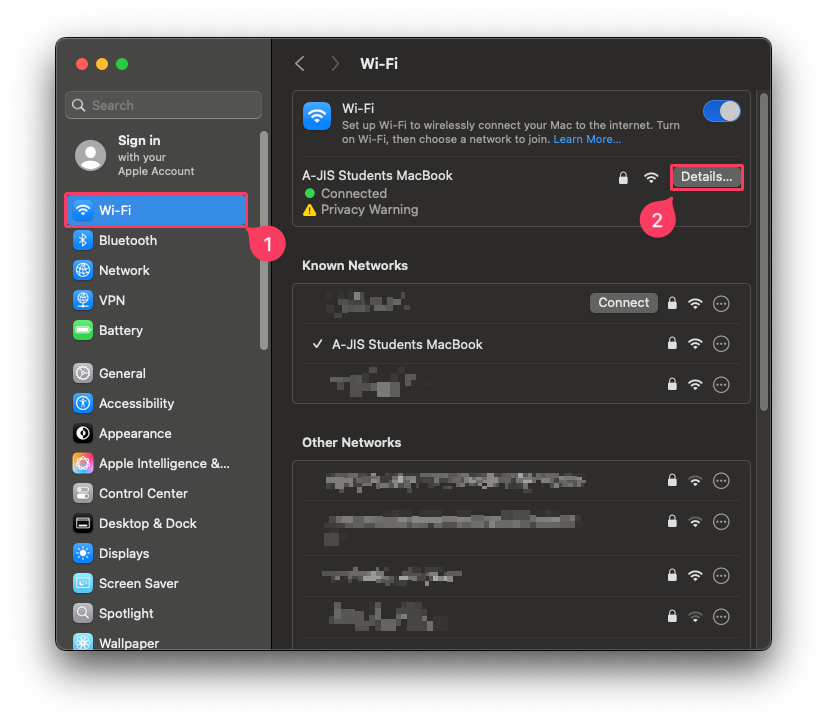
Make sure that Private Wi-Fi address is set to off. If set to “Random “ or “Fixed”, it may not connect to the Internet.
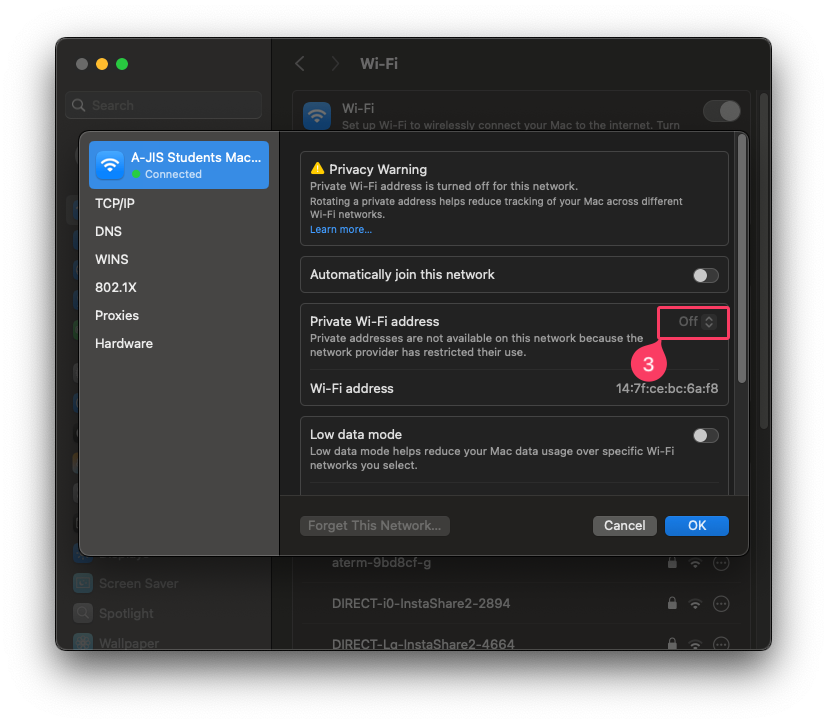
Try again to sign into the Student WiFi.