.png)
Instructions for scanning documents using the Canon MFP at A-JIS campuses and sending them to the FileServer where the data can then be retrieved.
Retrieving your documents from the fileserver
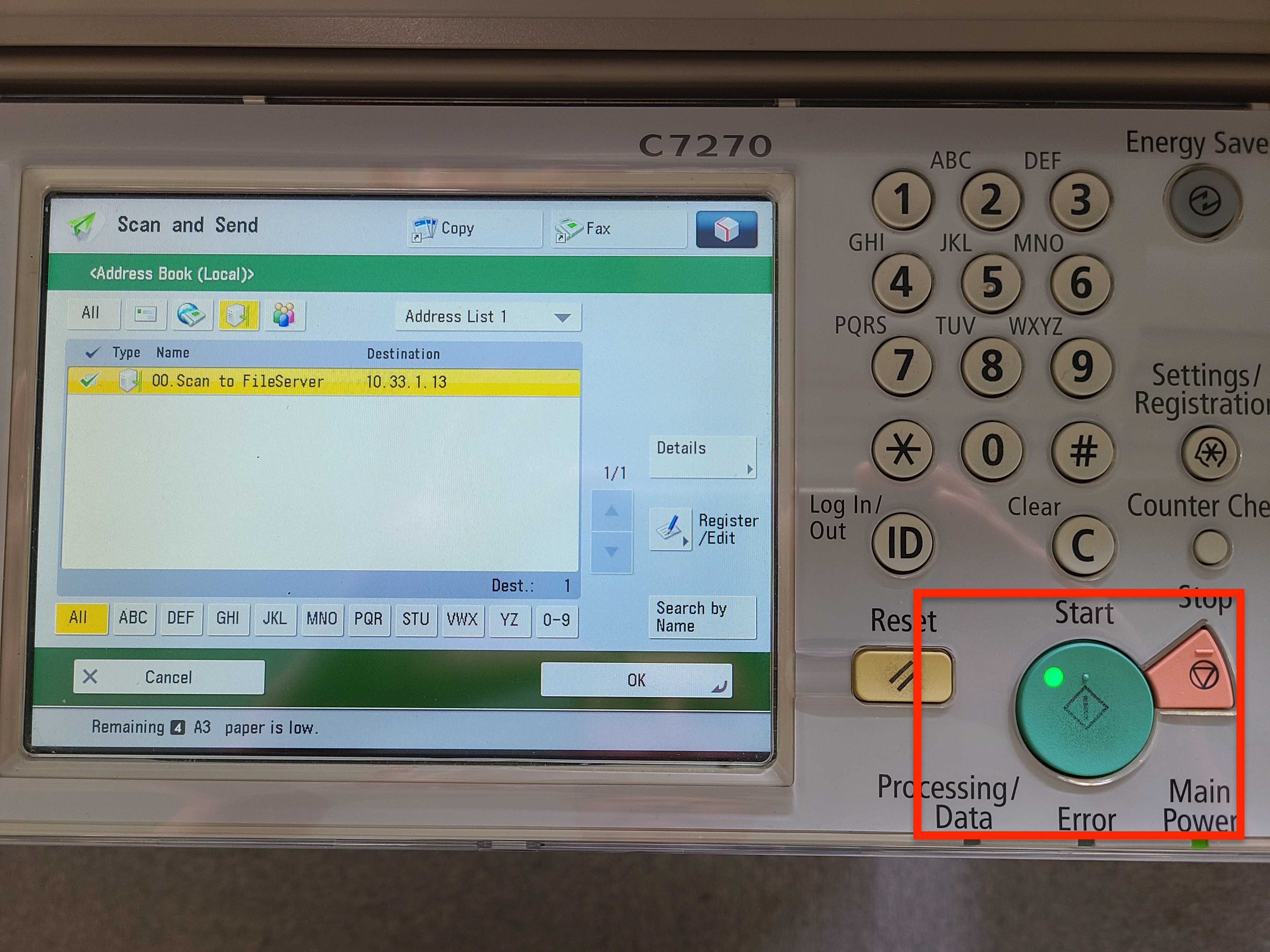
When you are at Hikarigaoka/Meguro:
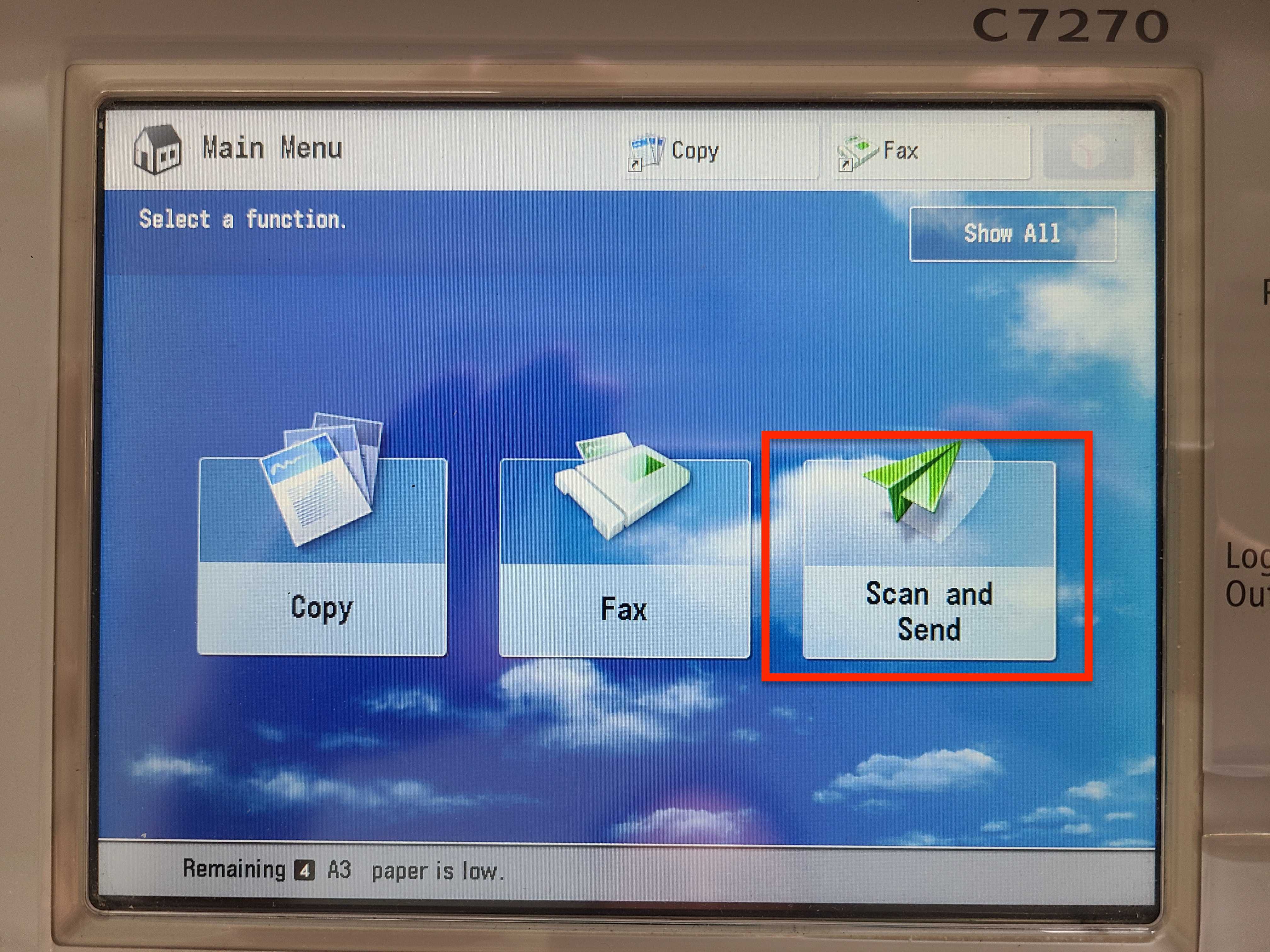
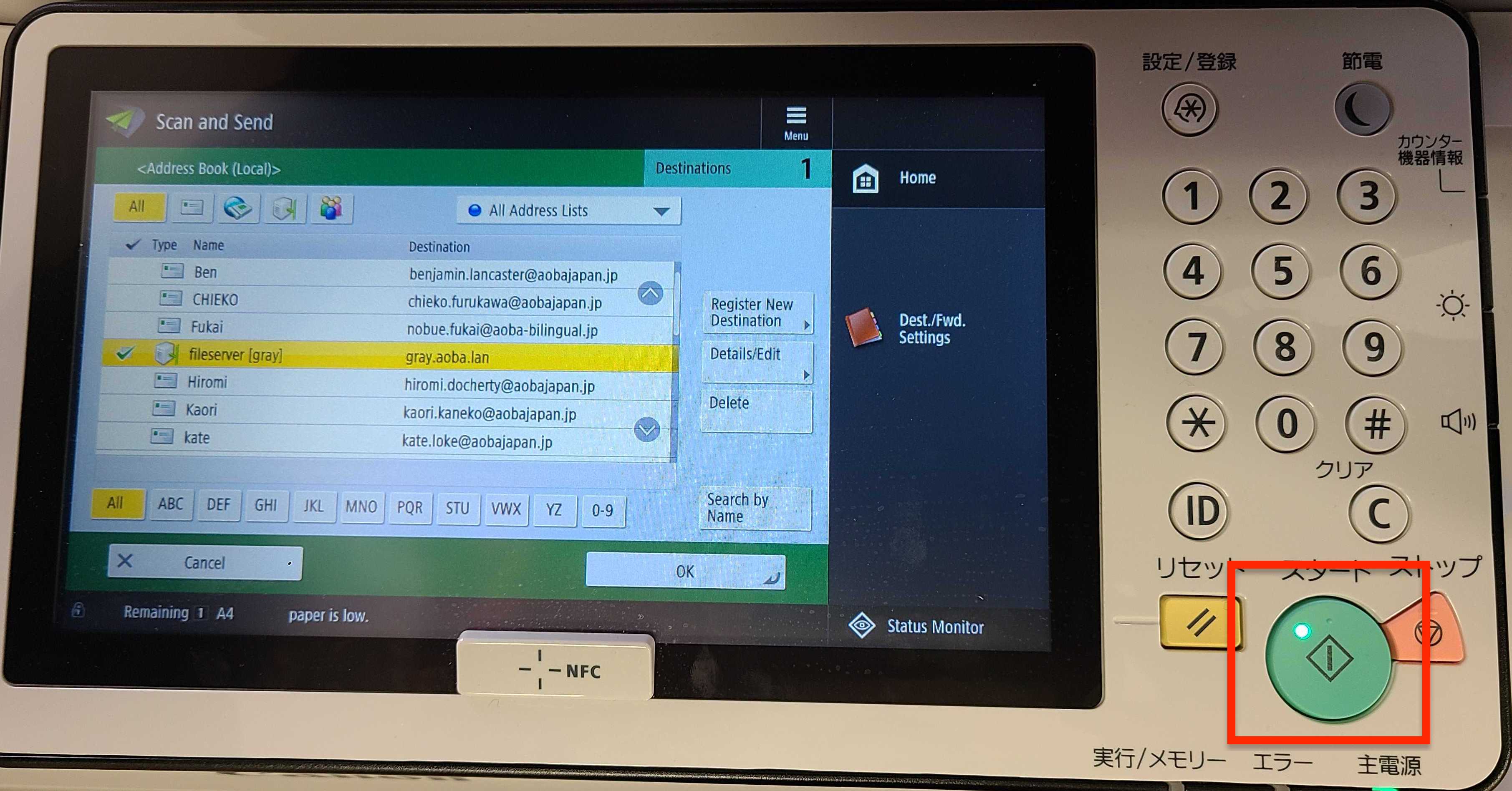
Press Scan and Send.
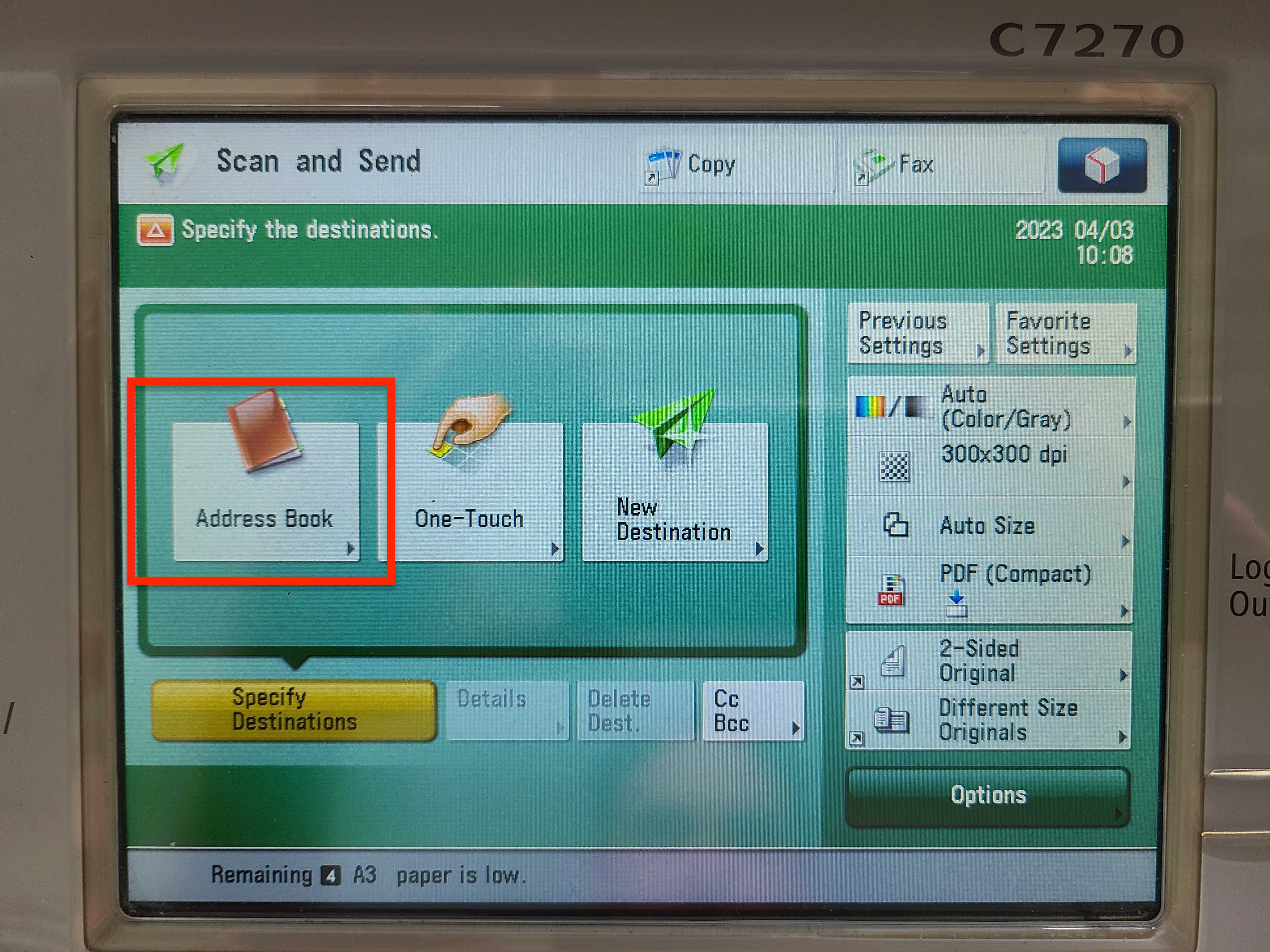
Press Address Book.
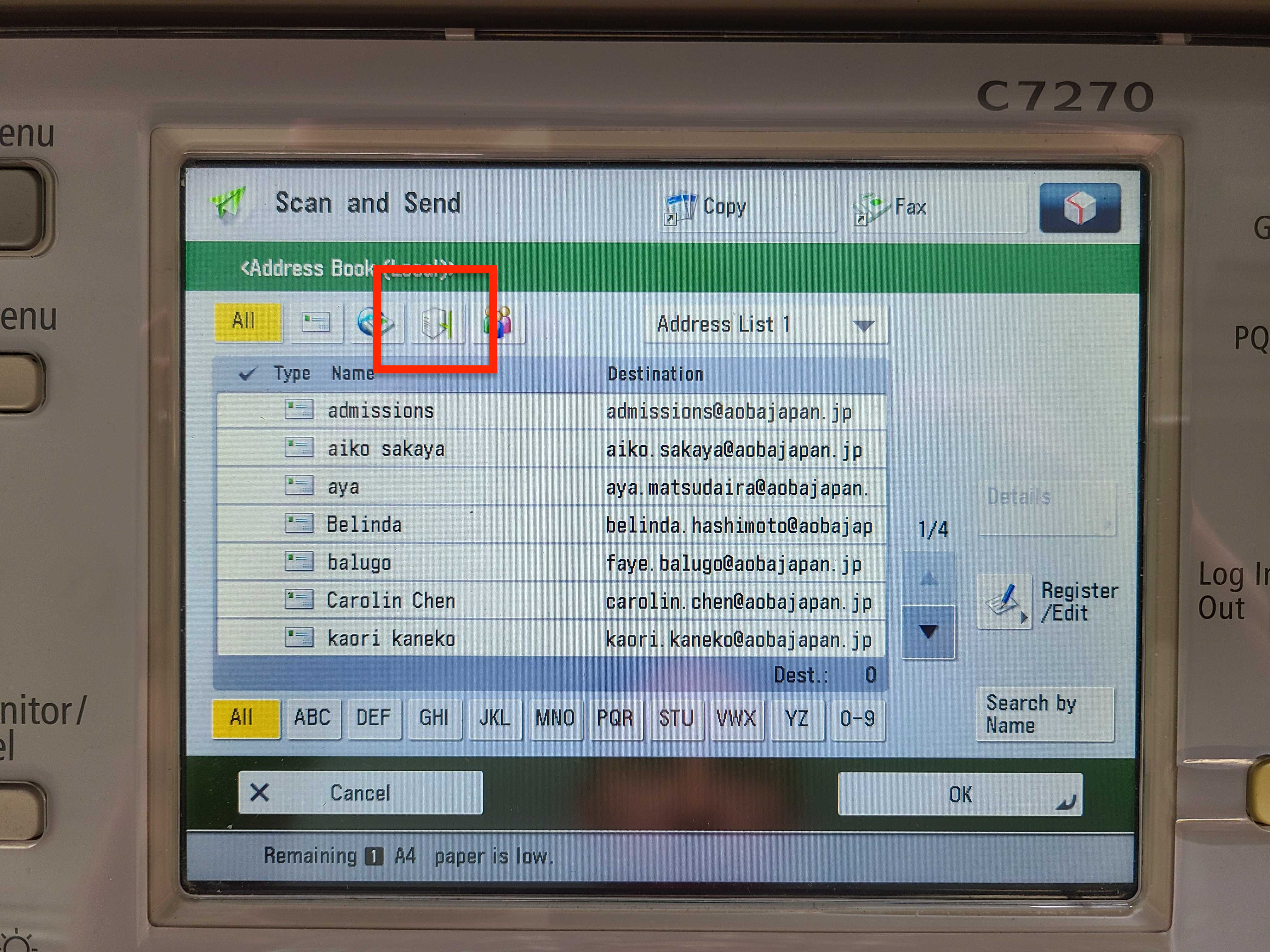
Press the fileserver icon.
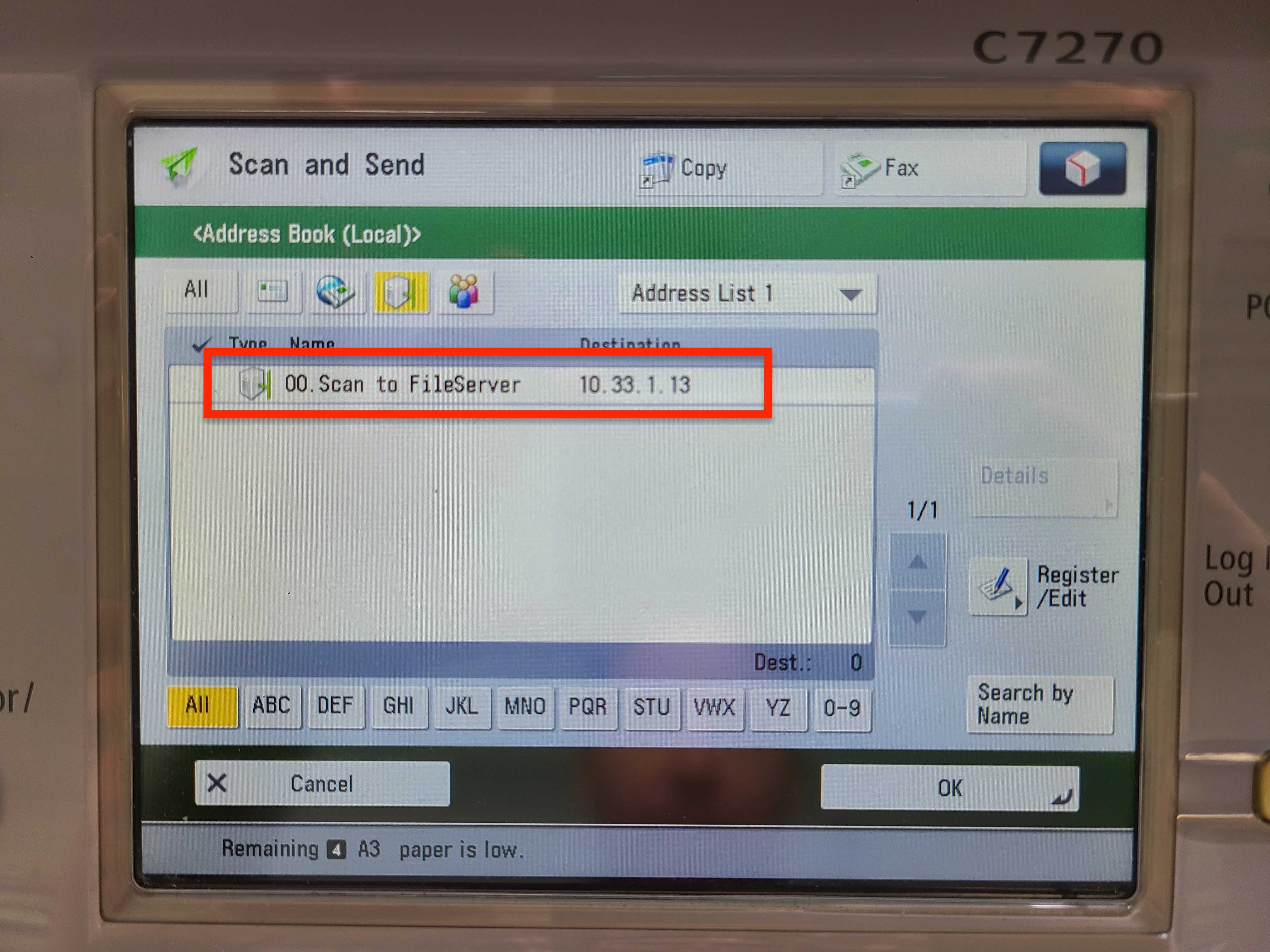
Press the fileserver address.
Press the green Start button.
When you are at Bunkyo:
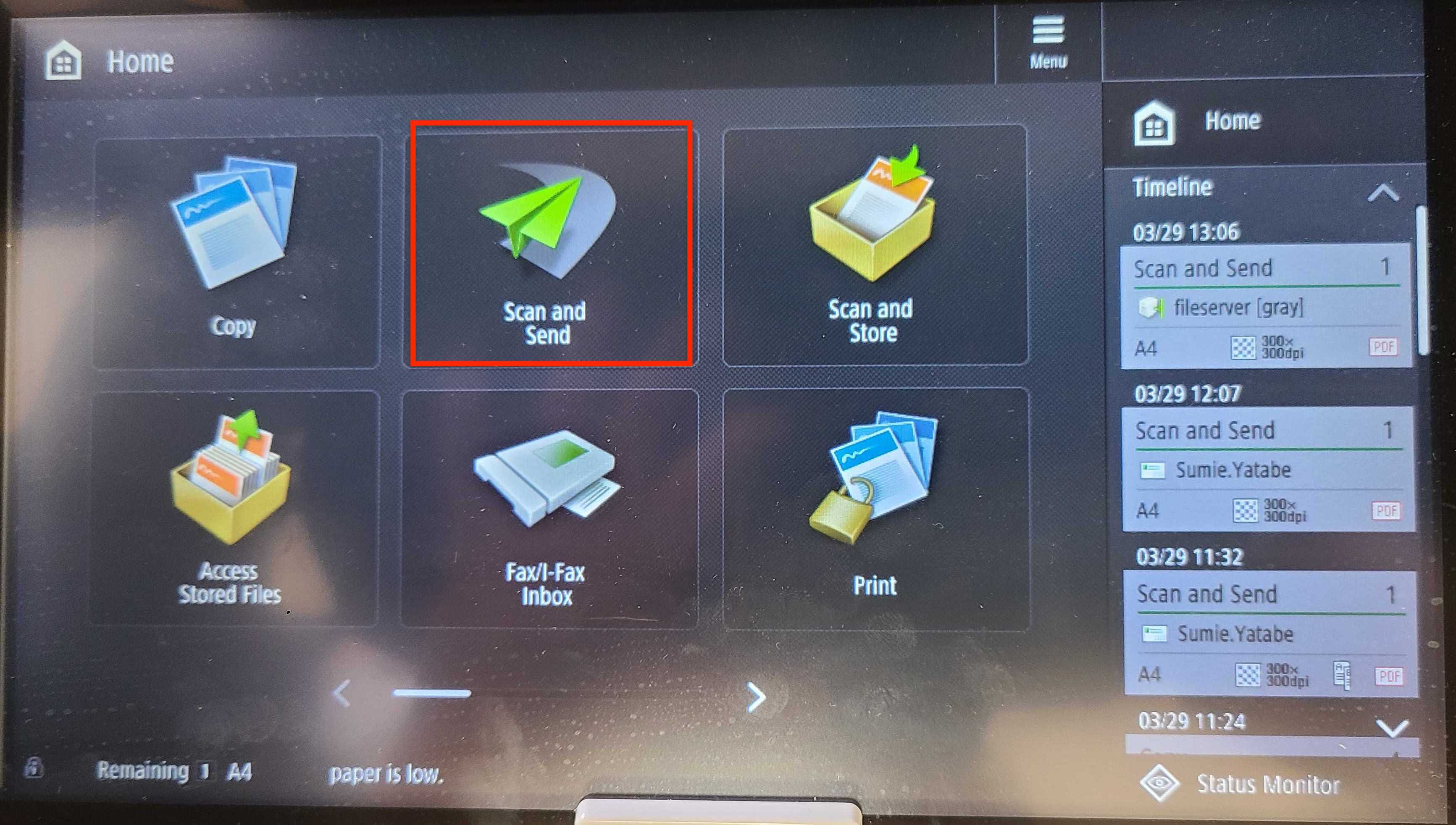
Press Scan and Send.
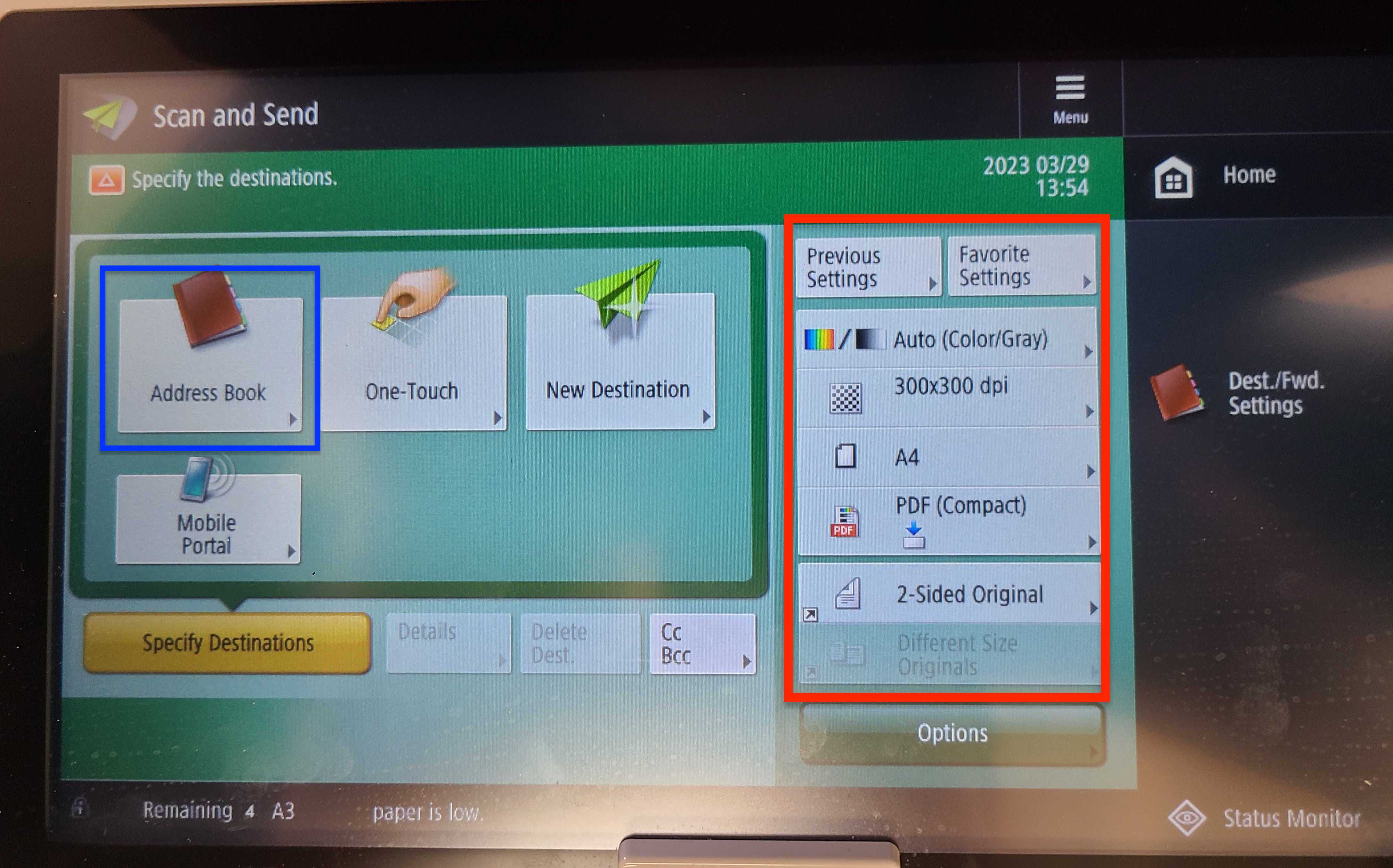
Choose your scan settings. Then press Address Book.
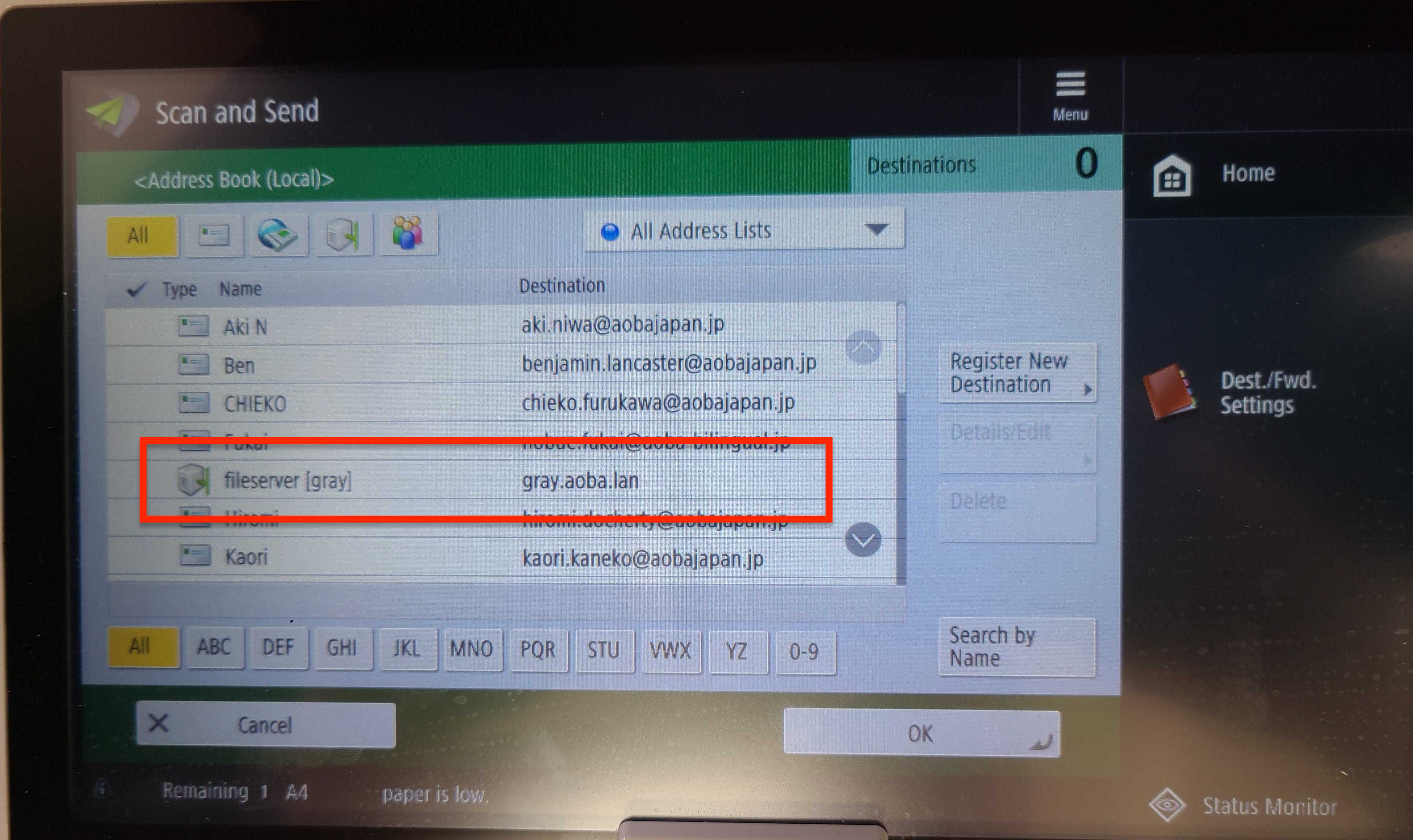
Select File Server.
Press the green Start button.
To retrieve your documents on MacOS:
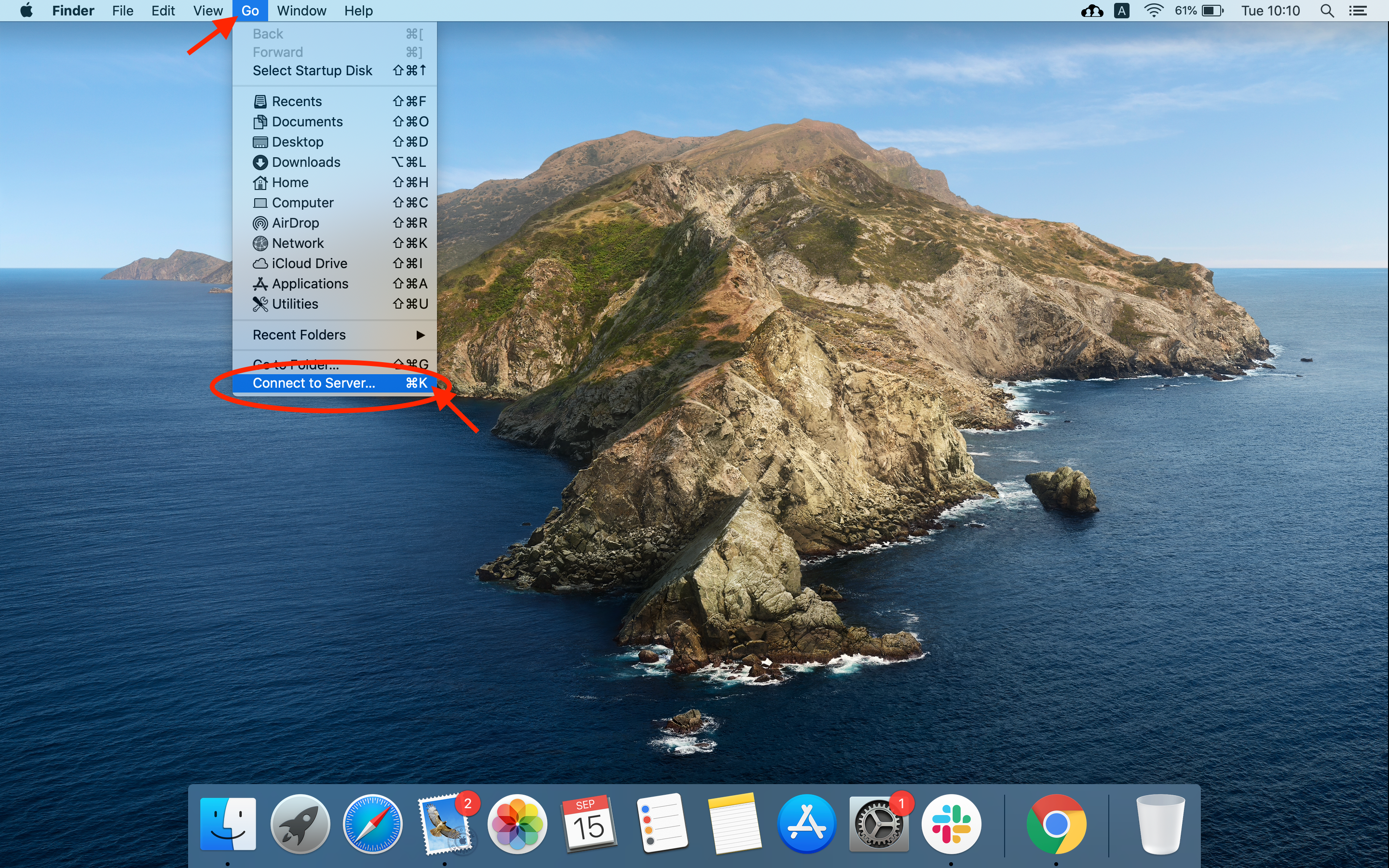
Open Finder. Click “Go” at the top of the taskbar, and select “Connect to Server”:
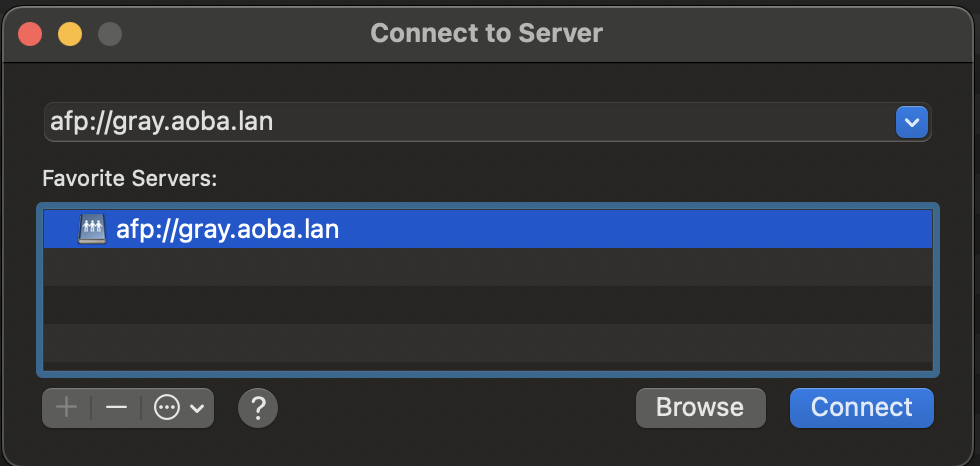
Type in the server url: afp://gray.aoba.lan/ If you are prompted for your name and password they are the same as your email or macbook login without the @aobajapan.jp domain. For example:
Name: john.doe
Password: ***********
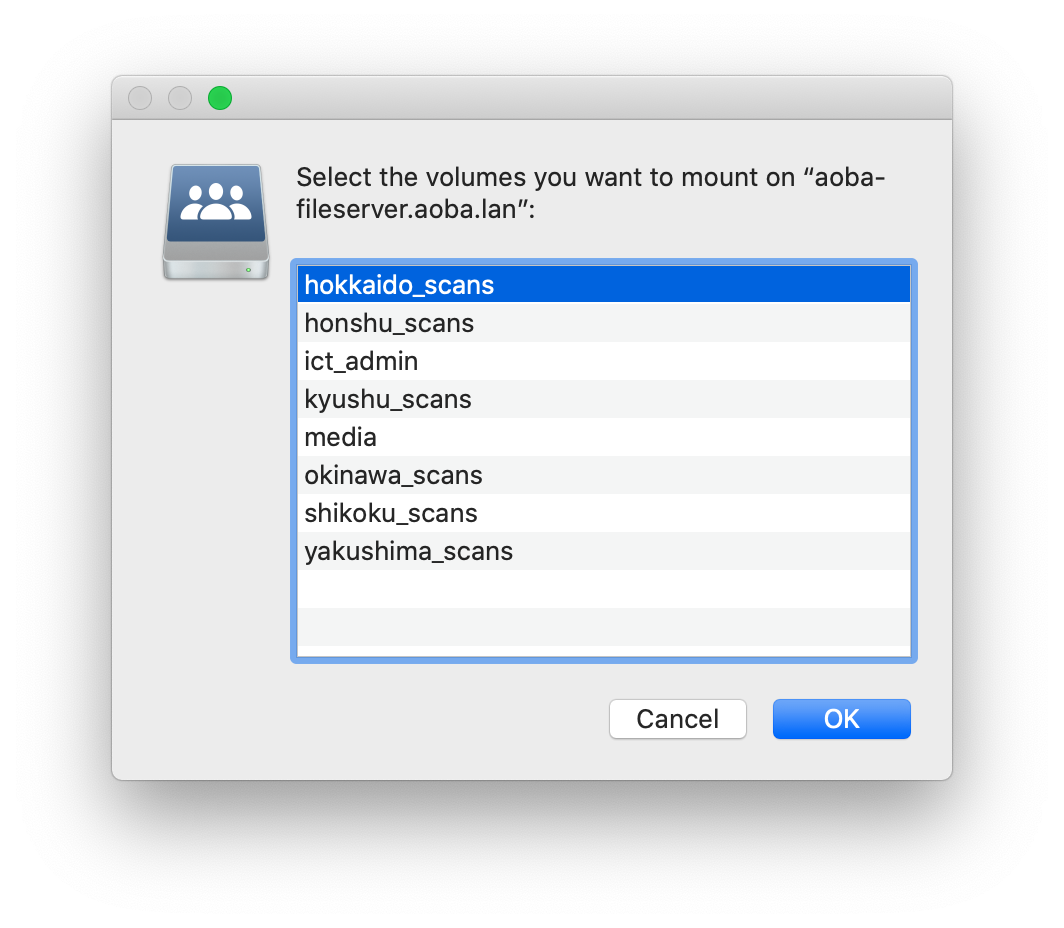
Select the machine that was used to scan, then click “OK”:
|
Printer Location |
Name |
|---|---|
|
Hikarigaoka 1F |
shikoku_scans |
|
Hikarigaoka 2F |
honshu_scans |
|
Bunkyo |
oshima_scans |
|
Meguro (Main) |
yakushima_scans |
|
Meguro (Annex) |
okinawa_scans |
|
??? |
kyushu_scans |
|
??? |
hokkaido_scans |
And locate the respective scanned documents from there:
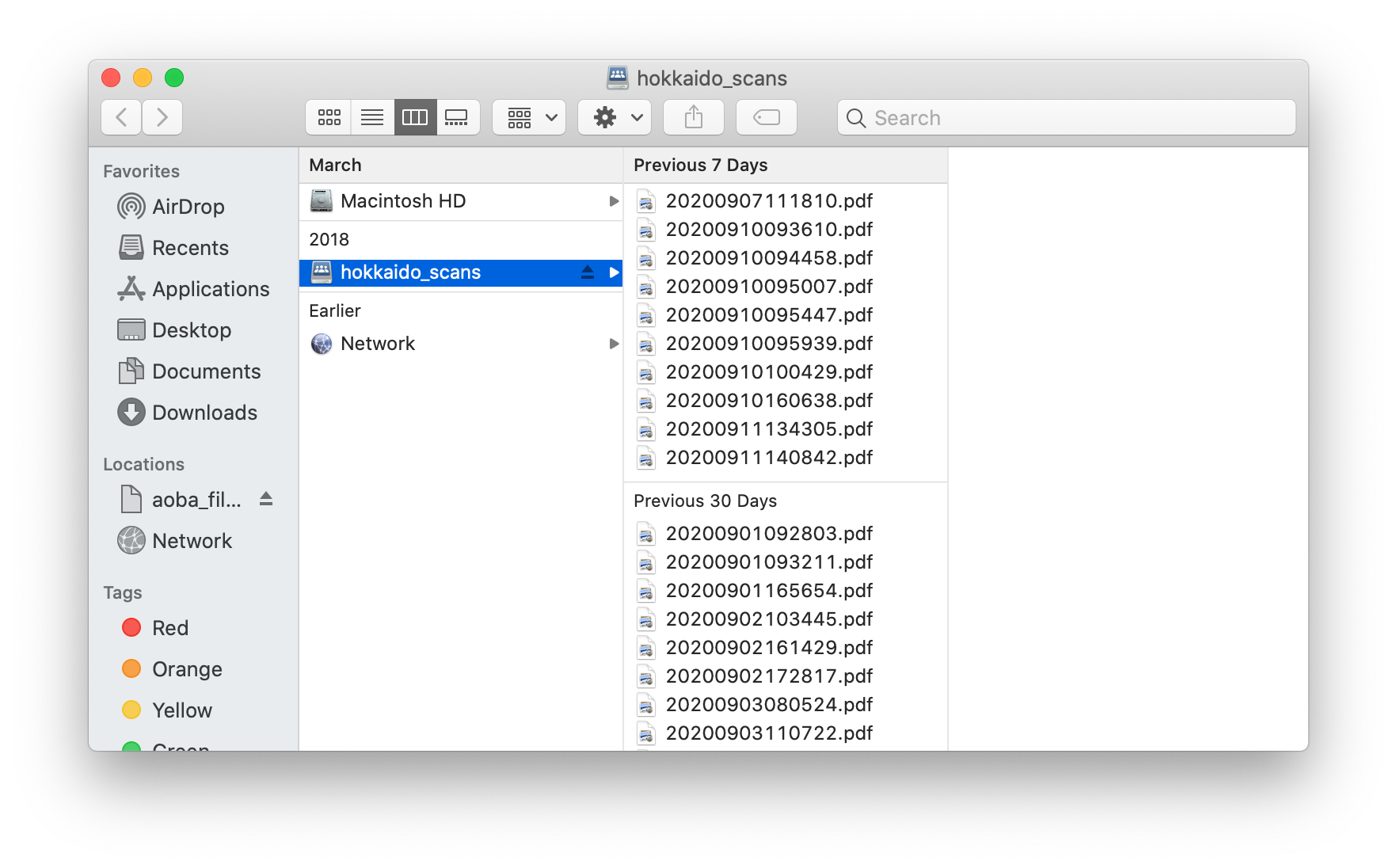
The "Scans" folder on the FileServer is emptied and deleted nightly! Retrieve your document soon after printing or else it will disappear.
Related articles