.png)
JumpCloud has added the ability for users to self install approved applications. The list may differ for each user based on device.
Currently, due to this being a new feature provided by JumpCloud, it is limited in the number of apps that this can be self managed. If an application is not available, then please proceed to submit a ticket for the application you want to be installed along with the web address so that ICT is aware of the request.
Please note that while applications may be listed, some applications require a license to use such as Microsoft Office applications. Without a license, you may have limited function or the application may fail to work at all.
📘 Installing / Removing an Application
-
Click on the JumpCloud Icon on the menubar

-
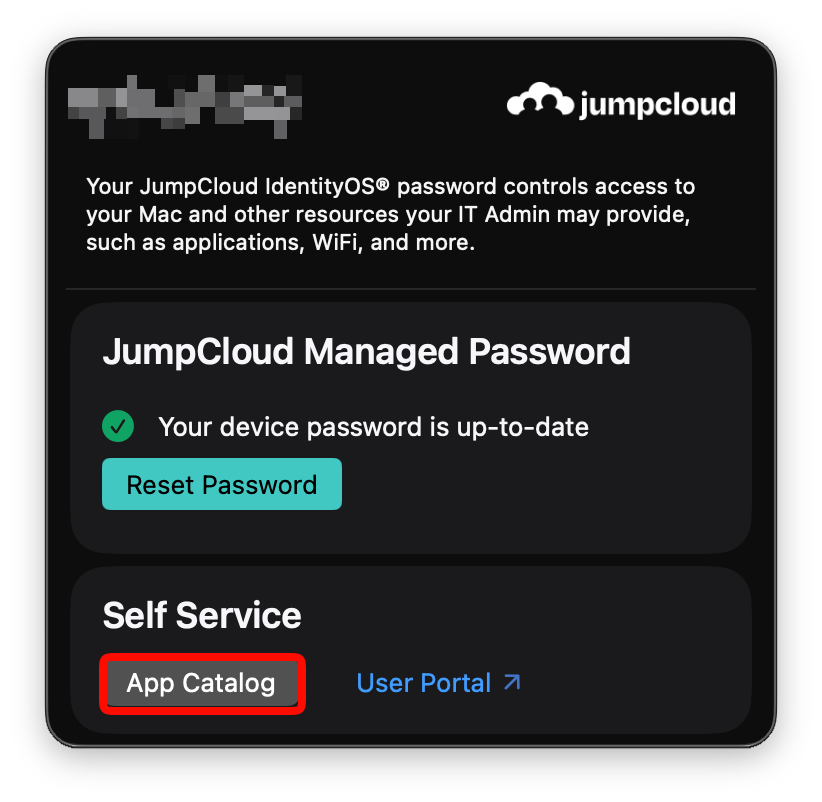
Click the App Catalog button under the Self Service section.
-
How Install, Uninstall, or Update an app
-
Install / Uninstall an app:
From the App Apps section simply push the Install button to install and application or Uninstall button to remove the application. Notice that some applications may not be available for users as applications such as Microsoft Office applications are only used by staff and certain faculty.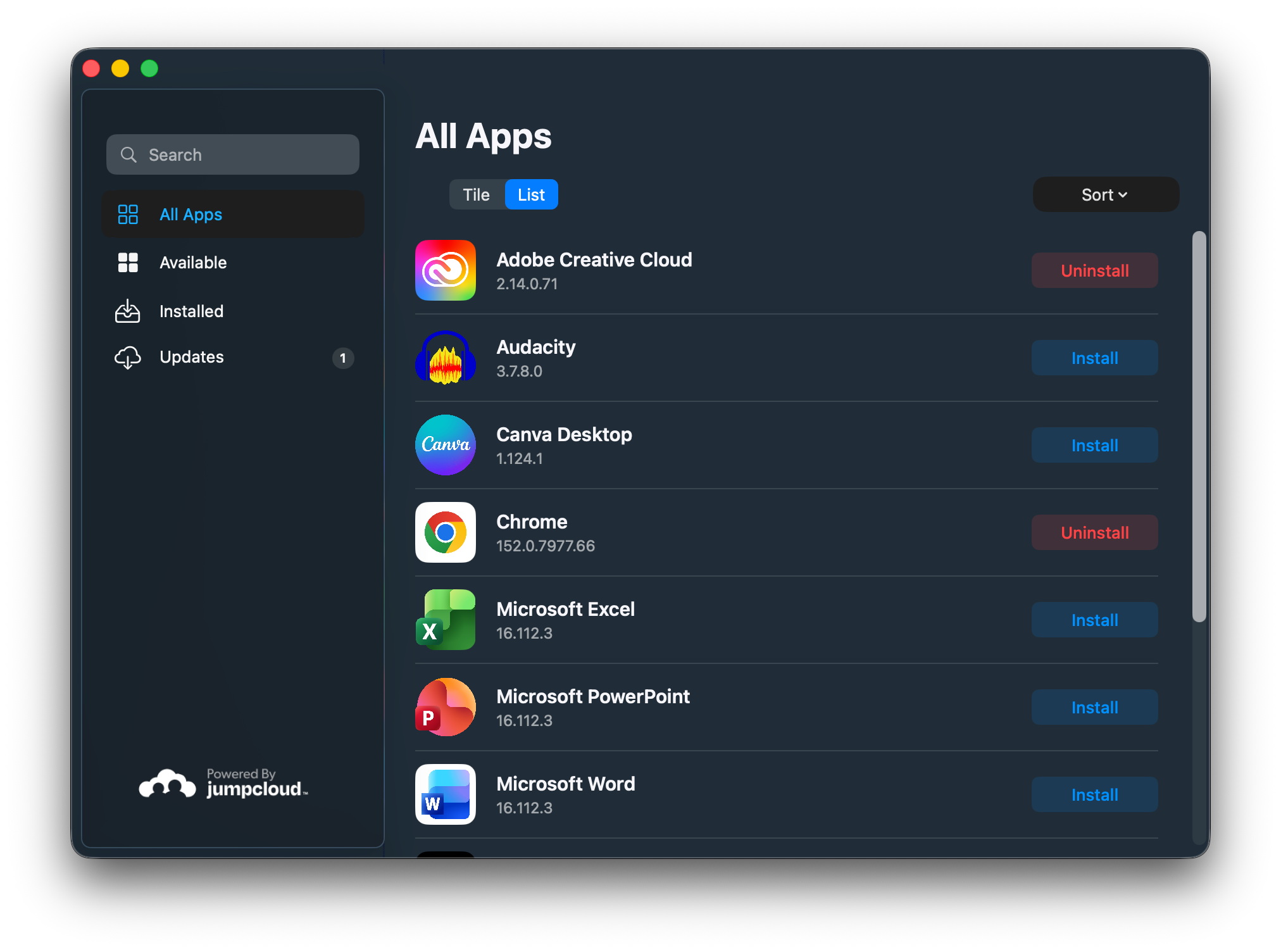
-
Update an app:
Form the Updates section, you can see any applications where updates are available. Simply click the Update button to update the application. This may require you to close the program completely and then restart the update to fully use the application.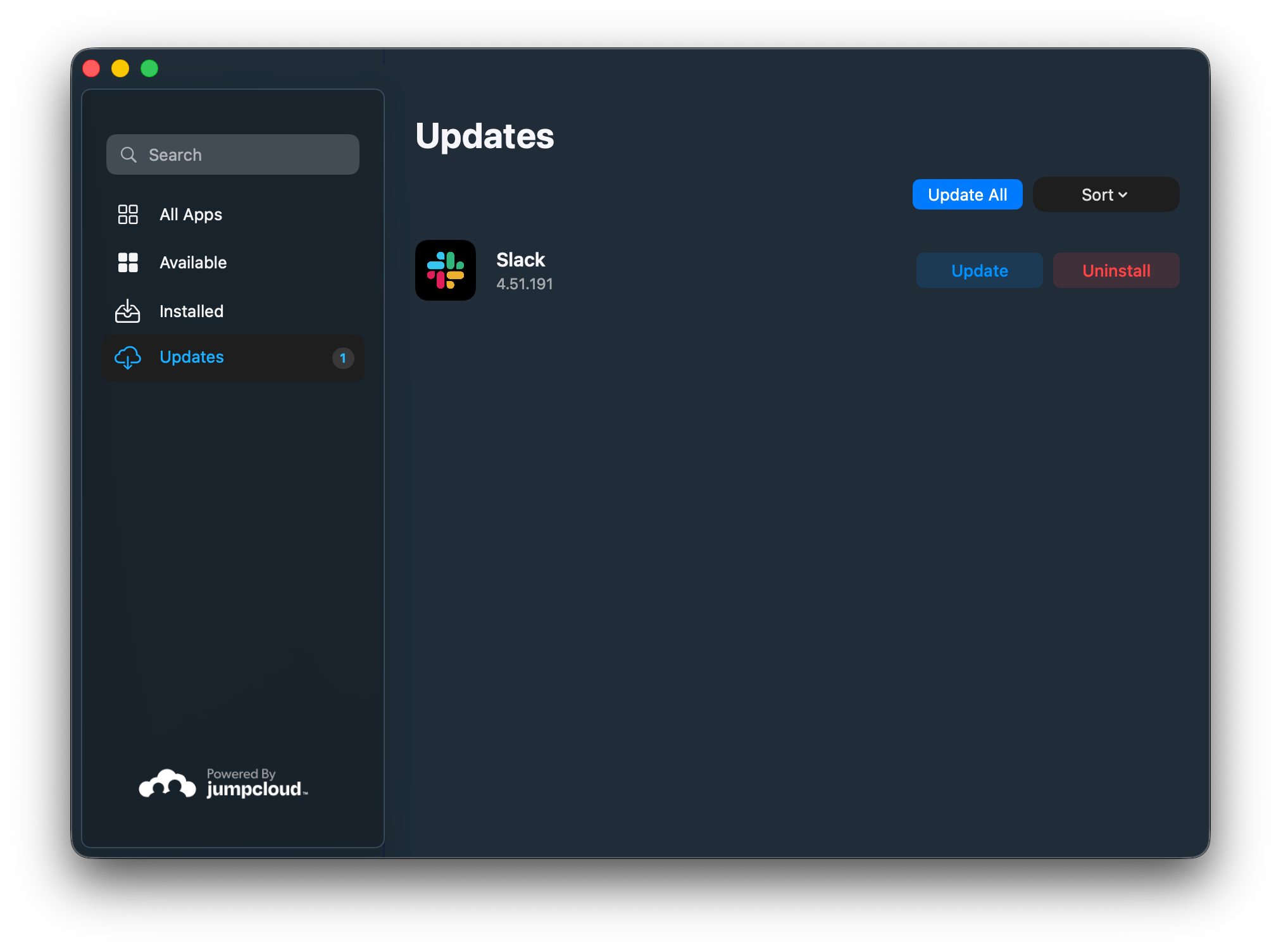
-