.png)
Minecraft Education is a versatile tool that fosters creativity, collaboration, and critical thinking, making it ideal for our classrooms. This guide will help teachers - whether beginners or advanced users - leverage Minecraft Education effectively for teaching and learning.
1️⃣ Introduction to Minecraft Education
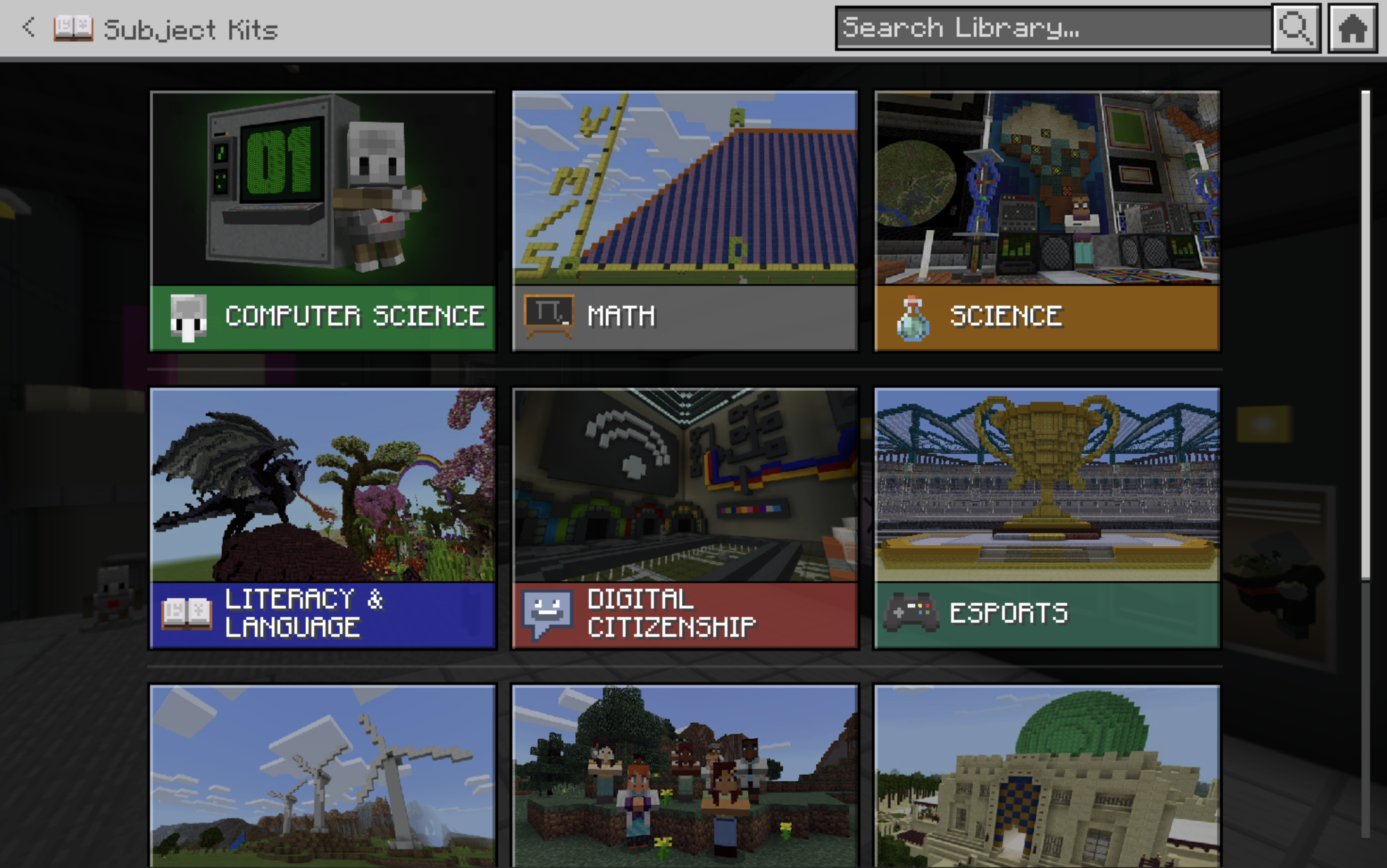
Minecraft Education is a game-based learning platform that promotes 21st-century skills through interactive and immersive experiences. It offers pre-built worlds and lesson plans tailored to various subjects, including IB PYP themes like Sharing the Planet, How the World Works, and Who We Are.
Key Features:
-
Pre-designed worlds aligned with curriculum goals.
-
Collaborative features for group projects.
-
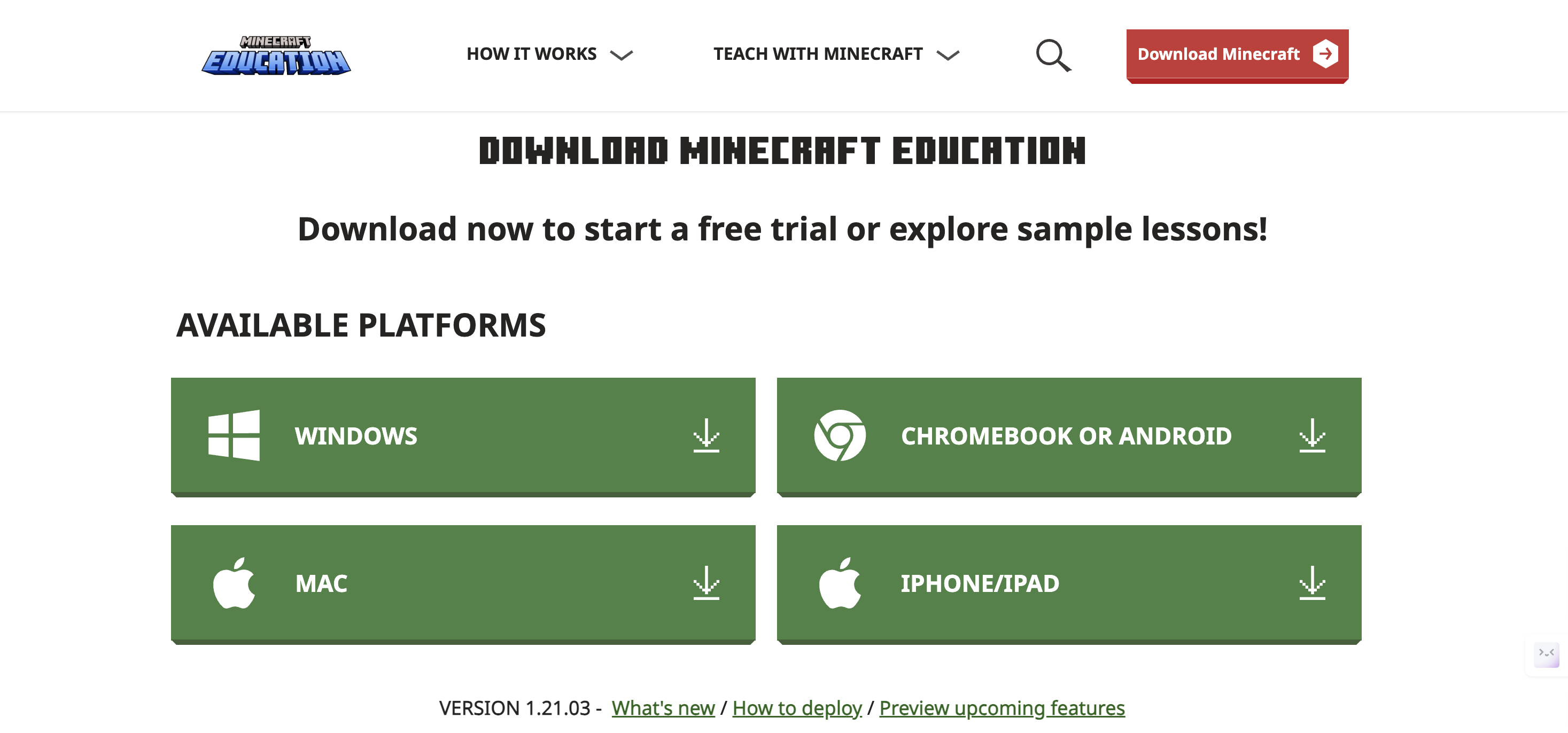
Accessible on Windows, macOS, iPads, and Chromebooks.
2️⃣ Basics of Installation and Access
-
System Requirements:
-
Windows/macOS: Requires Minecraft Education app.
-
iPads: Available via the App Store.
-
-
Installing Minecraft Education
-
Visit Minecraft Education download website.
-
Click “Download” for your respective devices
-
Follow on-screen installation instructions. (You can view this page if you want to know how to install apps on your MacBook properly)
-
-
Logging in
-
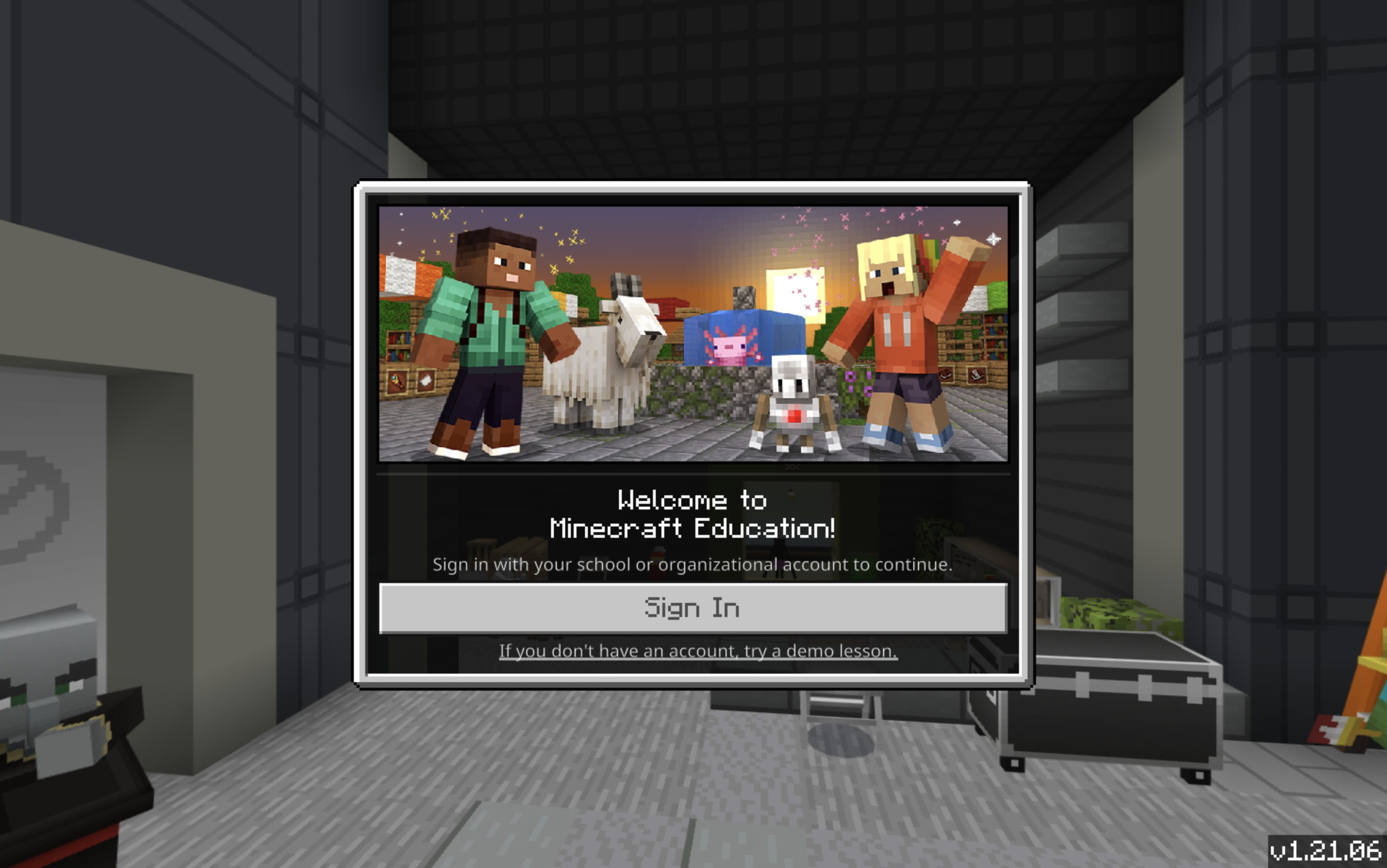
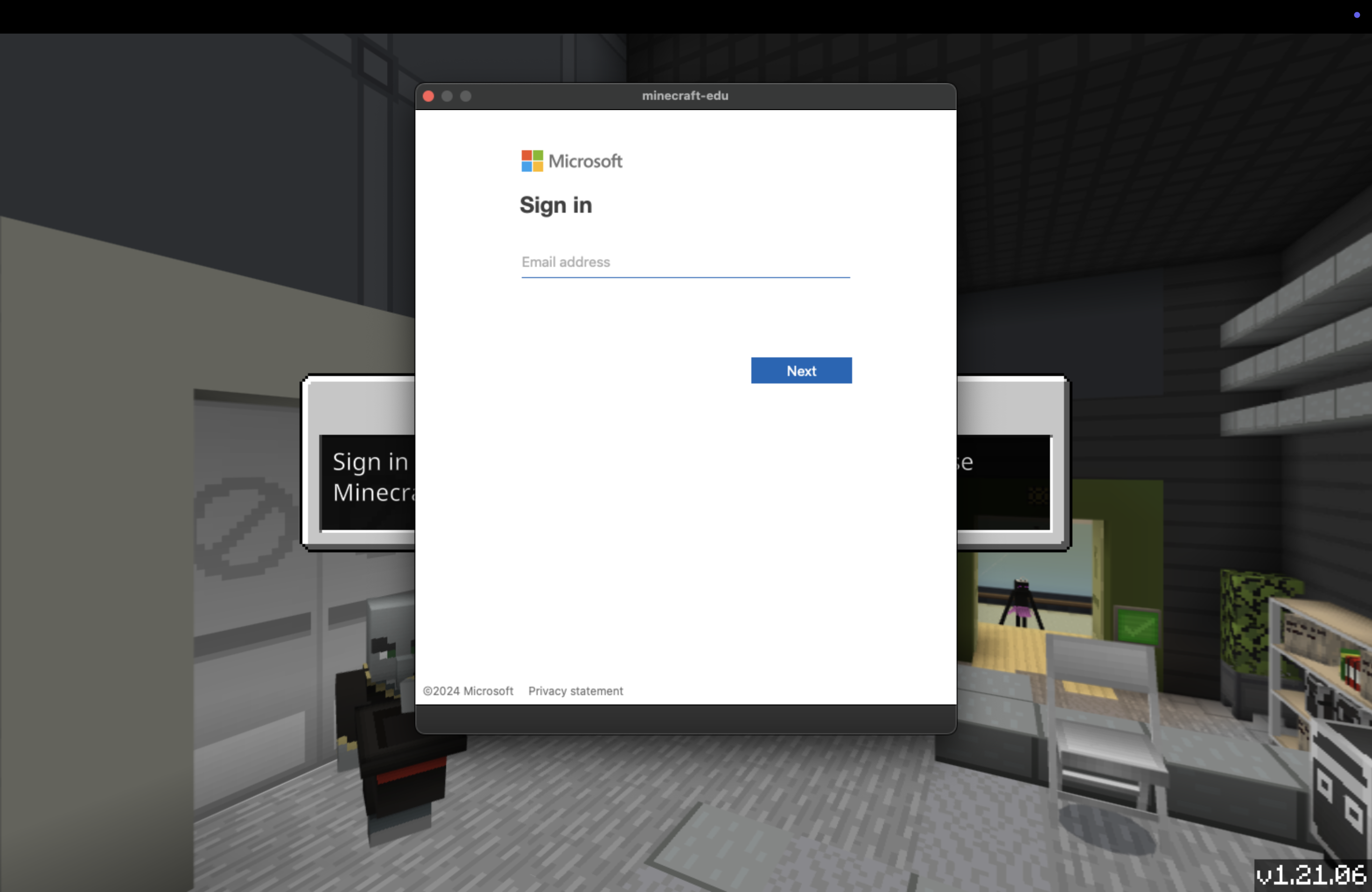
Confirm with your IT administrator about your Office 365 or Microsoft 365 Education account.
-
Make sure your account has been assigned a Minecraft Education.
-
3️⃣ Getting Started with Minecraft Education
🔹 Getting Familiar with Minecraft Education:
New to Minecraft Education, watch this video:
🔸 Basic Controls and How to Play Minecraft Education:
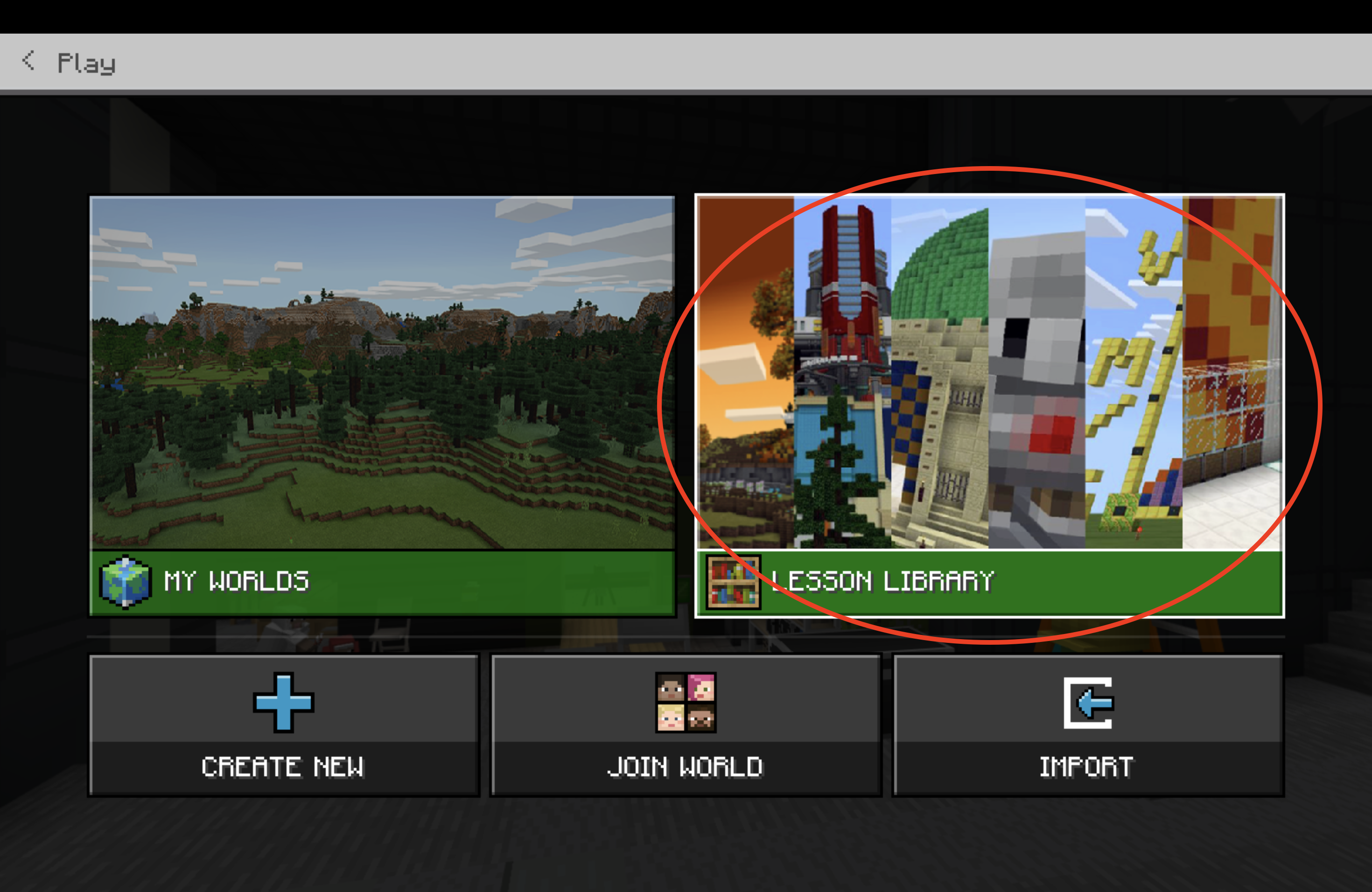
You can access the tutorials from “Lesson Library” after you log in:
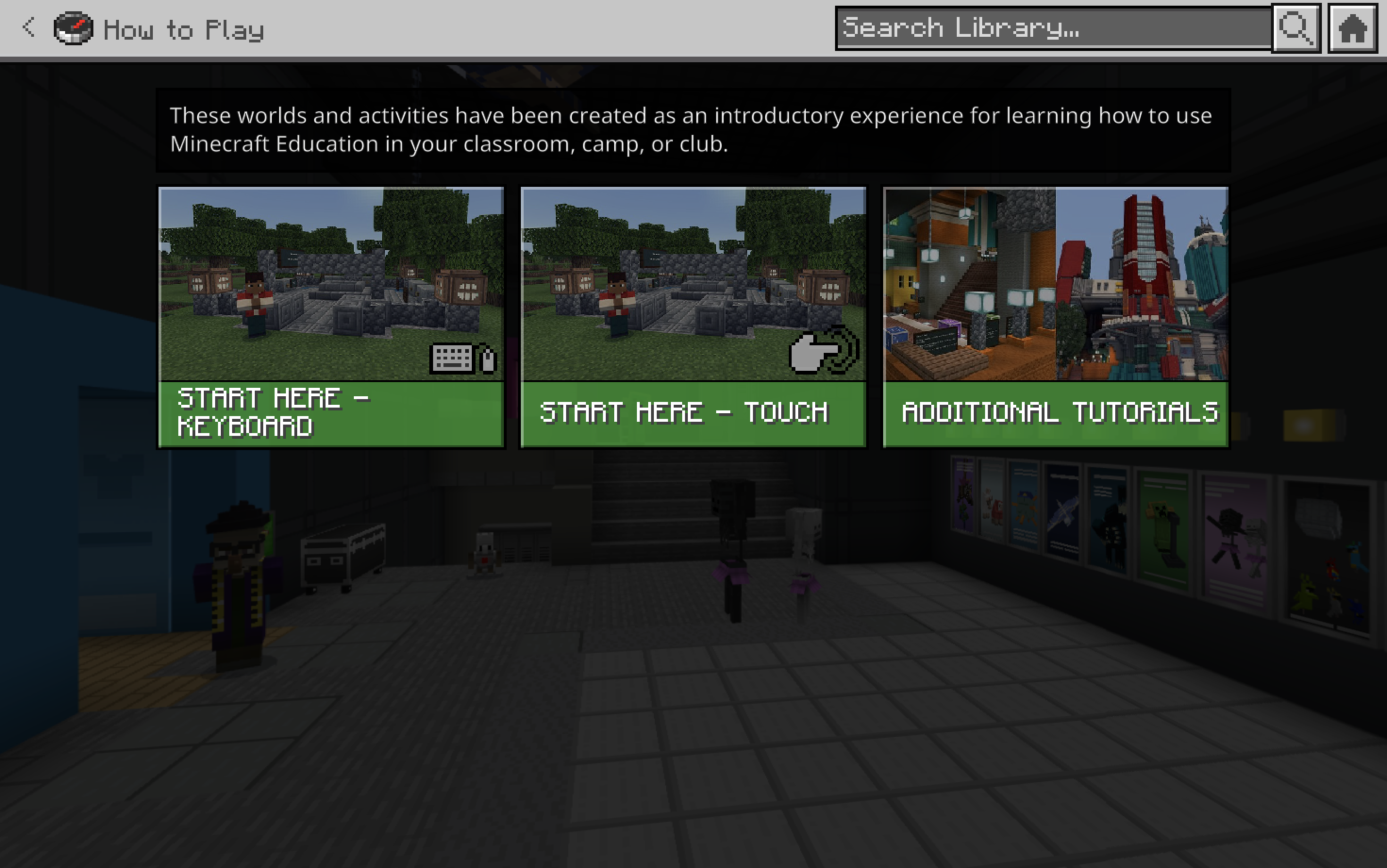
If you are playing Minecraft via desktop, select “Start Here - Keyboard”.
If you are playing Minecraft via iPad or tablet, select “Start Here - Touch”.
Introduction on how to get started with Minecraft Education:
🔹 Setting up a World:
-
Creating a new World:
-
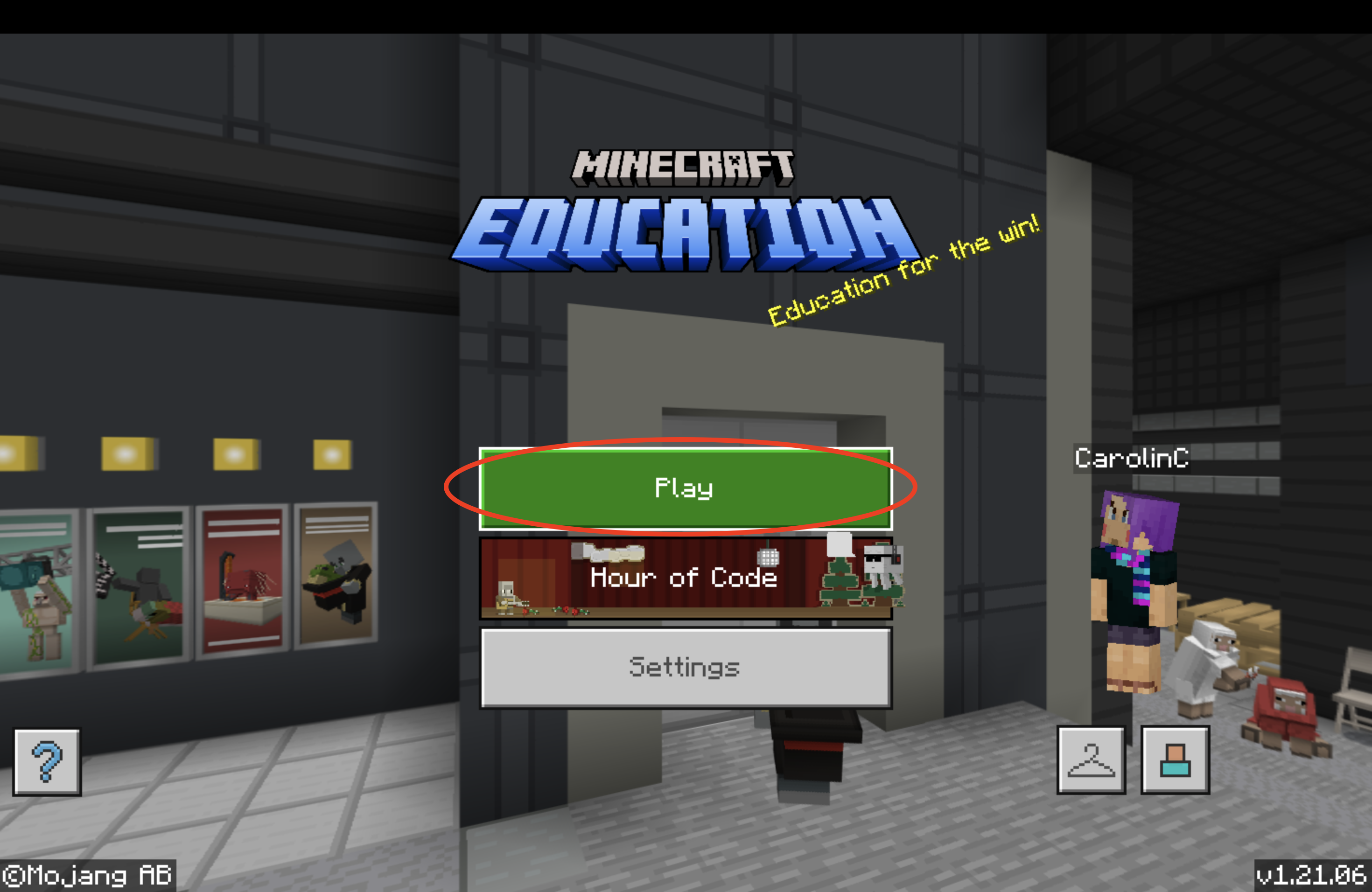
Click “Play”.
-
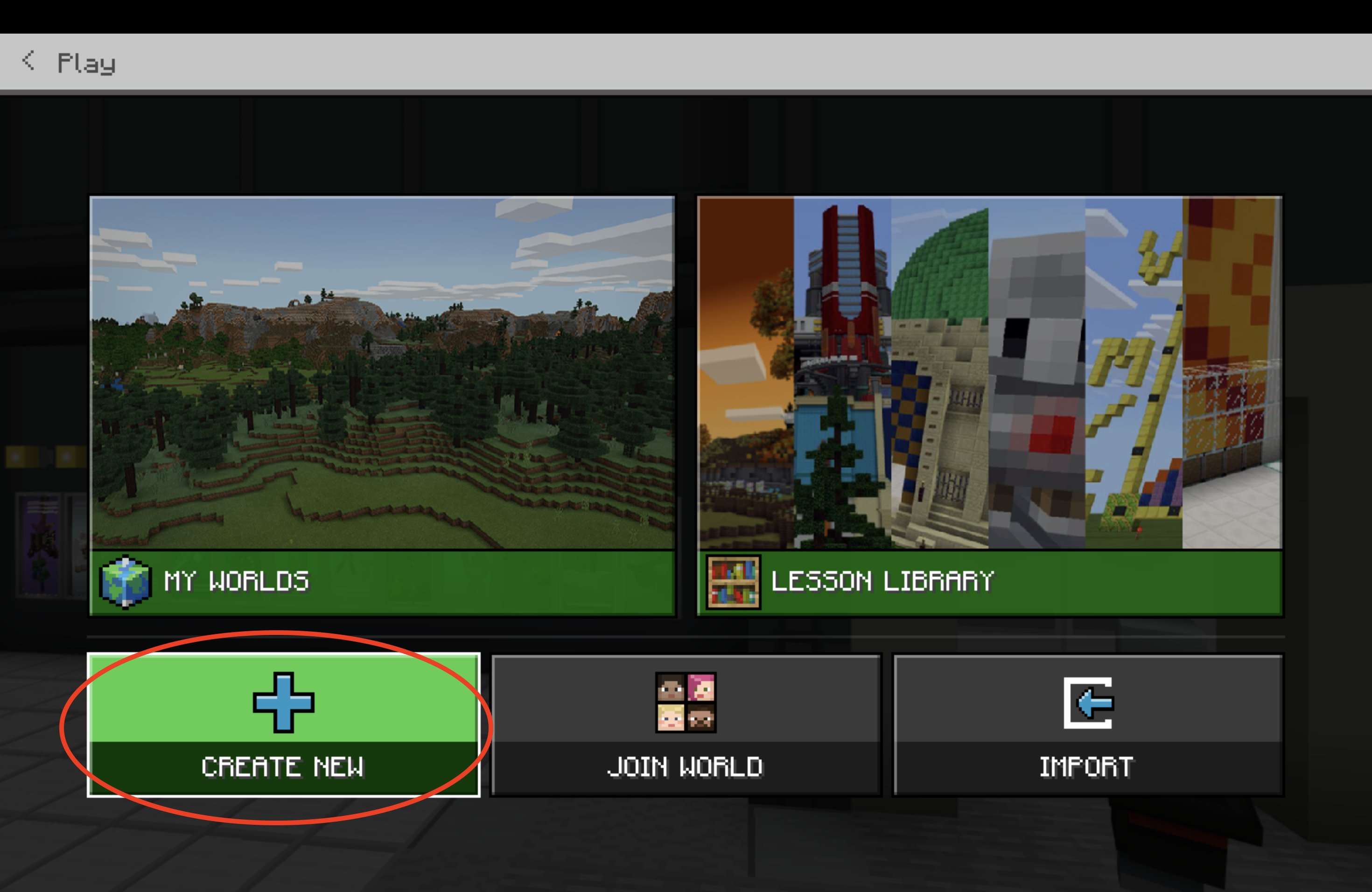
Select “Create New”.
-
Choose a template or customize settings like:
-
Creative Mode: Ideal for building and exploration.
-
Survival Mode: Adds challenges for problem-solving activities.
-
-
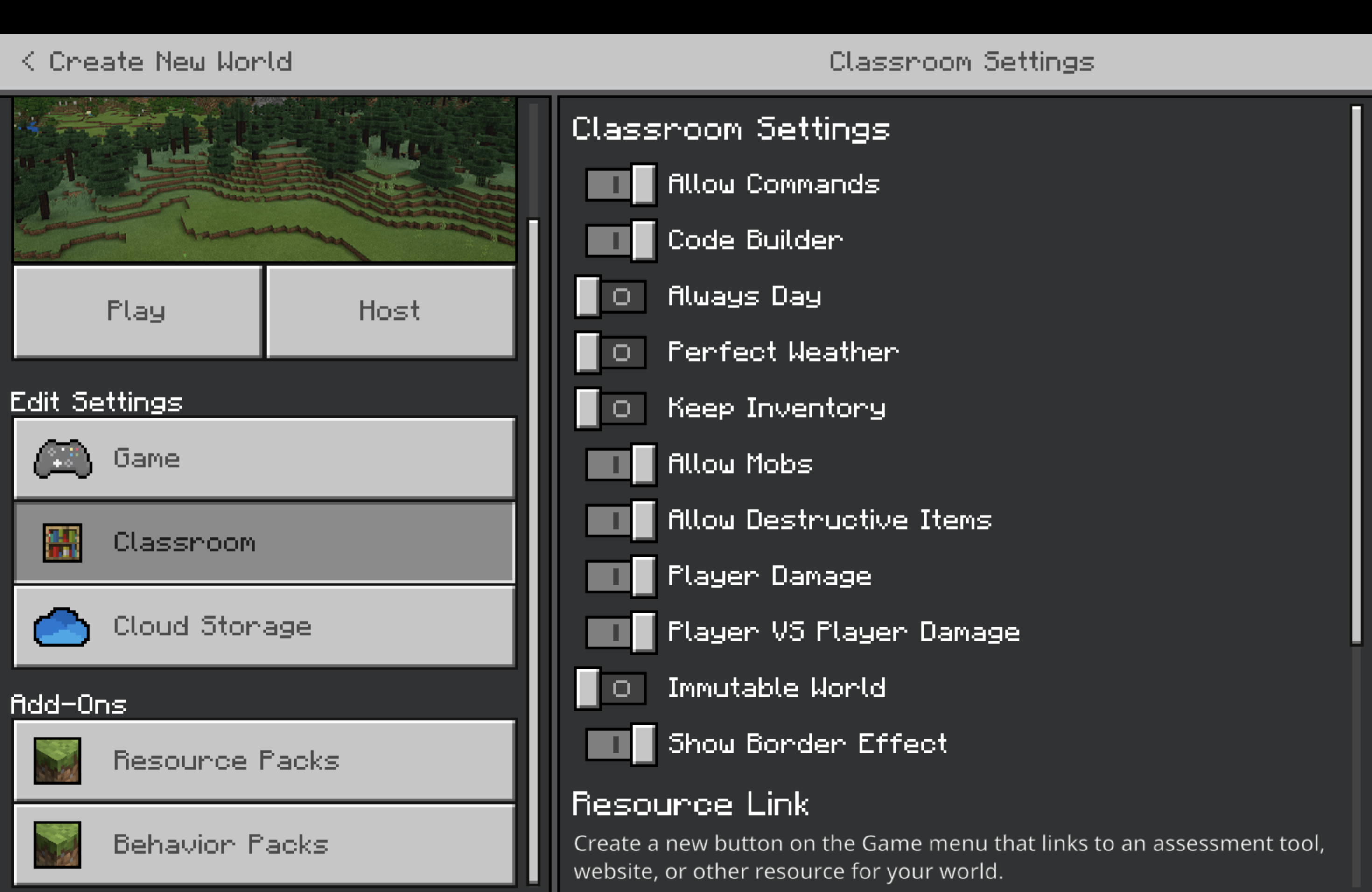
Managing Settings:
-
World Name: Name it according to the activity (e.g., Water Cycle Exploration).
-
Classroom Mode: Use this feature to manage and monitor students' activities.
-
-
-
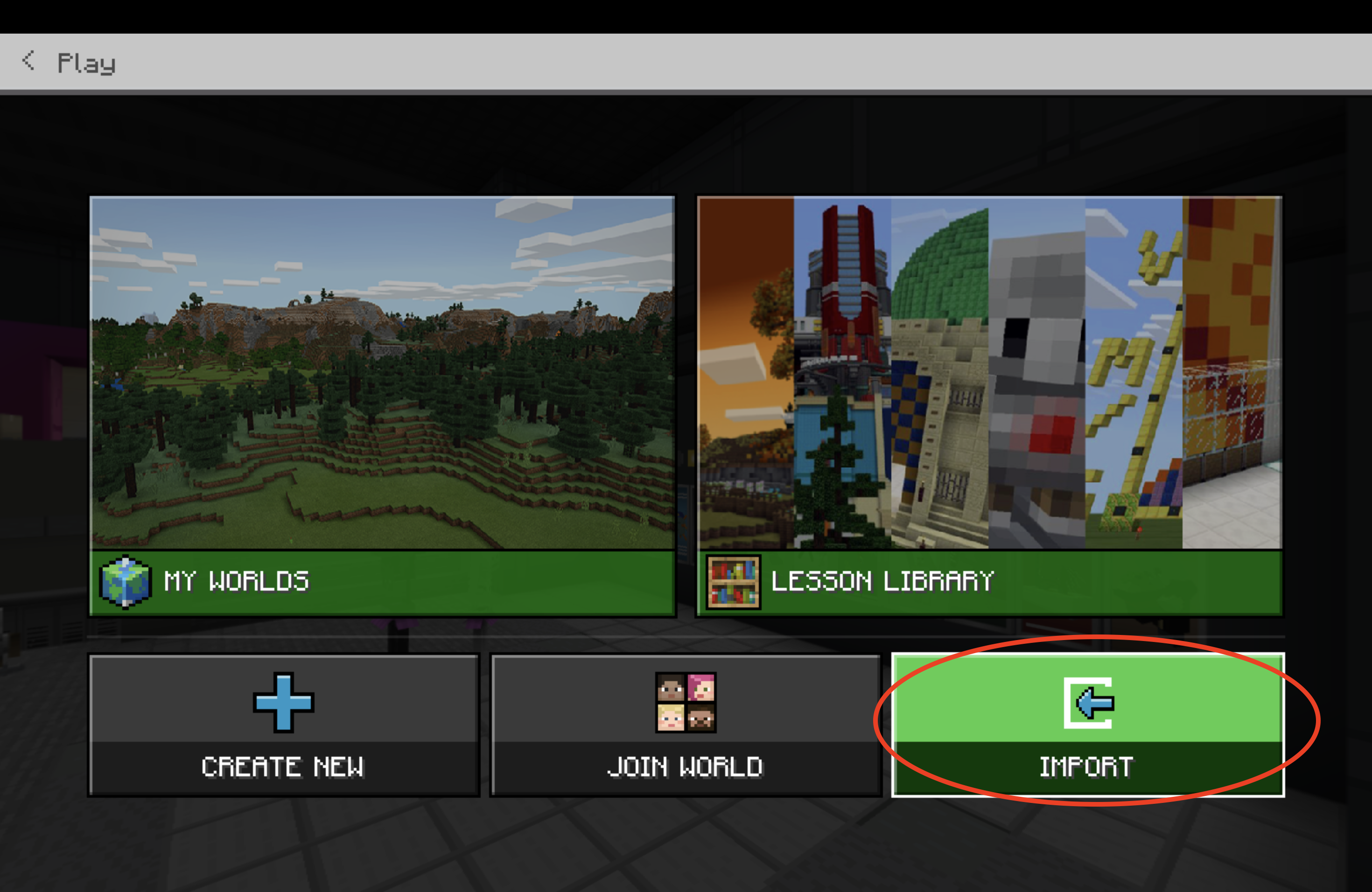
Importing Worlds
-
Download pre-designed worlds from the Minecraft Education website or the Minecraft Lesson Library.
-
Save the world (.mcworld).
-
Click “Import” to import the world into your library.
-
-
📋 Additional Resources
-
Official Lesson Plans and Worlds
-
Minecraft Education Lesson Library: Download subject-specific activities.
-
Minecraft Education Challenges: Engage students with bite-sized tasks.
-
-
Professional Development
-
Minecraft Education Teacher Academy: Free courses and certifications.
-
Minecraft Education Trainer Academy: Free certification.
-
Minecraft Education Community: Connect with educators worldwide.
-
-
Additional Tutorials and Support
-
YouTube Channel: Step-by-step tutorials.
-
Help Center: Comprehensive FAQs and support articles.
-