.png)
There are two main areas you can access your class space.
-
From Google Calendar
-
From Aoba Global Campus (AGC) Class
Method 1: Google Calendar
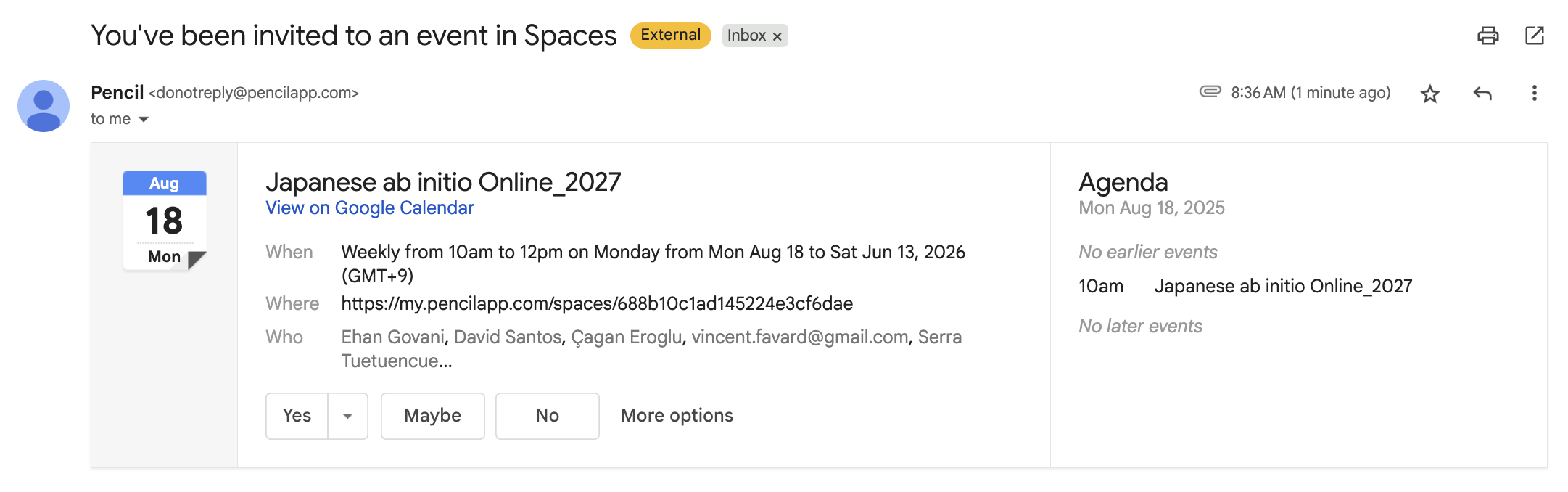
First, for each class you have been added to, you will receive an invitation through your Google Account. The example below is what it will look like in your GMail.
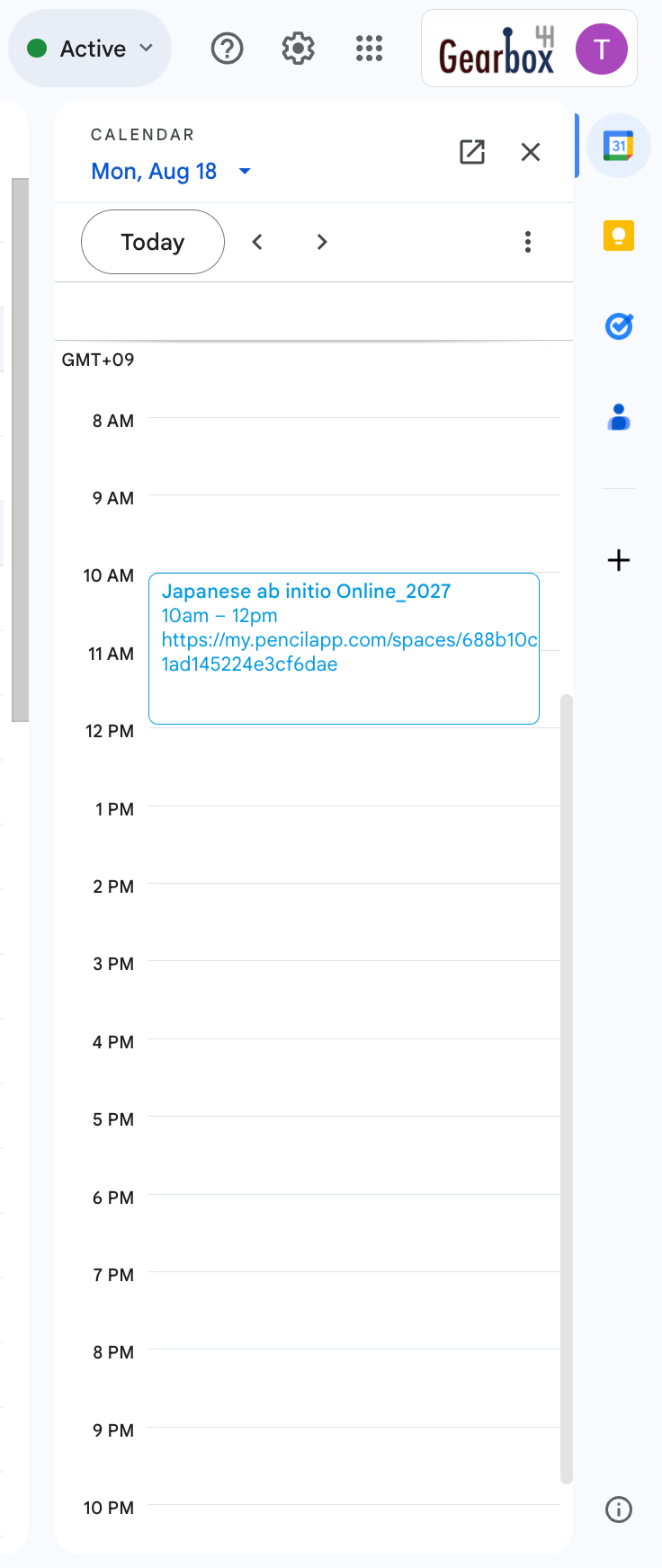
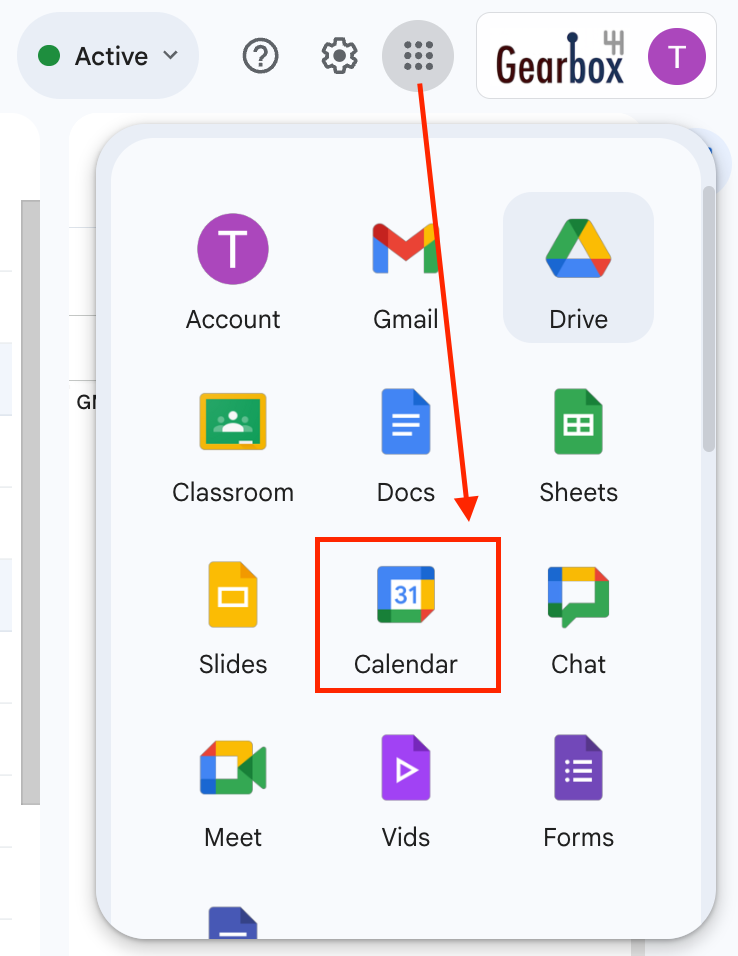
You will also see the invitation in your GCal. To Open your calendar, access either from the side panel, or by opening the apps and clicking on GCal.
If you accept the event, it will turn a solid color. You can click it to show more information.
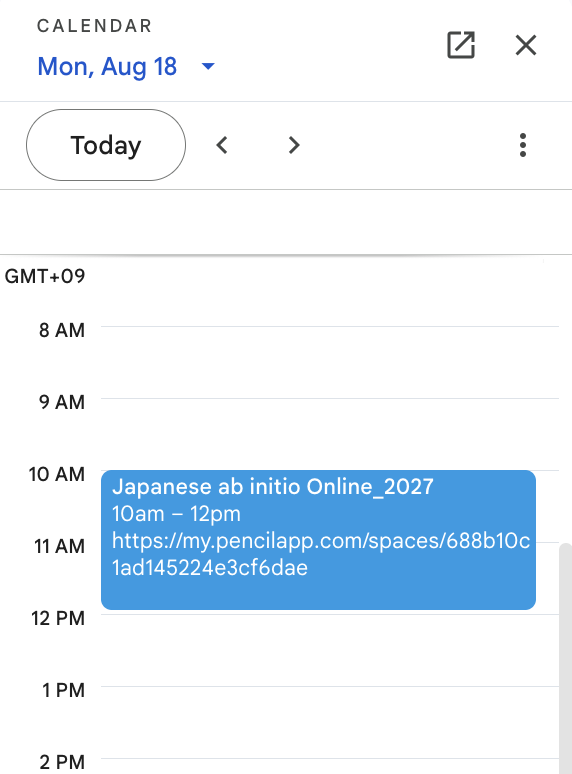
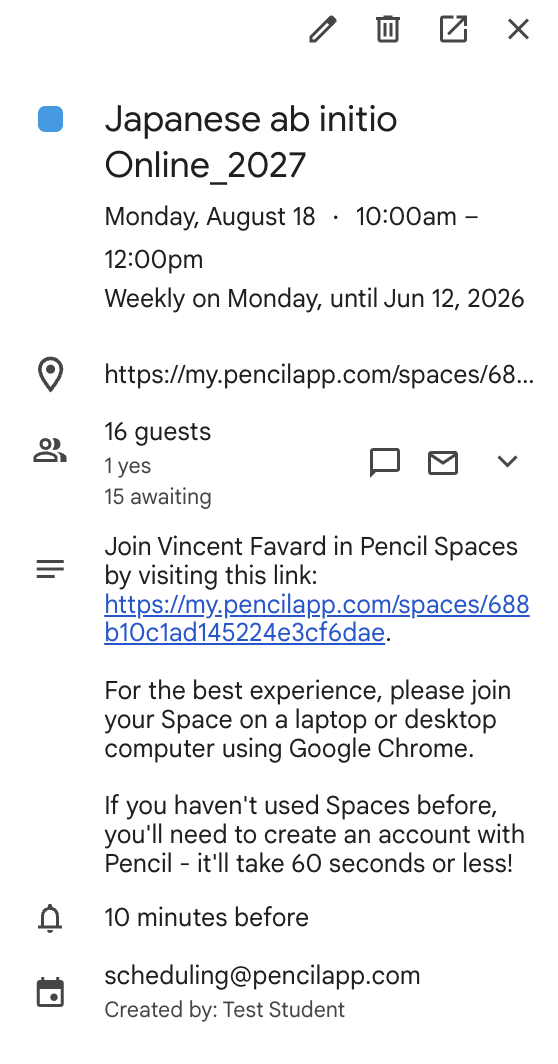
When it’s class time, simply click on the class link https://my.pencilapp.com…… to launch the app and join that class space.
Method 2: Aoba Global Campus (AGC)
Make your way over to AGC https://learn.aobajapan.jp/ and login with your Aoba Google Account.
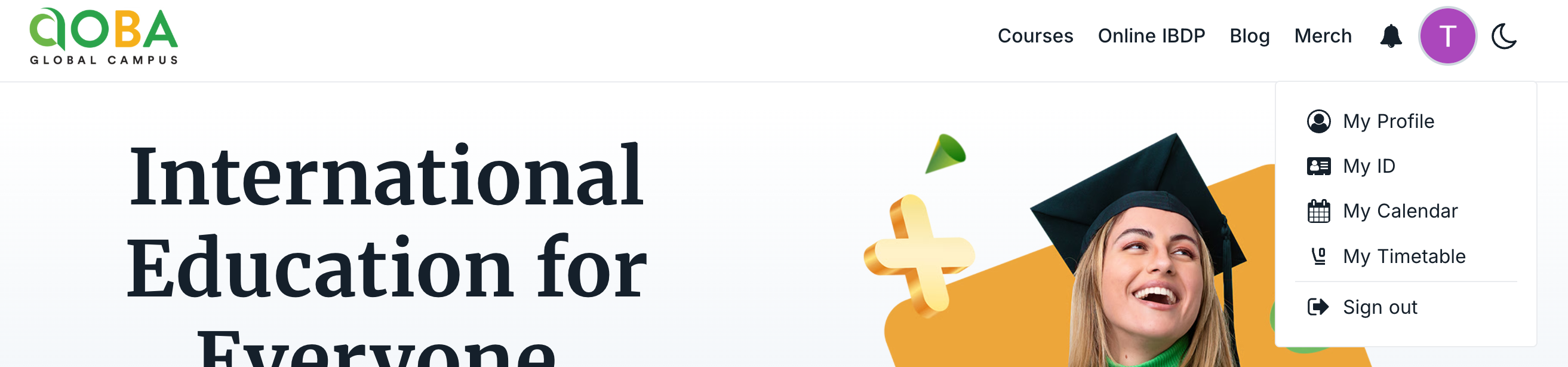
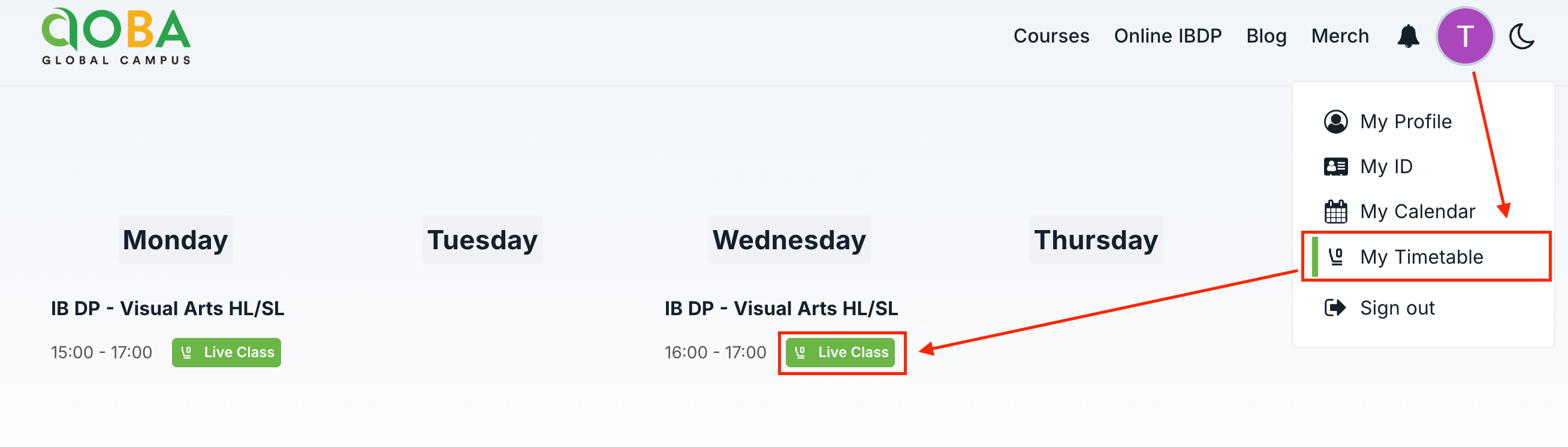
Under your profile icon, click ‘My Timetable’.
From there, you will see the classes you are enrolled in, and can launch the unique Pencil Spaces by clicking on the green LIVE CLASS button.
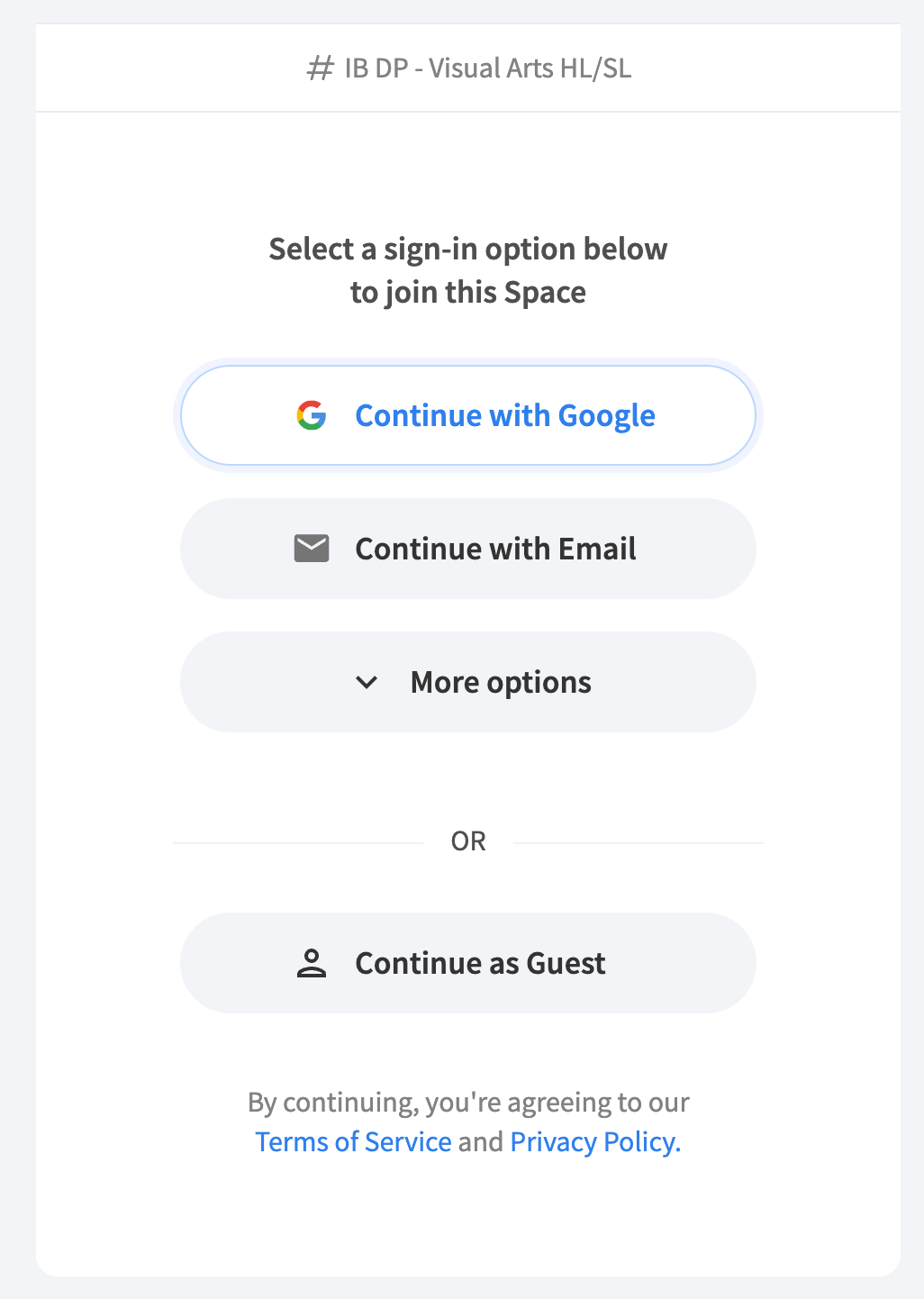
Once PS launches, you may need to login again, using your Aoba Google account.
That's it!