.png)
This workflow helps teachers move important lesson recordings in Pencil Spaces into ScreenPal for editing and sharing.
Step 1: Export from Pencil Spaces
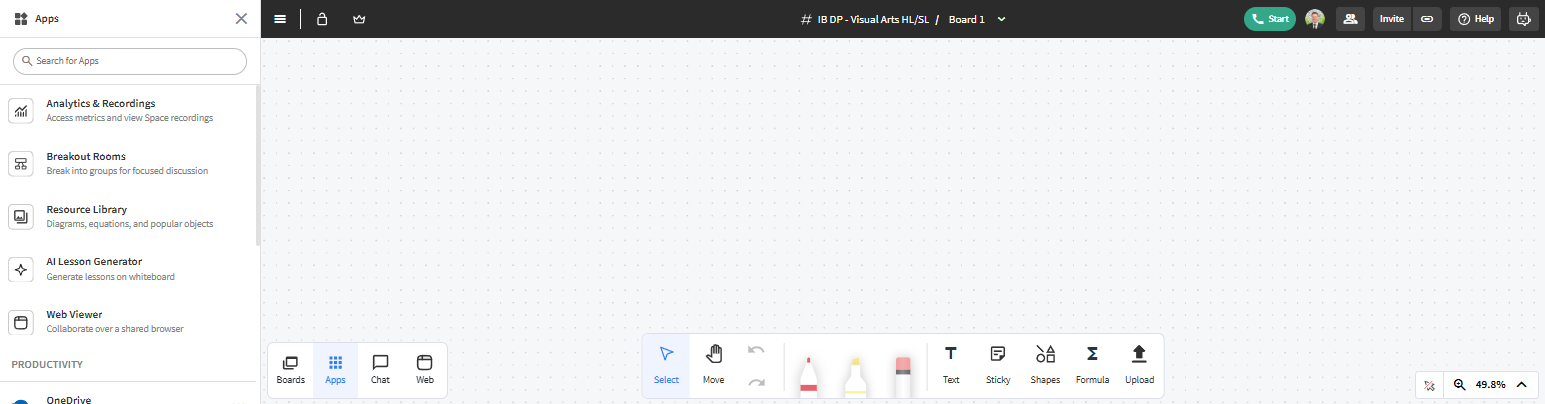
Open your Pencil Space, and go to Apps > Analytics & Recordings
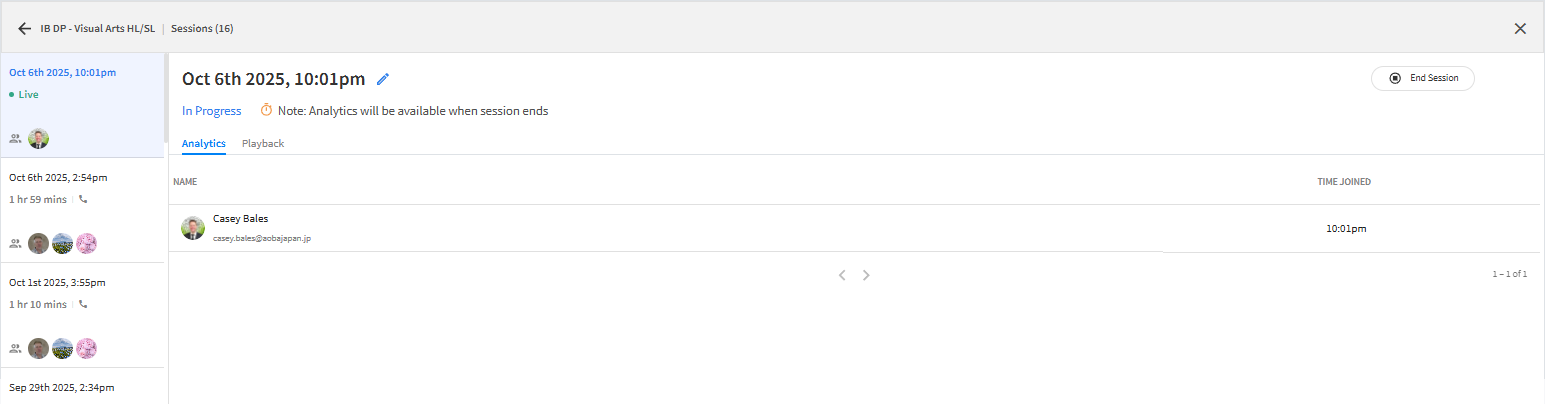
Select the class session from the left side navigation
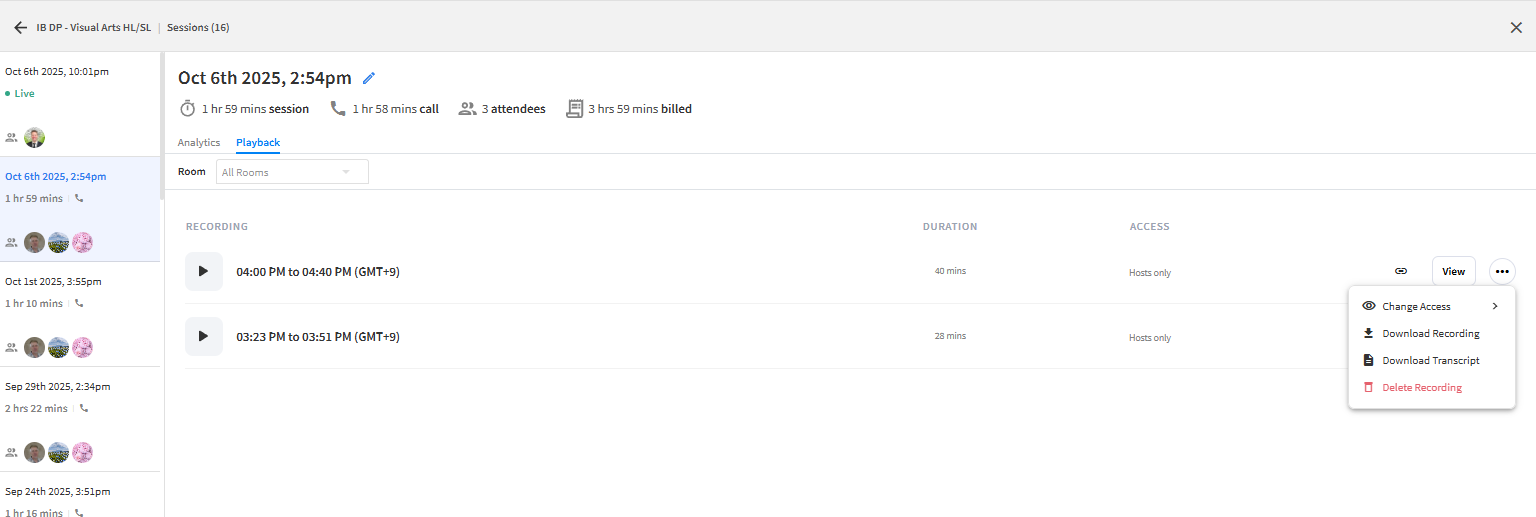
Click on playback and then the 3 dots and download the recording to your computer.
Step 2: Import into ScreenPal
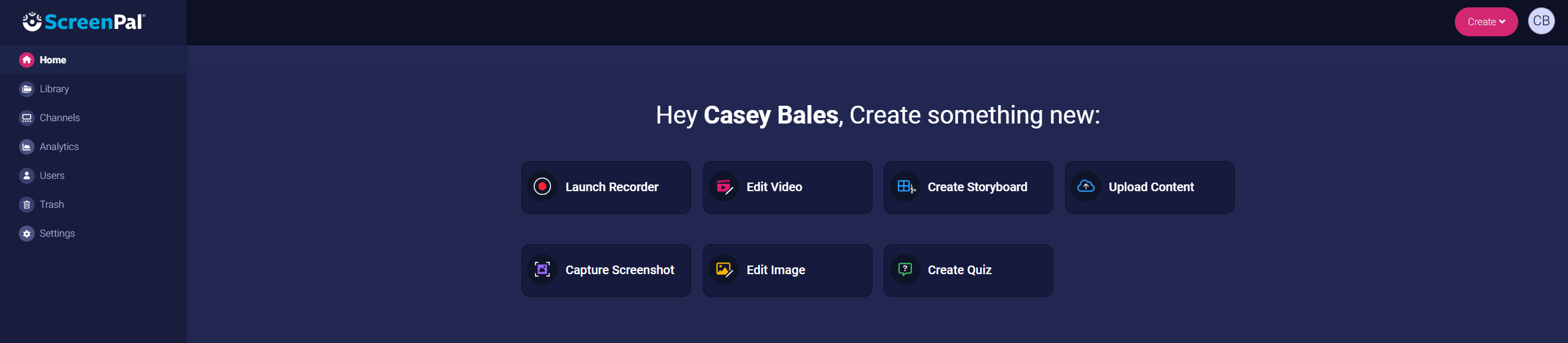
Open ScreenPal → Home→ Upload.
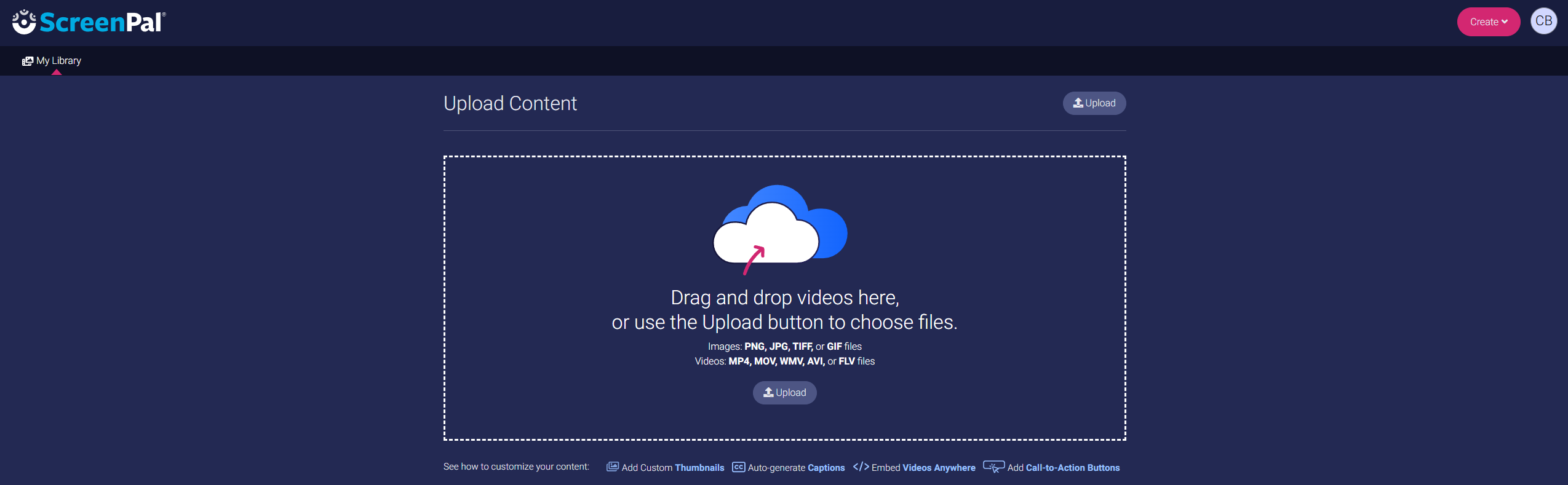
After selecting your video, wait for it to finish uploading, until you see the check mark.
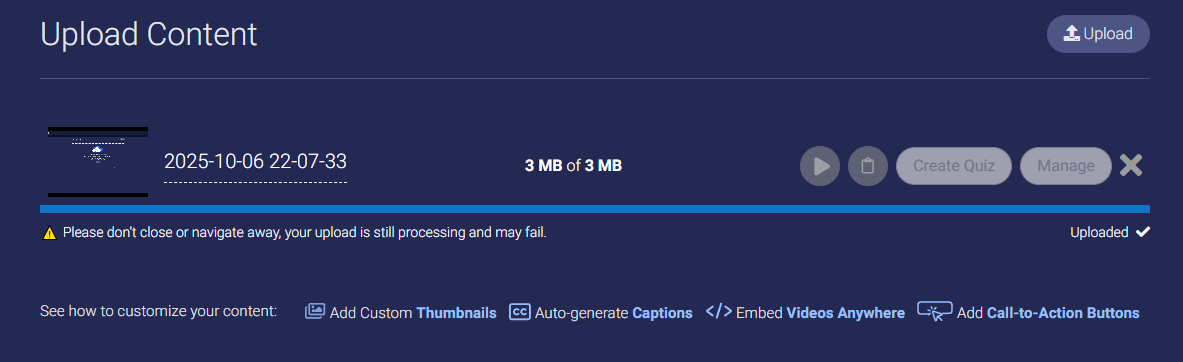
Edit the video as needed by renaming the title, adding a summary, and anything else.
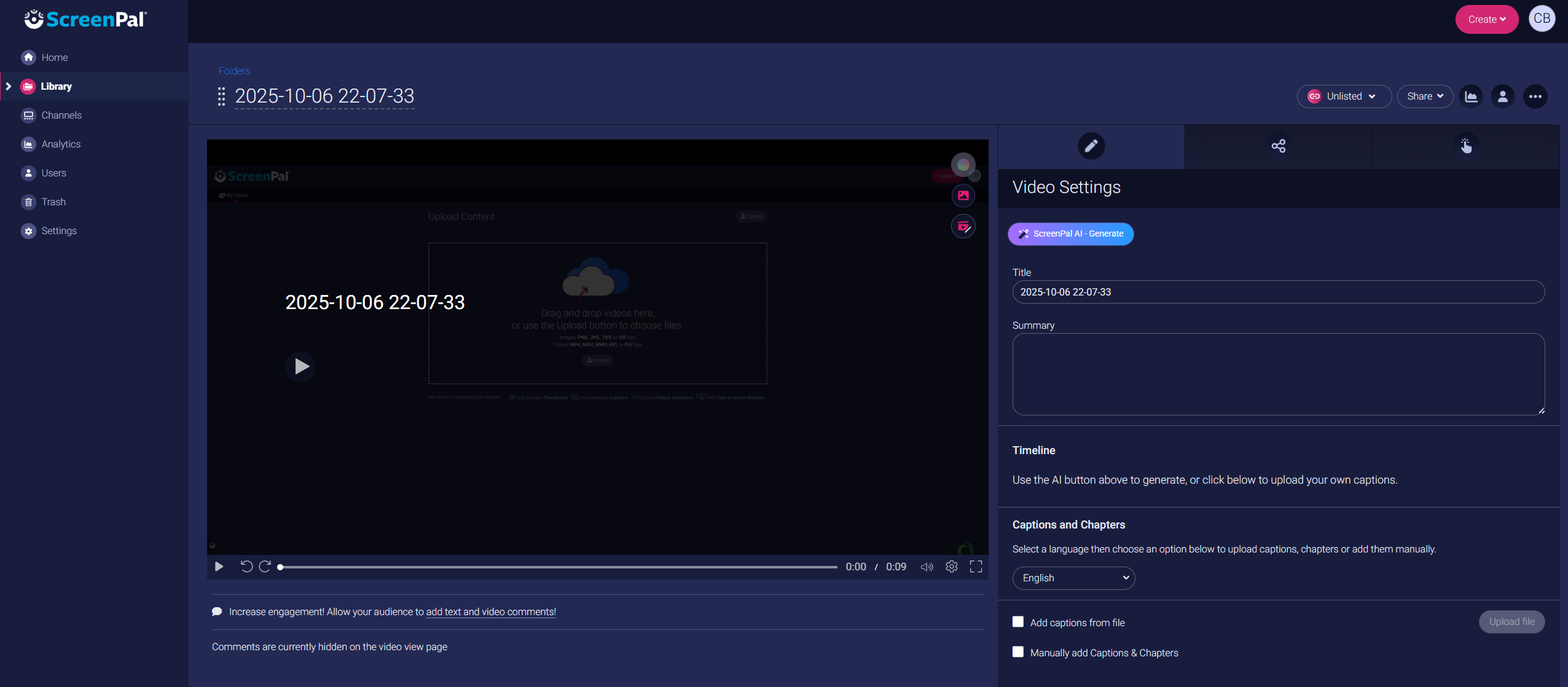
Step 3: Share the video
Go to your library, find the video. There are two ways to add it to your channel.
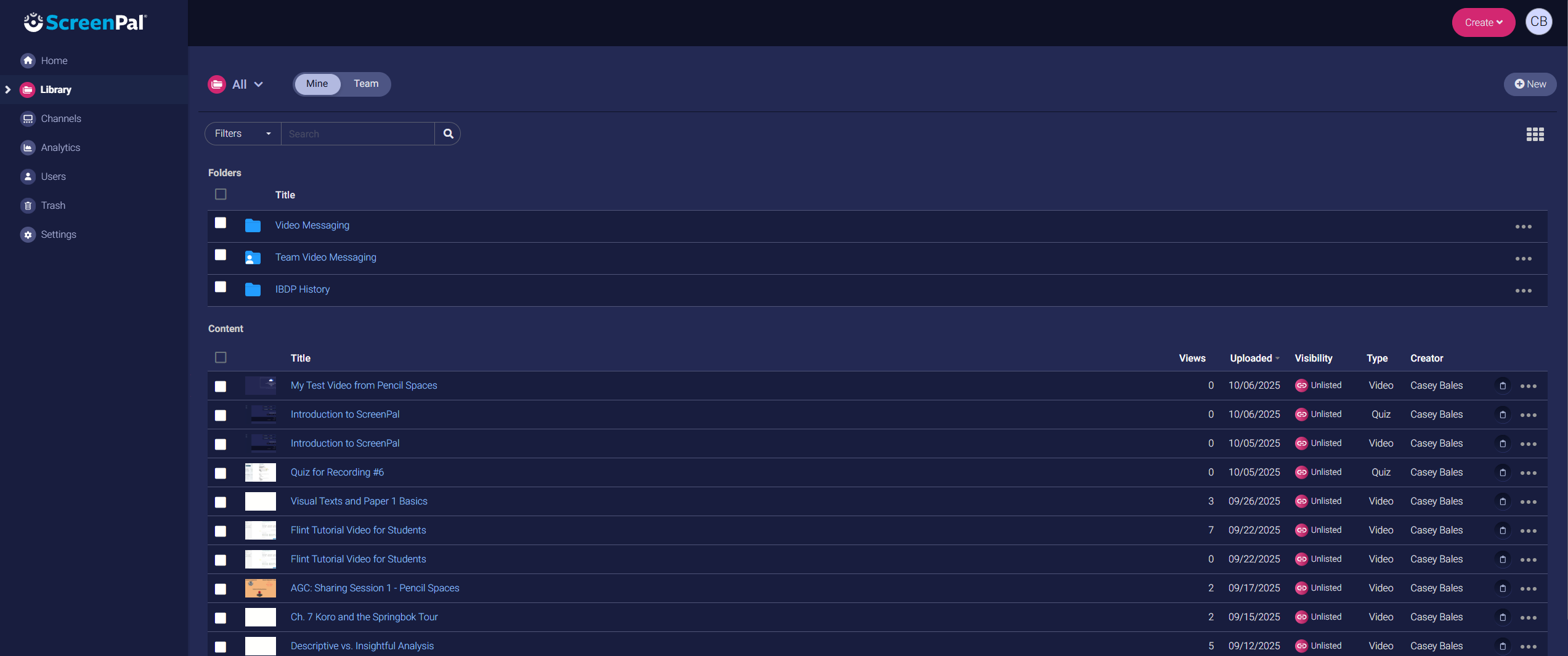
Method 1. Click the 3 dots on the right > Channels

Method 2. Check the box and then click channels at the bottom.
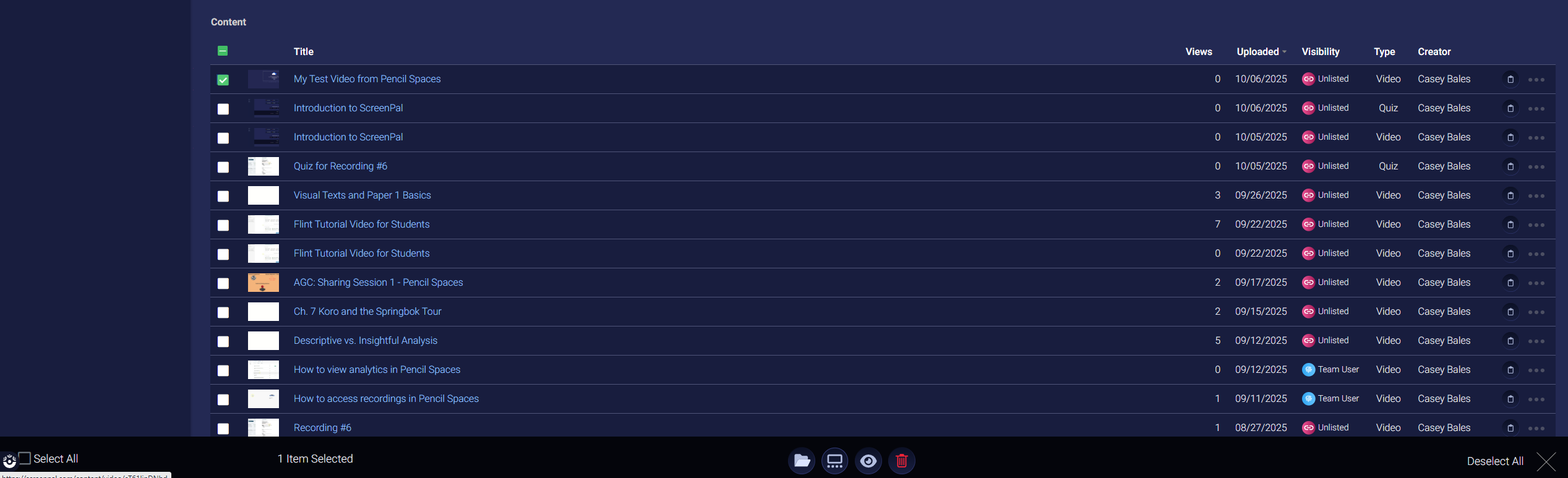
Then select which channel(s) you’d like it to be visible in.
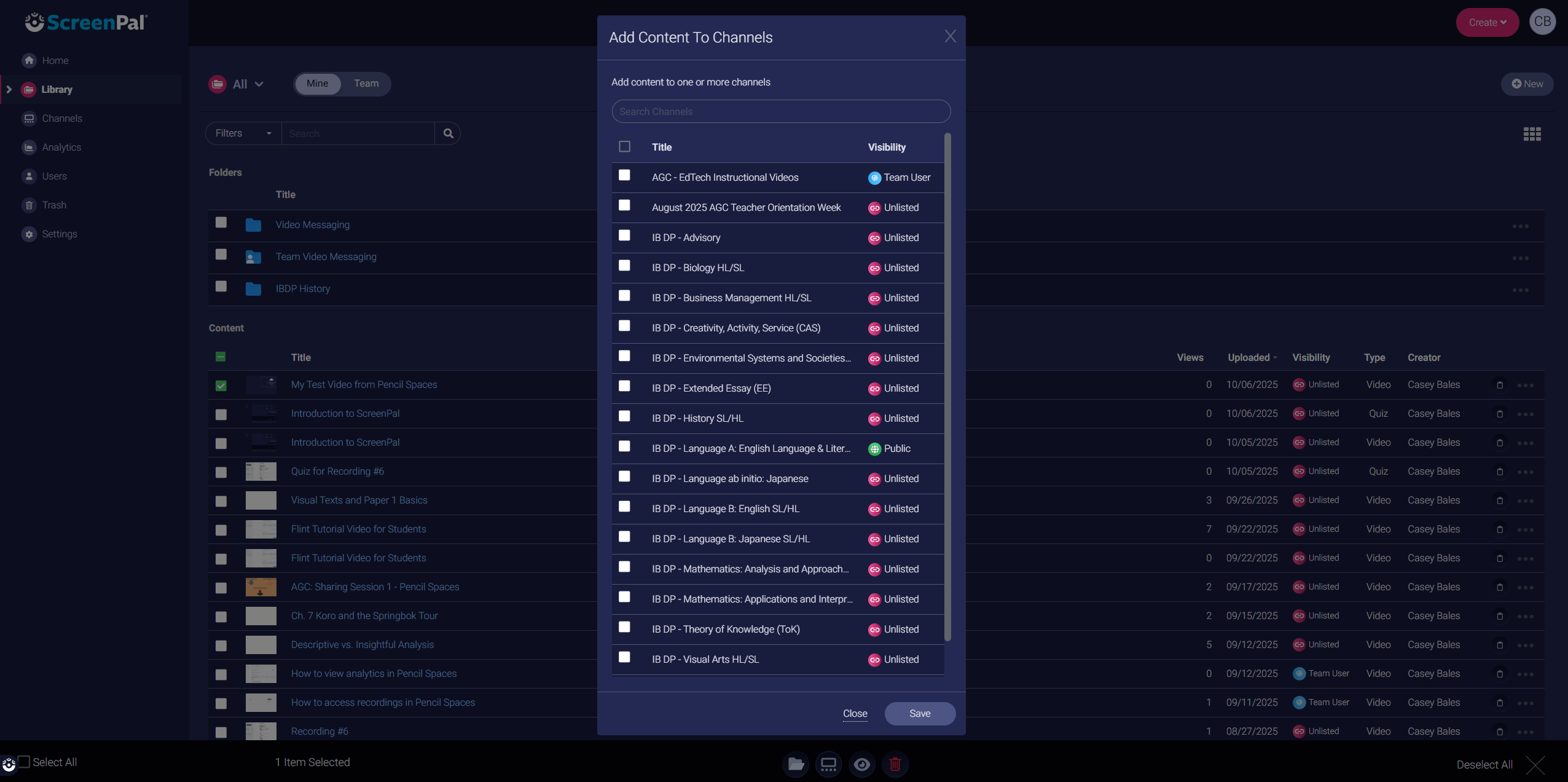
Make sure your sharing options are correct so students can see your channel/video.