
Important: Who to Contact for Support
Toddle is managed directly by our Curriculum & Academic Coordinators. To streamline support, please direct your questions to the appropriate team based on the guidelines below:
|
Issue type |
Who to Contact |
|---|---|
|
Academic & Content: Report Cards, Assignments, Class Roster Setup, Units, Curriculum Planning, Student Grading |
Respective Curriculum Coordinators |
|
Technical & Authentication: Single Sign-on (SSO) Login failures, account syncing errors |
ICT Helpdesk (via tickets) |
❓ Frequently Asked Questions (FAQ)
Q1. What should I do if I get a log-in error?
Contact: ICT team
Most log-in errors occur due to a temporary syncing issue between Veracross and Toddle regarding your email address.
Submit an ICT support ticket and attach a screenshot of the error message so that our team can quickly resolve the error.
Q2. How should I communicate with students and parents?
Best practice: Always utilize Toddle Announcements for all official classrooms and courses updates, and Toddle Channels for direct communications with parents and students, and/or whole class
Q3. How do I find my previously created units? (Or view previous school year’s units)
You can access past units in the school library. (This applies to returning and new teachers)
Tip: To see more complete results, make sure to click the filter icon (funnel symbol) and expand your search parameters.
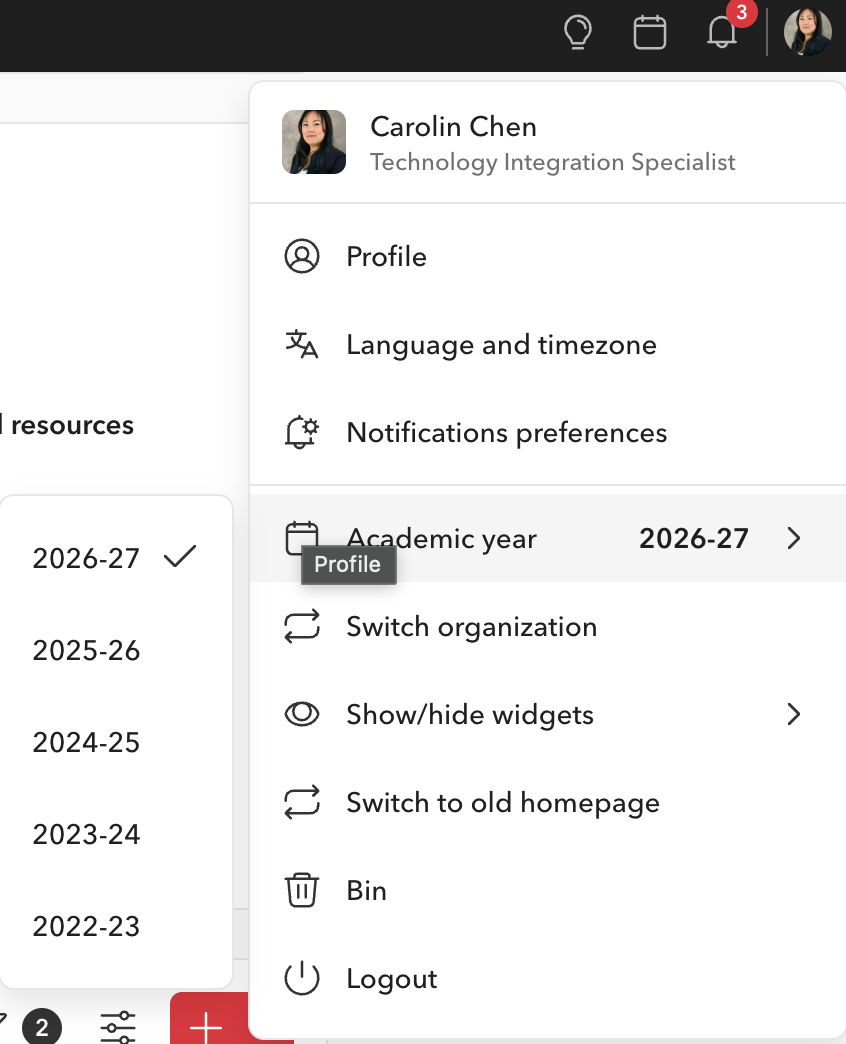
Q4. How do I switch to view previous academic years?
To access classes, units, or portfolios from past acadmic years:
Click on your profile picture icon in the top right corner.
Select the desired Academic Year from the dropdown menu.
Q5. Where can I find student login details and family invitation codes?
Teachers have direct access to their students' credential management:
Open your Toddle, and go to Class Settings under your course.
Here you can generate or view Students Sign-in Codes and access Family Members.
Q6. Can I use Toddle on my mobile device?
Yes! You can download and install the Toddle Educator app on your phone app store.
Note: While the mobile app is convenient for quick updates and capturing portfolio media, using the desktop web version is strongly recommended for full functionality (especially unit planning and report writing).
Q7. How do I share Unit information with parents and students?
Teachers are required to share basic unit overview details with students and parents. Always confirm with your Curriculum Coordinators regarding the specific details and preferred sharing method for your grade level.
Steps to share a unit:
Navigate to Course Plan for your units.
Click on the 3 dots and under “Student & Family access”
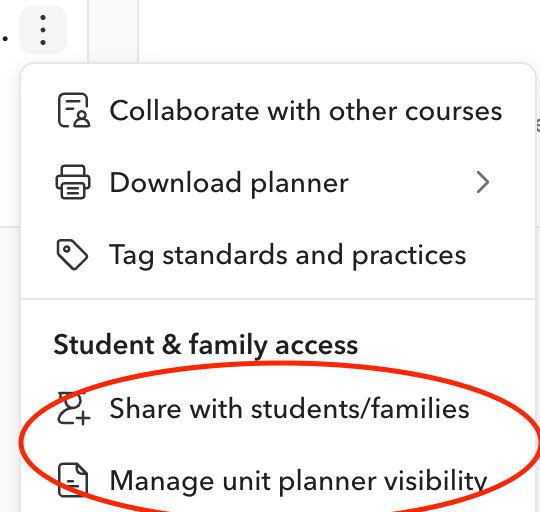
Click on Manage Unit Planner Visbility to select which fields are visible to students and family members.
Click Share with students/families
Click Save.
Resources
https://helpcenter.toddleapp.com/en/collections/15991091-educators